OpusClip for Podcasts: Turn Episodes Into Viral Clips (2026 Guide)
Using opusclip for podcasts allows audio and video creators to transform full-length episodes into polished, platform-ready short video clips in just a few clicks. By automating speaker reframing, viral moment detection, animated captions, and social scheduling, the platform helps podcasters publish consistently across social channels without spending hours in timeline editors.
Affiliate disclosure: This article may contain affiliate links. If you buy through them, we may earn a commission at no extra cost to you. Details were checked on November 24, 2026 and can change.
Official website · Latest pricing & offers
Quick Answer: How Does OpusClip for Podcasts Work?
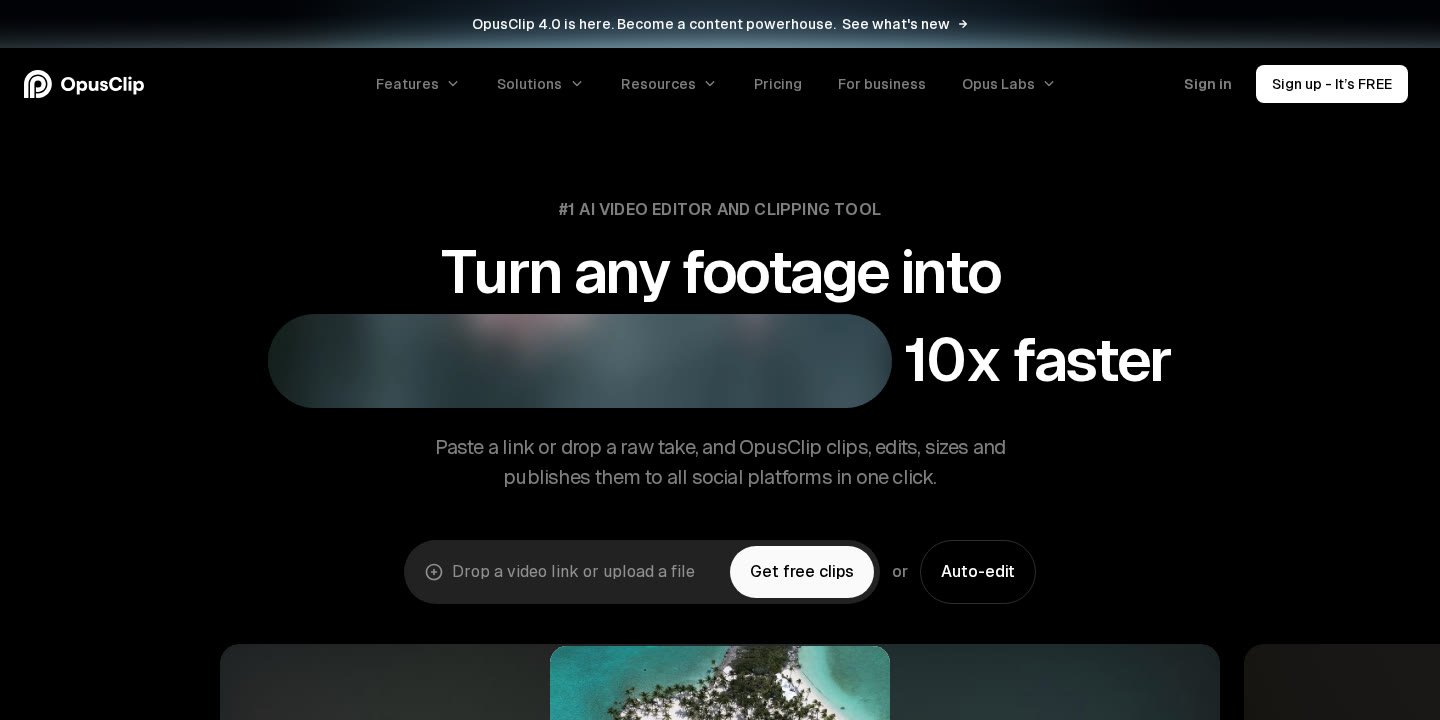
OpusClip is an AI video clipping and editing platform (currently on version OpusClip 4.0) designed to ingest long-form recordings and output high-retention vertical videos. For podcasters, the platform provides an automated pipeline that detects engaging moments, highlights key discussions, centers speakers, and formats clips for mobile viewing.
- Link and File Ingestion: Podcasters on Pro plans can drop links from platforms like YouTube, Riverside, StreamYard, Zoom, Google Drive, or Vimeo, or upload local files up to 10GB.
- AI Curation and Virality Score: The software analyzes dialogue and narrative arcs, cutting long interviews into standalone clips and assigning each a Virality Score.
- Speaker Tracking and Layouts: ReframeAnything automatically resizes horizontal footage into vertical (9:16), square (1:1), or landscape (16:9) formats while keeping active speakers centered using AI object tracking.
- Dynamic Captions: Automatically generates animated subtitles in more than 20 languages, complete with emoji integration, keyword highlighting, speaker-based colors, and curse word filtering.
- Direct Scheduling: Built-in social scheduling enables podcasters to queue a month of content to YouTube Shorts, TikTok, and Instagram Reels in minutes.
Why Podcasters Need a Dedicated Video Clipping Workflow
Long-form podcasting provides deep discussions, but modern audience discovery happens predominantly through short-form social feeds. Converting a 60-minute interview into five to ten distinct social media clips is one of the most effective ways for podcasters to drive new listeners back to their full episodes. According to official OpusClip metrics, consistent posting through automated clipping can accelerate reach and dramatically decrease production turnaround times.
Historically, creating social clips required a video editor to manually listen through an episode, log timestamps, cut snippets, crop widescreen footage to vertical 9:16, add keyframes to follow changing speakers, and transcribe captions word by word. For independent creators or small production teams, this manual workload often created a bottleneck that made consistent daily posting impossible.
Automating this repurposing pipeline with dedicated tools allows creators to focus on interview preparation and recording rather than post-production mechanics. By applying AI curation to find conversational hooks and automatically formatting the visual presentation, podcasters can maintain a steady presence on short-form platforms without increasing their overhead.
Step-by-Step: Using OpusClip for Podcasts to Repurpose Full Episodes
Repurposing a full podcast recording into clips inside OpusClip follows a structured, step-by-step workflow designed to move from raw footage to published content rapidly.
Step 1: Import Your Episode Footage
OpusClip offers flexible input options depending on how you record your podcast. If you record in a studio and save files locally, you can upload raw video files up to 10GB directly into the web application. Alternatively, if you host remote video podcasts or stream your episodes, Pro users can paste links directly from supported services including:
- YouTube
- Riverside and StreamYard
- Zoom and Loom
- Google Drive and Vimeo
- Twitch, Rumble, Facebook, LinkedIn, and Twitter
Step 2: Configure Clipping Timeframes and Lengths
Once your video is imported, you can instruct the AI on how to handle the footage. Creators can set specific clipping timeframes if only a certain segment of an interview needs repurposing, or allow the AI to scan the entire episode. You can also define your target clip length, selecting intervals such as 0–1 minute, 1–3 minutes, 3–5 minutes, 5–10 minutes, or 10–15 minutes depending on whether you are targeting TikTok, YouTube Shorts, or longer mid-form platforms.
Step 3: AI Analysis via ClipAnything and Virality Score
OpusClip processes the footage through its ClipAnything model. The software transcribes dialogue, identifies topic shifts, flags compelling soundbites, and isolates complete thoughts. Each generated clip is assigned a Virality Score. If a particular output needs adjustment, creators can use the AI copilot feature to reprompt and fine-tune the results.
Step 4: Automated Reframing and Speaker Centering
Podcast interviews often feature two or more people sitting in a wide horizontal frame. OpusClip uses its ReframeAnything model to track moving subjects and ensure whoever is speaking stays in the center of the vertical 9:16 frame. For split-screen conversations or presentations, the system can apply dynamic layout switches or screenshare layouts to keep all participants visible without manual keyframing.
Step 5: Reviewing and Polishing in the AI Editor
Once clips are generated, creators can open them in the integrated AI editor. This interface combines text-based editing—where deleting a transcribed word automatically cuts that section of video—with a traditional timeline editor. Podcasters can adjust start and end points, tweak caption text, swap visual layouts, or remove unwanted pauses before exporting.
Captions, Speech Cleanup, and Audio: Polishing Podcast Clips with OpusClip
High visual fidelity is useless if social media users scroll past silent videos or struggle with poor audio quality. OpusClip includes several audio and subtitle tools specifically tailored to interview formats.
Animated Captions and Multi-Language Support
Because many mobile users browse social media with sound disabled, bold captions are critical for retention. OpusClip provides automated animated caption templates with multi-language transcription covering English, German, Spanish, French, Portuguese, and more than 20 additional languages. To keep viewers engaged, the captioning engine features:
- Auto Emoji and Keyword Highlights: The AI emphasizes important words with high-contrast colors and inserts relevant emojis matching the conversation context.
- Speaker-Based Caption Colors: Subtitles can automatically change color depending on who is talking, making multi-guest podcast dialogues easy to follow.
- Auto Censor Curse Words: Creators looking to keep clips advertiser-friendly across platforms can automatically bleep or asterisks profanity.
- Custom Fonts: Pro and Business users can upload brand-specific typography to match their official podcast aesthetic. You can learn more about styling subtitles in our detailed OpusClip captions guide.
Speech Enhancement and Cleanup Tools
Podcast recordings occasionally suffer from background hum, echo, or vocal hesitation. OpusClip 4.0 provides built-in audio enhancements designed to deliver broadcast-quality sound without secondary audio software. Key processing options include:
- Enhance Speech: Uses AI processing to clean vocal tracks, balance levels, and minimize environmental room noise.
- Filler and Silence Removal: Automatically detects and removes verbal fillers (such as “um,” “uh,” and “like”) as well as dead air between sentences, tightening the pace of the clip.
- Bad Takes Removal: Cleans up false starts or stuttered phrases so speakers sound confident and articulate.
- Voice Dubbing: A tool that allows creators to dub their video content into other languages using their own synthesized voice profile.
Maintaining Social Media Consistency with the Built-In Scheduler
According to the official OpusClip site, podcasters can schedule an entire month of social posts across platforms in about 10 minutes. Rather than downloading clips locally and manually uploading them to individual social apps, the platform includes direct publishing and scheduling features on paid tiers.
The system connects directly with YouTube Shorts, TikTok, and Instagram Reels. Users can generate optimized clip titles, descriptions, and hashtags automatically using AI, ensuring that each post is tailored for discovery algorithms. For podcasters operating multiple shows or channels, the Pro plan supports up to six social account connections, while Business plans offer customized account limits.
For a detailed breakdown of connecting channels and setting publishing queues, review our guide to the OpusClip scheduler.
Advanced Editing: AI B-Roll, XML Export, and Team Collaboration
While automated clipping satisfies basic publishing needs, professional podcast networks often require brand consistency, supplemental visuals, or deeper post-production flexibility. OpusClip includes several advanced tools to support these workflows.
AI B-Roll and Visual Overlays
Listening to a talking head for 60 seconds can cause viewer drop-off. OpusClip allows creators to generate relevant AI B-Roll in one click, often in under a minute. The system pulls context from the spoken transcript and inserts relevant stock imagery, stock video, or AI-generated video overlays (powered by Agent Opus). Creators can also upload custom media assets, add text overlays, or insert transition effects directly on the timeline.
Exporting to Premiere Pro and DaVinci Resolve
For podcasters with dedicated video editors who want manual control over color grading, audio stems, or complex motion graphics, OpusClip provides an XML export feature. Instead of forcing creators to treat AI outputs as finished products, the platform allows users on Pro and Business plans to export project sequences directly into Adobe Premiere Pro or DaVinci Resolve. This allows editors to use OpusClip for fast curation, rough cutting, and transcription, then finalize the timeline in professional editing suites.
Brand Kits and Team Workspaces
Brand consistency is vital when publishing dozens of clips across multiple accounts. OpusClip enables creators to save brand kits that define custom fonts, color palettes, logos, and custom intro/outro cards. Starter plans include one brand kit, while Pro plans provide two brand kits (customizable on Business tiers).
Additionally, podcast teams with multiple producers, co-hosts, or community managers can collaborate inside a shared Team Workspace. Pro plans include two team member seats, allowing team members to review clips, edit captions, and approve scheduling queues collaboratively.
OpusClip Plans and Credit Limits for Podcasters
To determine if OpusClip fits your podcast’s publishing volume, it is helpful to understand how credits and plan features are structured. OpusClip offers a Free plan alongside Starter, Pro, and Business tiers. For a comprehensive look at pricing and annual savings, read our full breakdown of OpusClip pricing and plans.
| Plan | Pricing | Monthly Credits | Key Capabilities for Podcasters | Watermark & Limits |
|---|---|---|---|---|
| Free | $0 / month | 60 credits | Auto reframe, basic captions with emojis/highlights, up to 1080p rendering | Watermarked; no editing features; clips expire after 3 days |
| Starter | $15 / month (monthly only) | 150 credits | Virality Score, 20+ languages captions, auto post to Shorts/TikTok/Reels, 1 brand kit, filler removal | No watermark; timeline editor unlocked |
| Pro | $29 / month (or $14.50/mo billed annually at $174) | 3,600 credits / year (pack-based) | Viral Hook, AI B-Roll, 10+ video import sources, XML export (Premiere/DaVinci), 2 seats, 6 social accounts, speech enhancement, scheduler | No watermark; unused credits roll over for 2 months |
| Business | Custom pricing | Custom packs | Custom seats, priority processing, tailored brand kits/vocabulary, API access, dedicated Slack channel, MSA | Enterprise-grade security and tailored capacity |
Note: Pricing, credit pack allocations, and trial availability were checked on November 24, 2026, on the official OpusClip pricing page and are subject to change.
Pros and Cons of Using OpusClip for Podcasts
Evaluating automated clipping tools requires weighing productivity gains against creative and technical boundaries. Below is a structured look at the advantages and limitations documented for the platform.
Pros
- Direct Podcast Platform Ingestion: Pro users can import recordings directly from YouTube, Riverside, StreamYard, and Zoom without downloading massive multi-gigabyte files to local drives first.
- Fast Conversational Curation: ClipAnything and the Virality Score eliminate the need to manually log timestamps across hour-long episodes.
- Automated Layouts for Multi-Guest Shows: ReframeAnything handles moving speaker tracking and multi-speaker dynamic layouts smoothly.
- Audio Polishing: Integrated speech enhancement and filler word removal save podcasters from doing tedious cut edits on minor vocal mistakes.
- Professional Workflow Integration: XML export to Premiere Pro and DaVinci Resolve bridges the gap between quick AI drafting and professional master finishing.
- End-to-End Distribution: Built-in scheduling directly to TikTok, YouTube Shorts, and Instagram Reels keeps social channels active with minimal administrative overhead.
Cons
- Strict Credit Allocations: Video processing consumes monthly credits, meaning high-volume weekly podcasts producing multi-hour episodes may need multiple credit packs on Pro plans.
- Free Plan Restrictions: The Free tier includes watermarks, disables editing tools, and deletes clip export access after three days.
- Cloud Upload Constraints: Local video uploads are capped at 10GB per file, which may require compressing very long 4K podcast recordings before importing.
- Automated Cut Accuracy: While the AI curates complete ideas, nuanced discussions or inside jokes may occasionally require manual timeline adjustment to maintain exact context.
Who Should Use OpusClip for Podcasts (and Who Should Look Elsewhere)
Understanding where automated clipping delivers the highest return helps creators choose the right software for their production scale.
Ideal For:
- Solo Podcasters and Small Teams: Creators who record weekly video episodes but lack the budget or time to hire dedicated clip editors.
- Remote Interview Shows: Podcasts recorded over Riverside, StreamYard, or Zoom where clear speaker separation and automated face reframing are needed.
- Multi-Channel Content Creators: Podcasters who want an all-in-one hub to clip, caption, enhance audio, and schedule directly to social accounts.
- Agencies and Production Networks: Teams managing multiple shows who benefit from shared workspaces, brand kits, and XML exports into professional NLE software.
Not Recommended For:
- Audio-Only Podcasters: OpusClip is designed around video reframing, face tracking, and animated video subtitles. Shows without recorded video feeds will not benefit from its primary visual features.
- Creators Seeking 100% Fully Automated Hands-Off Publishing: While OpusClip automates clipping and captioning, thoughtful creators should still spend a few minutes reviewing soundbites for narrative context before scheduling.
- Very High-Resolution Local Archive Workflows: Shows that record multi-camera raw 4K files exceeding 10GB per take will need to create proxies or upload via cloud storage links to process files.
Common Technical Problems and How to Resolve Them
When running long podcast episodes through automated clipping software, creators may encounter minor technical hurdles. Here is how to handle common issues based on official system requirements and features:
- Large File Errors During Upload: Local video uploads cannot exceed 10GB. If a multi-hour episode exceeds this limit, render a 1080p compressed proxy file or upload the episode to an unlisted YouTube, Vimeo, or Google Drive link and import via URL instead.
- Misidentified Active Speakers: While ReframeAnything tracks active speakers automatically, dynamic studio lighting or overlapping speech can sometimes confuse tracking algorithms. Use the manual tracking options or dynamic layout switches in the AI editor to specify exact visual coordinates.
- Misspelled Names or Technical Jargon: Specialized podcast topics (medical, finance, software) may result in occasional phonetic transcription errors. Podcasters on higher tiers can configure custom brand vocabulary, or quickly edit the transcript directly in the AI editor to update caption text across the entire clip.
- Missing Export Rights on Expired Projects: Clips on the Free tier expire and become unexportable after three days. Upgrading to a paid tier (Starter or Pro) removes this restriction and ensures projects remain editable and auto-saved in your media storage.
Official website · Latest pricing & offers
FAQ
Can I upload podcast recordings directly from Riverside or StreamYard?
Yes. On the Pro and Business plans, OpusClip supports direct URL ingestion from Riverside, StreamYard, Zoom, YouTube, Vimeo, Google Drive, Loom, Twitch, and Rumble, eliminating the need to download large video files locally first.
How does OpusClip know which parts of a podcast to clip?
OpusClip uses its ClipAnything model to transcribe and analyze the narrative flow of your conversation. It analyzes the footage to turn conversations into viral clips, generating distinct segments with an associated Virality Score.
Can I edit the transcripts and captions if words are misspelled?
Yes. The built-in AI editor features text-based editing. You can correct misspelled guest names, edit words, adjust punctuation, or change subtitle templates, and the on-screen captions will update automatically.
Does OpusClip support podcasts recorded in languages other than English?
Yes. OpusClip supports multi-language transcription and animated captioning in English, German, Spanish, French, Portuguese, and more than 20 additional languages.
Can I export clips to edit in Premiere Pro or DaVinci Resolve?
Yes. Podcasters on Pro and Business tiers can use the Export to XML feature to open project timelines, cuts, and assets directly inside Adobe Premiere Pro or DaVinci Resolve for advanced finishing.
What happens to unused credits on paid plans?
On the Pro plan, unused credits roll over for up to two months, allowing creators with intermittent publishing schedules to retain their processing capacity.
Is there a watermark on clips created with the free plan?
Yes. The Free plan includes an OpusClip watermark and restricts editing capabilities. Upgrading to the Starter plan ($15/month) or Pro plan ($29/month, or $14.50/month billed annually) removes the watermark and unlocks full editing features.
Related Reading
- OpusClip Captions: How to Add, Style, and Brand Them (2026 Guide)
- OpusClip Scheduler: How to Connect Accounts and Schedule Posts (2026)
- OpusClip Pricing: Free vs Paid Plans Explained (2026 Guide)
- OpusClip AI Reframe: Resize Videos for Every Platform (2026)