How to Use OpusClip to Turn Long Videos Into Shorts (2026 Guide)
Learning how to use opusclip allows creators, podcasters, and marketing teams to automatically extract high-impact, vertical short-form clips from long-form video footage in just a few clicks. By combining automated transcription, subject tracking, animated captions, and virality scoring, the platform converts horizontal videos into ready-to-publish assets for TikTok, YouTube Shorts, and Instagram Reels.
Affiliate disclosure: This article may contain affiliate links. If you buy through them, we may earn a commission at no extra cost to you. Details were checked on November 17, 2026 and can change.
Official website · Latest pricing & offers
Quick Answer: How to Use OpusClip to Generate Shorts
To repurpose a long video using OpusClip, follow this baseline workflow:
- Paste or upload your media: Drop a public video link from platforms such as YouTube, Vimeo, Twitch, or Zoom, or upload a local file up to 10GB directly from your device.
- Configure your processing rules: Select your preferred clip length (such as 0–1 minute or 1–3 minutes), specify target aspect ratios (9:16, 1:1, or 16:9), and choose the language spoken in the video.
- Let AI process the footage: OpusClip analyzes the video using its ClipAnything and ReframeAnything models, detects natural speaking hooks, centers speakers, and generates a list of candidates sorted by Virality Score.
- Refine in the AI Editor: Adjust transcript boundaries, trim filler words, swap caption styles, insert AI B-roll, or add brand templates.
- Export or schedule: Download the finished MP4 video, export the project as an XML sequence for Adobe Premiere Pro or DaVinci Resolve, or publish directly via the built-in social media scheduler.
What Is OpusClip and How Does Its AI Clipping Work?
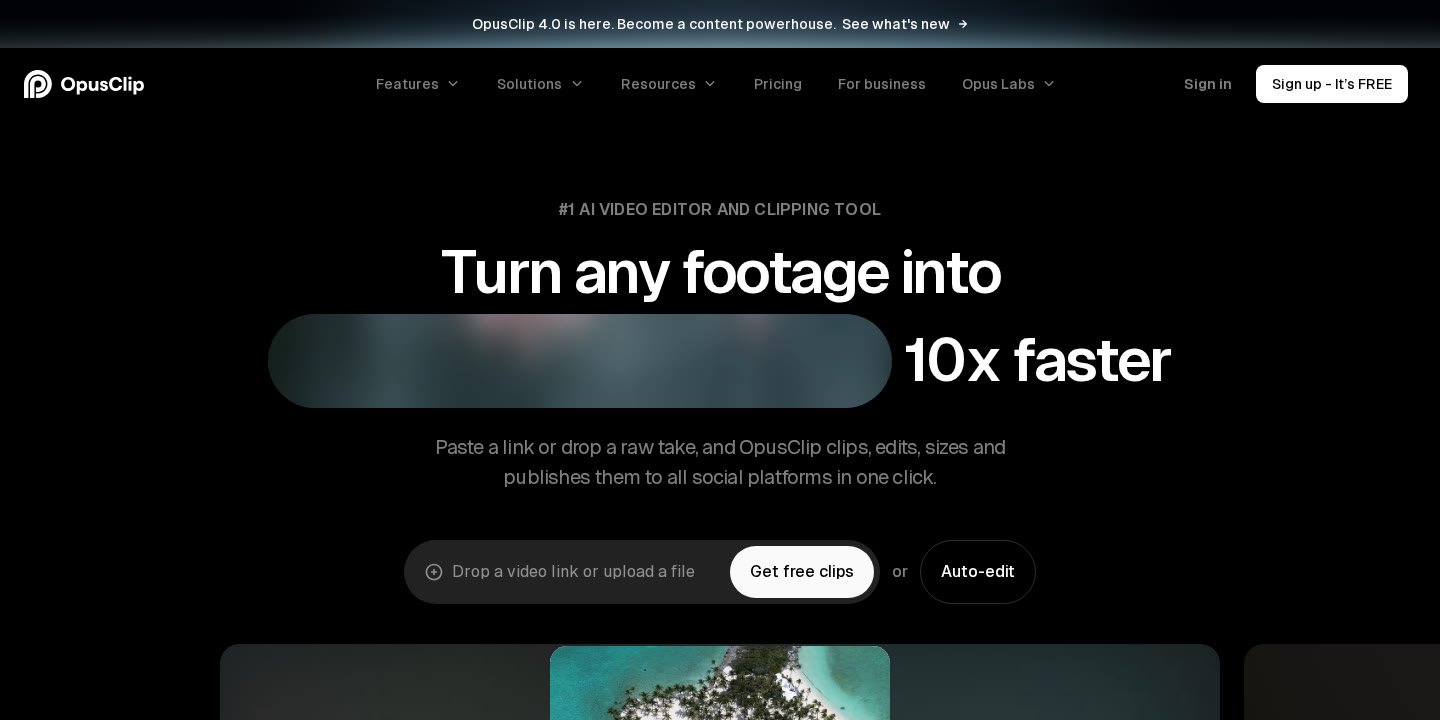
OpusClip (featuring the OpusClip 4.0 architecture) is an AI-powered video repurposing platform designed to eliminate the manual labor of scrubbing through long-form interviews, presentations, gaming streams, and podcasts. Rather than requiring users to manually mark in-and-out points on a traditional editing timeline, the software uses natural language processing and computer vision to evaluate raw footage.
At the center of the engine are two proprietary models: ClipAnything and ReframeAnything. While traditional clipping utilities typically rely solely on simple audio threshold detection or basic speech-to-text matching (often limiting their effectiveness to stationary interview setups), ClipAnything is designed to evaluate multiple video genres. According to official platform documentation, it parses vlogs, sports coverage, gaming sessions, and educational explainers alongside conventional podcast discussions.
Once audio is transcribed and visual cues are recognized, ReframeAnything handles the dimensional conversion. Converting a 16:9 widescreen recording into a 9:16 vertical smartphone format requires keeping dynamic subjects in frame. The system uses automated object and face tracking to pan smoothly across active speakers. For complex scenes featuring multiple participants or dynamic gameplay screens, users can switch to manual tracking or adjust layout configurations to maintain visual balance.
Core Features of OpusClip 4.0 Explained
Understanding the full feature set of OpusClip 4.0 helps you identify which tools to activate during the editing process:
- AI Producer: Transforms raw takes and multi-topic recordings into structured, publication-ready segments without requiring hands-on cutting.
- Animated Captions: Generates dynamic subtitles in more than 20 languages (including English, German, Spanish, French, and Portuguese) complete with auto-emojis, keyword highlights, and speaker-based color coding.
- AI Reframe: Resizes landscape footage into vertical (9:16), square (1:1), or horizontal (16:9) formats with a single click while locking onto moving subjects.
- AI B-Roll (Powered by Agent Opus): Automatically locates and overlays context-relevant visual B-roll (supporting images, videos, and stock footage) in under one minute to keep visual retention high.
- Enhance Speech: Cleans up raw audio recordings to deliver studio-level vocal clarity without requiring physical outboard audio hardware.
- Speech Cleanup: Automatically removes dead silence, natural verbal pauses, filler words (such as “um” and “uh”), and repeated bad takes.
- AI Video Dubbing: Dubs speech into different target languages while retaining the natural vocal profile of the original speaker.
- Thumbnail Generator: Generates click-ready YouTube thumbnails automatically from your processed video link.
- Social Media Scheduler: Connects directly to YouTube Shorts, TikTok, and Instagram Reels, allowing users to queue an entire month of scheduled social posts in roughly ten minutes.
- Export to XML: Bridges the gap between automated cloud AI and high-end desktop post-production by letting users export sequence files straight into Adobe Premiere Pro or DaVinci Resolve.
- Team Workspace and Brand Templates: Enables marketing departments and agencies to store custom font files, brand colors, intro and outro visual cards, and custom media libraries across multi-seat setups.
How to Use OpusClip: Step-by-Step Guide From Upload to Export
Whether you manage a personal YouTube channel or coordinate multi-platform distributions for an agency, following this detailed procedural breakdown ensures your videos retain narrative coherence, clean audio, and visually appealing framing.
Step 1: Setting Up Your Account and Choosing an Input Source
To begin, navigate to the official OpusClip dashboard at opus.pro and log in. The platform allows new accounts to start using a free tier that provides 60 monthly credits without an upfront credit card requirement.
From the main project dashboard, you are prompted to supply your source video. OpusClip provides two primary methods for adding footage:
- Direct Link Import: If your video is already hosted online, paste the public link into the URL field. On paid plans (such as Pro), OpusClip supports automated imports from more than ten online hosting environments, including YouTube, Google Drive, Vimeo, Zoom, Rumble, Twitch, Facebook, LinkedIn, Twitter, Loom, Riverside, and StreamYard.
- Local File Upload: If you have an uncompressed file stored on your computer or local hard drive, click the upload button to transfer the file directly. OpusClip supports individual video uploads up to 10GB in size.
Note: If you plan on repurposing content frequently, reviewing the operational differences between tiers in our OpusClip Pricing: Free vs Paid Plans Explained guide will help you manage input source restrictions and credit allotments.
Step 2: Configuring AI Clipping Parameters and Aspect Ratios
Before launching the automated analysis, you can instruct the AI how to interpret your source media. Taking thirty seconds to customize these settings prevents the system from generating clips that are either too long or misaligned with your distribution channels:
- Transcription Language: Select the spoken language used in the recording. While OpusClip defaults to English, it natively supports German, Spanish, French, Portuguese, and more than 20 additional languages. Correct language identification ensures accurate subtitle transcription and hook detection.
- Timeframe Selection: If you only want the AI to analyze a specific segment of a multi-hour livestream or webinar, use the timeframe selector to exclude intros, waiting rooms, or off-topic Q&A sessions.
- Clip Length Preferences: Choose your target duration bracket. Options include 0–1 minute (standard for TikTok and YouTube Shorts limits), 1–3 minutes, 3–5 minutes, 5–10 minutes, or 10–15 minutes.
- Target Aspect Ratio: Specify the visual dimensions for your project. Choose 9:16 for standard mobile vertical video, 1:1 for square feeds, or 16:9 for widescreen compilation cuts.
Once your parameters are configured, click the processing button to initiate AI clipping. OpusClip will scan the audio track, build a complete text transcript, evaluate key emotional or educational peaks, and reframe the visual subjects.
Step 3: Reviewing Clips, Virality Scores, and Transcript Timelines
When processing finishes, OpusClip presents a gallery of generated clips. Each clip is delivered with a pre-written title, a summary of the topic discussed, and a numerical Virality Score.
The Virality Score is an automated metric that grades the visual and narrative strength of the excerpt. It evaluates factors such as the presence of a strong opening hook, narrative pacing, topic density, and whether the excerpt concludes with a natural, satisfying resolution rather than cutting off mid-sentence.
Click on any clip card to open the playback window. As the clip plays, verify that:
- The subject remains properly framed throughout their speech.
- The opening hook begins at an engaging sentence without awkward dead air.
- The transcribed words match the dialogue accurately.
If you like the general excerpt but want to adjust where it begins or ends, you do not need to restart the entire project. Simply open the editor to alter the boundary markers.
Step 4: Editing with AI Editor, B-Roll, and Dynamic Captions
Click the Edit Clip button to access the built-in, timeline- and text-based editor. Unlike complex professional NLE timelines, OpusClip’s editor is connected directly to the text transcript, meaning editing spoken words automatically cuts the underlying video track.
Inside the editor, you can make several key adjustments:
- Adjusting Text and Cuts: Highlight and delete any filler phrases or off-topic sentences directly in the transcript. The video will make a seamless cut corresponding to the deleted text.
- Customizing Caption Styling: Select from various pre-designed animated caption templates. You can customize the font family, point size, uppercase display, and color schemes. Pro subscribers can upload their own brand fonts. You can also turn on speaker-based color tracking (assigning distinct subtitle colors to different voices) or enable automated curse-word censoring.
- Auto-Emoji and Highlights: Enable automated emoji placement and keyword color highlighting to draw viewer attention to critical spoken nouns and verbs.
- Generating AI B-Roll: To break up visual monotony during static interview segments, activate the AI B-Roll tool. Powered by Agent Opus, this utility reads the context of the sentence (for example, a speaker mentioning “real estate investments” or “crypto volatility”) and overlays relevant stock footage or generated imagery in under 60 seconds.
Step 5: Enhancing Audio, Removing Filler Words, and Applying Brand Templates
Audio integrity is just as critical as visual fidelity when producing short-form video. Within the clip editing environment, apply OpusClip’s automated audio enhancement tools:
- Speech Cleanup: Toggle the automated pause and filler removal switch. This cleans out hesitation sounds (“um”, “like”, “you know”) and closes up dead air between sentences.
- Enhance Speech: Activate audio enhancement to normalize voice levels, suppress ambient room echo, and optimize the EQ curve for mobile device speakers.
- Brand Templates: If you are managing consistent social channels, apply your saved Brand Template. This automatically attaches your logo bug, sets specific intro/outro cards, applies brand-approved subtitle fonts, and enforces standard margins so captions do not collide with native platform interface buttons on TikTok or Instagram.
Step 6: Exporting to XML or Scheduling Directly to Social Platforms
Once your clip is trimmed, reframed, captioned, and enhanced, it is time to export or publish:
- Direct MP4 Download: Click export to generate a standalone MP4 file at resolutions up to 1080p. On the Free plan, files carry a visible watermark and must be exported within 3 days before project storage expires. On Starter, Pro, and Business plans, exports are completely watermark-free.
- Export to Premiere Pro or DaVinci Resolve (XML): If you need to perform advanced color grading, complex motion graphics, or precision audio mastering, choose the XML export option (available on Pro and Business). This delivers a sequence file containing your cuts, crops, and subtitle markers directly into your professional desktop software.
- Direct Social Media Scheduling: If you prefer an automated workflow, connect your social accounts (Pro plans allow up to 6 social account connections). Use the social media scheduler to write descriptions, append automatically generated hashtags, and schedule publication times directly to YouTube Shorts, TikTok, and Instagram Reels.
OpusClip Credit Limits and Plan Comparison
OpusClip operates on a credit-based consumption model. Credit usage and allocation depend on your selected plan and specific feature executions. Understanding these tiers is essential to selecting the right setup for your publishing volume.
To see how OpusClip compares against other market options in terms of feature scope and price-to-credit value, consult our head-to-head comparison in Klap vs Opus Clip, or explore our broader roundup of the Best AI Short Form Video Maker options available today.
| Plan Tier | Pricing | Monthly Credits | Watermark Status | Key Capabilities & Limits |
|---|---|---|---|---|
| Free | $0/month | 60 credits/mo | Includes watermark | Up to 1080p rendering; auto-reframe; captions with emojis; no editing; clips expire and cannot be exported after 3 days. |
| Starter | $15/month (billed monthly) | 150 credits/mo | Watermark removed | Virality scores; 20+ languages; full editor access; 1 brand template; filler and silence removal; auto-posting. |
| Pro | $29/mo (or $14.50/mo billed annually at $174/yr) | 3,600 credits/year (allocated across 12 months) | Watermark removed | Credits roll over for 2 months; 2 team seats; 2 brand templates; 6 social connections; AI B-roll; XML export; custom fonts; dubbing; speech enhancement. |
| Business | Custom pricing | Customized credit packages | Watermark removed | Everything in Pro plus priority processing; custom team seats; dedicated storage; API integrations; MSA; dedicated Slack support. |
If you run out of credits midway through a billing cycle on a Pro tier, OpusClip supports on-demand credit top-ups without forcing an immediate plan tier upgrade.
Best Practices: How to Use OpusClip for Maximum Quality and Reach
While the AI engine automates the majority of manual editing tasks, final output quality is heavily influenced by the nature of the footage you supply and how you configure your project settings. Follow these established editing best practices when learning how to use opusclip effectively:
1. Feed Clear, Well-Structured Source Material
AI clipping engines rely on distinct acoustic and thematic changes to recognize coherent thoughts. Videos with heavy background music playing behind the dialogue make it harder for natural language algorithms to distinguish sentence boundaries accurately. Whenever possible, upload raw takes or clean dialog mixes where voices are clearly audible above background music tracks.
2. Always Review Transcript Accuracy
Even though OpusClip’s automated speech recognition engine handles multiple languages and accents, specialized technical terminology, personal brand names, and slang can occasionally be misinterpreted. Spend two minutes reading through the transcript text in the editor before publishing. Correcting a misspelled keyword takes seconds and protects your credibility on social feeds.
3. Leverage Custom Brand Templates for Platform Consistency
Viewer recognition builds when audiences consistently see the same typography, highlight colors, and layout framing across their feeds. Rather than styling every short individually, build a Brand Template containing your primary brand colors, preferred subtitle font, and custom logo bug. Applying this template ensures that all your exported clips maintain visual uniformity across TikTok, Instagram Reels, and YouTube Shorts.
4. Adjust Framing Layouts for Multi-Speaker Conversations
When processing podcasts or panel discussions that feature two or more speakers on screen simultaneously, a standard single-subject crop may occasionally cut back and forth too abruptly. Open the ReframeAnything settings to test split-screen or dynamic layout configurations. Placing both participants in a stacked vertical arrangement (one above the other) often yields a more natural viewing experience than rapid camera switching.
5. Don’t Neglect the Opening Hook
Short-form viewers decide whether to keep watching within the first two to three seconds. Check your clip’s starting point to ensure the speaker does not begin with an introductory delay like “So, yeah, as I was saying earlier…” Trim those initial syllables out using text-based deletion so the video launches straight into a bold statement or compelling question.
Who Should Use OpusClip (and Who Should Look Elsewhere)?
OpusClip provides concrete operational efficiencies, but its automated structure is tailored to specific creator profiles and production workflows.
Recommended For:
- Podcasters and Interview Hosts: Long, dialogue-heavy recordings with clear acoustic separation are ideal candidates for OpusClip’s hook detection and speaker reframing algorithms.
- Marketing Agencies and Social Media Managers: Teams tasked with maintaining daily posting calendars across multiple client accounts can utilize team workspaces, brand templates, and the integrated social scheduler to scale output without increasing headcount.
- Solo Content Creators and Educators: Streamers, webinar presenters, and digital educators who lack the time or budget for complex desktop editing suites can generate weeks of social clips in minutes.
- E-Commerce Brands and Realtors: Businesses relying on customer testimonials, product walkthroughs, and listing tours can pull promotional highlights directly from existing long-form video libraries.
Not Recommended For:
- Narrative Filmmakers and Music Video Directors: Highly stylized cinematic projects that depend on complex color grading, rhythmic beat cuts, and non-verbal storytelling require professional desktop NLEs rather than automated clipping algorithms.
- Creators Working with Low-Quality, Noisy Audio: If a recording has extreme distortion, overlapping crowd chatter, or unintelligible audio, automated speech-to-text engines will struggle to identify coherent clips or time subtitles accurately.
- Users Requiring Offline Desktop Editing: OpusClip is a cloud-based web application (though it integrates with desktop tools via XML export). Users without a stable high-speed internet connection cannot process files locally.
Common Technical Limitations and Troubleshooting Tips
When working within OpusClip, you may occasionally encounter operational friction or unexpected results. Here is how to diagnose and resolve common technical issues based on official platform guidelines:
- Invalid URL Errors: If the dashboard reports an invalid link when attempting to import from an external site, confirm that the video is public or unlisted rather than fully private. Additionally, verify whether the host platform is on OpusClip’s supported list (YouTube, Google Drive, Vimeo, Zoom, Rumble, Twitch, Facebook, LinkedIn, Twitter, Loom, Riverside, StreamYard). If the link continues to fail, download the video locally and use the manual file uploader.
- Subject Centering Drifts: In dynamic videos featuring fast physical movement or erratic camera panning, the automated ReframeAnything model may occasionally lag behind the subject. Switch from automated object tracking to manual tracking inside the editor to explicitly instruct the AI which coordinates to follow.
- Clip Storage Expirations on Free Tiers: Free plan users must note that generated projects and clips expire after three days. Once that window closes, clips can no longer be edited or exported. To preserve assets, download your MP4 files immediately upon generation or upgrade to a paid tier with extended storage.
- Missing Audio Enhancements: If voice cleanup or filler word removal does not appear to take effect, ensure that the corresponding toggles are activated prior to final rendering. Remember that heavy audio processing requires a brief re-render before playback reflects the changes.
Official website · Latest pricing & offers
FAQ
How does OpusClip determine which parts of my video to clip?
OpusClip uses its ClipAnything AI model to analyze the full audio and visual track of your video. It generates a transcript, identifies clear topic shifts, highlights attention-grabbing opening statements, and scores each segment based on pacing, narrative completeness, and emotional resonance to output a calculated Virality Score.
Can I use OpusClip for free?
Yes. OpusClip offers a Free plan that provides 60 credits per month without requiring a credit card. However, videos processed on the Free plan include a visible watermark, do not allow access to the full AI editing suite, and expire after 3 days, after which they can no longer be exported.
What video platforms can OpusClip import links from?
On supported plans (such as Pro), OpusClip allows direct URL importing from YouTube, Google Drive, Vimeo, Zoom, Rumble, Twitch, Facebook, LinkedIn, Twitter, Loom, Riverside, StreamYard, and other hosting services. You can also upload local video files up to 10GB directly from your hard drive.
Can I export OpusClip projects into Adobe Premiere Pro or DaVinci Resolve?
Yes. Pro and Business subscribers have access to the “Export to XML” feature. This exports your sequence data, subtitle cues, cuts, and framing decisions directly into an XML project file compatible with professional desktop video editing suites like Adobe Premiere Pro and DaVinci Resolve.
How do credits work in OpusClip?
Credits represent processing allocation on the platform. Starter plans include 150 monthly credits, while Pro plans include 3,600 credits over a 12-month period (with a 2-month rollover window for unused credits).
Does OpusClip support languages other than English?
Yes. OpusClip natively supports transcription, clipping, and animated captions in English, German, Spanish, French, Portuguese, and more than 20 other languages. You can select your video’s primary language prior to starting the AI clipping process.
Related Reading
- OpusClip Pricing: Free vs Paid Plans Explained (2026 Guide)
- OpusClip Review 2026: Features, Pricing, and Credit Limits
- Klap vs Opus Clip: Which AI Shorts Maker Is Better?
- Best AI Short Form Video Maker in 2026: Top Tools to Turn Long Videos Into Shorts