Klap Tutorial: Turn Long Videos Into Shorts and Post Them in 2026
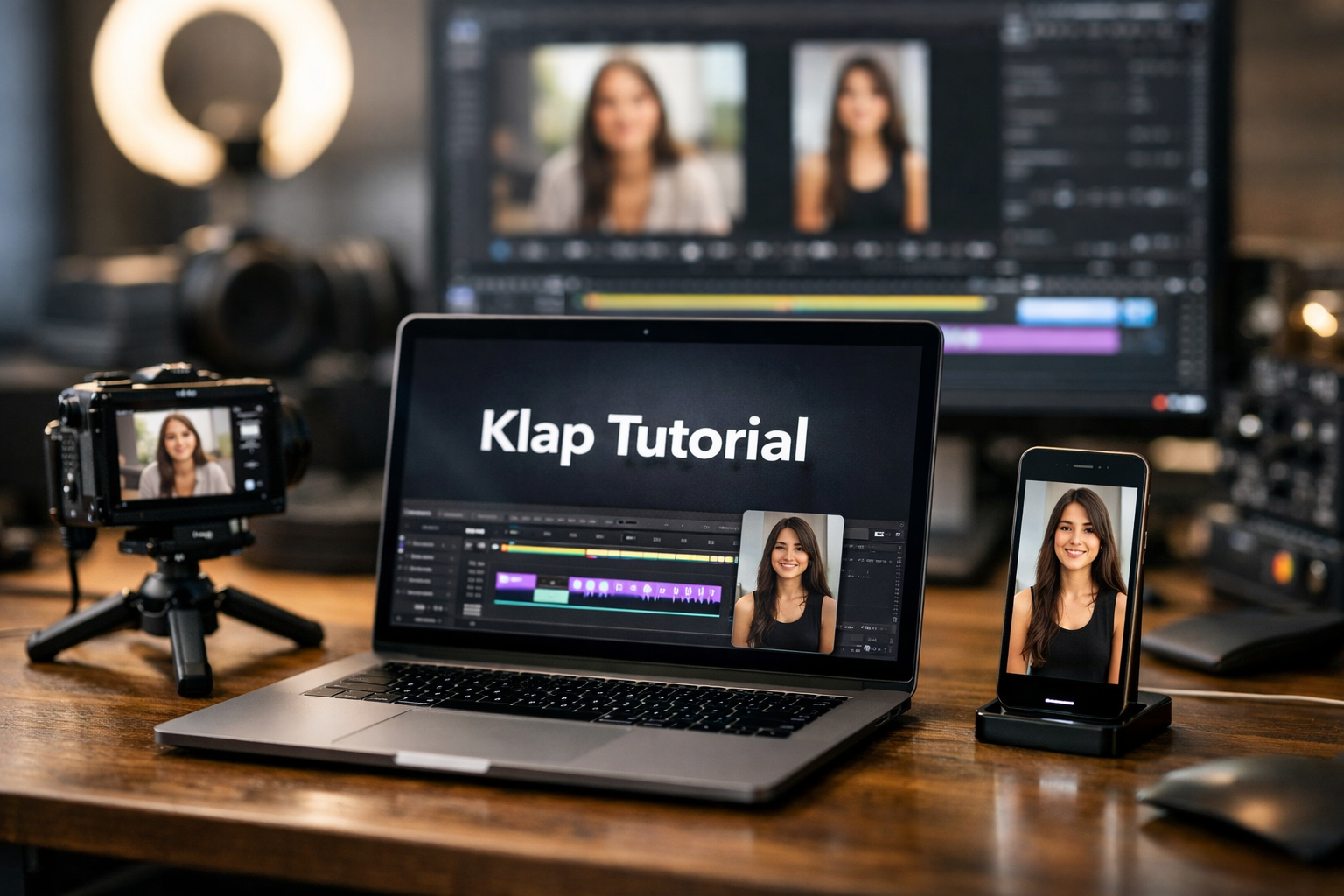
This practical klap tutorial walks through a complete short-form workflow: start with a long YouTube video or uploaded file, generate clips, refine the best options, export them, and post them to TikTok, Instagram Reels, YouTube Shorts, LinkedIn, and other social channels.
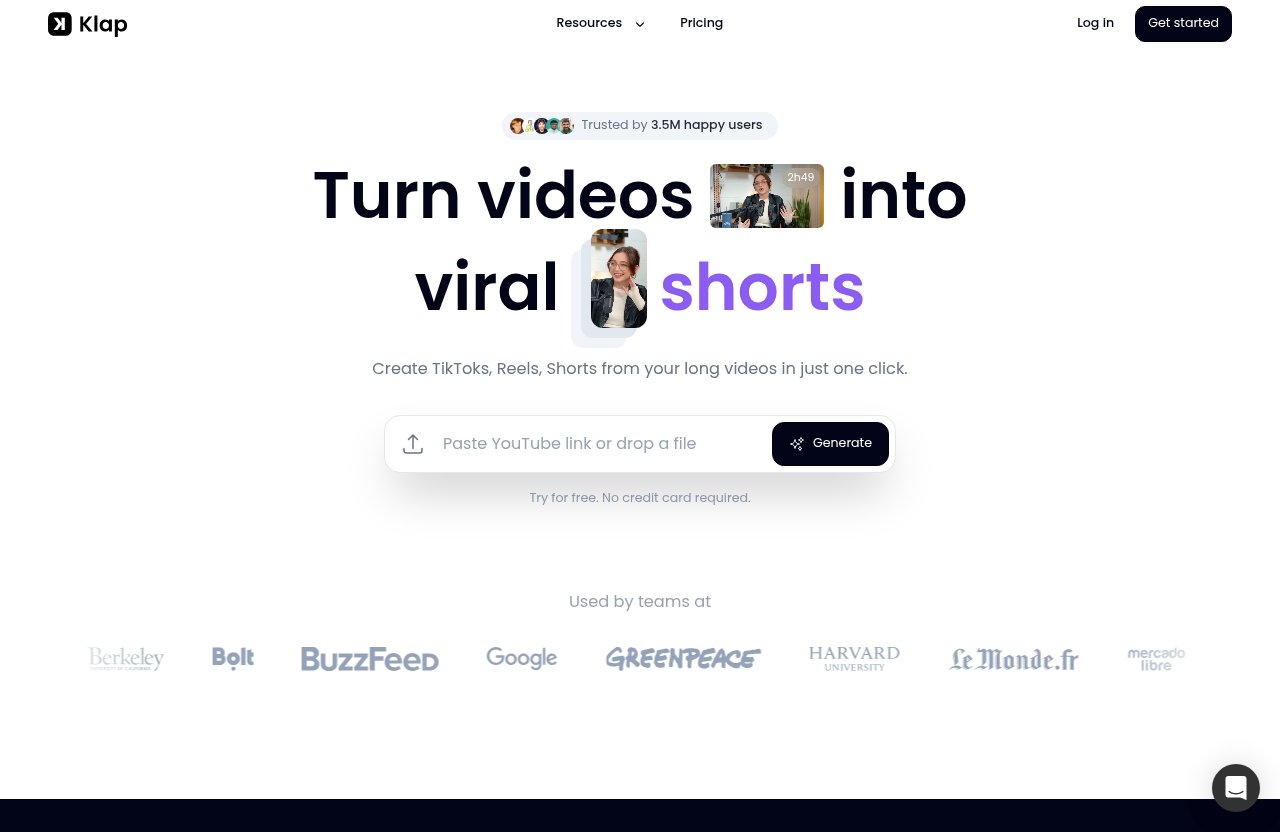
Klap is designed for creators who want to repurpose long videos into shorts without rebuilding every clip manually. The official Klap homepage states that users can paste a YouTube link or upload a video file, then create vertical clips with AI-generated captions and high-resolution export options.
Official website · Latest pricing & offers
What Klap Does and Who This Tutorial Is For
What Problem Klap Solves for Short-Form Creators
Long-form content can contain dozens of useful moments, but finding, reframing, captioning, and exporting every possible highlight takes time. Klap positions itself as an AI video clipping tool that turns longer videos into TikToks, Reels, and Shorts in one click.
Instead of treating one podcast episode, webinar, interview, or YouTube upload as a single asset, you can use it as source material for multiple short posts. According to Klap’s official homepage, a one-minute long video can produce about five video clips, although your actual usable number will depend on how many clear, standalone moments the video contains.
The practical value is not simply creating more clips. It is creating a repeatable review-and-posting process so your short-form publishing does not depend on starting from scratch every time.
Best Use Cases: Podcasts, Webinars, Interviews, Long YouTube Videos
In my experience with repurposing workflows, the strongest source videos are usually structured around clear opinions, stories, explanations, demonstrations, or questions. These formats give the clipping tool more distinct moments to identify.
Klap can be a sensible fit for:
- Podcast episodes with guests sharing focused insights
- Interviews with memorable answers or practical advice
- Webinars with teachable steps and demonstrations
- Educational YouTube videos with concise takeaways
- Founder videos, product discussions, and customer conversations
- Recorded talks, livestreams, and internal training content
A long video does not need to be perfect to be repurposed. However, it should have understandable audio and moments that make sense without the viewer seeing the full conversation.
What You Will Learn in This Step-by-Step Klap Tutorial
This klap tutorial is focused on the complete creator workflow, not just automated clipping. You will learn how to:
- Add a YouTube link or upload a video file.
- Review generated vertical clips.
- Check captions, framing, and clip selection.
- Export Klap shorts in high resolution.
- Upload or share clips through your chosen social posting workflow.
- Track what works and improve future clips.
The official product pages mention instant sharing across social platforms and unlimited social accounts on all paid plans. Still, it is useful to understand the export-first process because it gives you a final quality check before a clip goes public.
Klap Tutorial: From Long Video to Short Clip
Step 1: Upload a YouTube Link or Video File | Klap Tutorial
Start by selecting the long-form source you want to repurpose. Klap’s official homepage says you can either paste a YouTube link or upload a video file.
For a typical Klap tutorial YouTube workflow, copy the URL of your published or available YouTube video and add it to Klap. If your video is not on YouTube, use the upload route for the original file.
Before submitting the video, make sure it is worth clipping. A good source video usually has:
- A clear speaker or subject
- Audio that viewers can follow on a phone
- Specific statements rather than vague discussion
- Natural pauses between ideas
- Several moments that can stand alone
Think of the source video as your content library. The better the original structure, the easier it is to find clips that feel complete rather than cut off.
Step 2: Let Klap Generate Vertical Shorts Automatically | Klap Tutorial
After adding the source video, Klap generates vertical video clips intended for short-form viewing. Its official homepage also states that Klap provides AI-generated captions and creates content for Reels, TikToks, and Shorts.
This is where the workflow saves the most manual effort. Rather than manually locating every potential timestamp and resizing it yourself, you begin with generated clip suggestions in a vertical format.
Klap also includes AI Reframe 2, which the homepage describes as a way to resize videos for any platform. It mentions layouts including Split Screen, Screencasts, Gaming, and more. That is particularly helpful when the original video is horizontal or when the key visual element is not centered.
Do not treat every generated clip as ready to publish. Automation gets you to a draft quickly; your review determines whether the draft deserves to represent your brand.
Step 3: Review Clip Suggestions and Viral Potential Scores
Klap says it scores clips for viral potential. Use that score as one input for prioritizing your review, not as a guarantee of reach.
A high-scoring clip may still need work if the opening line is unclear, the speaker references missing context, or the subject is too narrow for your audience. Likewise, a lower-scoring clip may be valuable if it answers a frequent customer question or supports a current campaign.
As you review suggestions, ask four practical questions:
| Review Question | What to Look For |
|---|---|
| Does the opening earn attention? | A useful claim, question, surprising point, or direct problem |
| Does the clip stand alone? | Viewers should understand it without watching the full video |
| Is the idea specific? | Advice and stories perform better when they have a clear takeaway |
| Does it match the destination? | A professional insight may fit LinkedIn; a fast opinion may suit TikTok |
This stage is where creators should slow down. A few carefully selected clips are generally more useful than posting every generated option without context.
Step 4: Edit Captions, Framing, and Final Touches | Klap Tutorial
Before you export, inspect each short as if you were seeing it for the first time in a vertical feed. Klap provides AI-generated captions, but captions should still be checked for readability and accuracy.
Focus on three areas:
- Captions: Confirm names, technical terms, numbers, and unusual words are understandable.
- Framing: Check that the speaker, demo, or relevant screen area is visible in the vertical crop.
- Clip boundaries: Make sure the beginning starts cleanly and the ending does not feel abruptly cut off.
Klap’s available layouts can help match the clip to the source format. For example, a screen-based explanation may benefit from a screencast-style layout, while an interview may need framing that keeps the active speaker easy to see.
This is also the point to remove clips that may be technically correct but strategically weak. A short should give the viewer a reason to keep watching within its first seconds.
How to Export Shorts from Klap for Social Media
What Export Options to Check Before Downloading
When you are ready to export Klap shorts, do a final quality pass before exporting. The official homepage confirms high-resolution export for sharing on social channels, but your pre-export review still matters.
Check the following:
- The selected clip is the correct version.
- Captions are present and readable.
- Vertical framing suits mobile viewing.
- The beginning contains a clear hook.
- The clip has a complete thought or useful payoff.
- No important face, product view, or screen detail is poorly cropped.
Avoid assuming that a clip optimized for one platform will automatically feel right everywhere. The underlying vertical video can work across several channels, but the caption, title, and posting context should change by platform.
Why High-Resolution Export Matters
High-resolution export matters because short videos are often watched full-screen on mobile devices. A low-quality file can make captions harder to read and reduce confidence in otherwise useful content.
Klap says it allows high-resolution exports for social sharing. Use that option when preparing a final post, especially when the source includes a speaker’s face, presentation slides, product visuals, or on-screen text.
Quality is not only about image sharpness. It also includes readable captions, sensible reframing, and a clip that does not feel visually cramped.
How to Batch Export Multiple Clips Efficiently
A practical klap tutorial workflow is to review all generated clips first, identify the strongest group, then export them in one organized session. This keeps you from opening the project repeatedly and helps you maintain a publishing queue.
Create a simple naming system after export. For example:
podcast-topic-hook-tiktokwebinar-question-reelsyoutube-tip-shortsfounder-insight-linkedin
You do not need a complicated content operations system. A basic spreadsheet or folder can help you track the source video, clip topic, platform, date posted, and performance notes.
For teams, consistent file names also prevent duplicate posts and make it easier to locate the original clip later.
Common Export Mistakes to Avoid
The most common mistake is exporting before reviewing the final framing and caption treatment. A clip can look fine in a preview but still feel cluttered or hard to follow when viewed quickly on a phone.
Also avoid exporting every generated suggestion just because it is available. Select clips based on clarity, relevance, and the strength of the opening—not simply output volume.
Finally, do not reuse the exact same post copy on every platform. The video may stay the same, but the description, hook, and audience expectation vary from TikTok to LinkedIn.
Official website · Latest pricing & offers
How to Post Klap Shorts on Each Platform
Posting to YouTube Shorts
For a Klap Shorts tutorial workflow, export the completed vertical clip in high resolution and upload it through your YouTube posting process. Give the Short a title that explains the benefit or idea without relying on viewers already knowing the original long video.
A useful title is clear and specific. For example, instead of “Podcast Clip 4,” use a title that captures the takeaway: “The Simple Mistake That Makes Content Harder to Repurpose.”
Consider linking the Short conceptually to the full video through your broader YouTube content plan. The short-form clip should work independently, while also giving interested viewers a natural next topic to explore.
Posting to TikTok
A Klap tutorial TikTok process starts with the same quality-controlled vertical export. Upload the finished video to TikTok, then write a short description that supports the first line of the clip rather than repeating it word for word.
TikTok viewers often decide quickly whether a video is relevant. Lead with the problem, opinion, or outcome the viewer will get from watching.
Before posting, rewatch the video with the sound on and off. If the message still makes sense because the captions and framing are clear, it is generally in better shape for feed viewing.
Posting to Instagram Reels
For Instagram Reels, export the selected clip, upload it as a Reel, and add a caption that provides context or invites a relevant response. The video itself should deliver the main idea, while the written caption can add nuance, a takeaway, or a question.
A Klap Reels tutorial approach works best when you avoid overexplaining in the caption. Let the video carry the core message and use the text to make the post easier to discover or discuss.
If you are posting content from a podcast or interview, identify the speaker or subject accurately where appropriate. That simple step can make the post feel more credible and easier for the audience to understand.
Posting to LinkedIn and Other Supported Social Accounts
Klap’s official pricing page lists unlimited social accounts as included across all plans. Its homepage also references TikTok, Instagram, LinkedIn, Reels, and Shorts, along with sharing across social platforms.
For LinkedIn, select clips with professional relevance: lessons learned, industry opinions, concise frameworks, or behind-the-scenes insights. A thoughtful two- or three-sentence introduction often adds context that a fast vertical clip alone may not provide.
If you are wondering how to post shorts without downloading, Klap’s official homepage says users can instantly share new videos across social media platforms. However, exporting first remains a useful practical workflow when you want to inspect the final file, organize assets, or customize platform-specific copy before publication.
Best Practices to Improve Performance After Posting
Choose Clips With a Clear Hook
The opening is often the deciding moment for short-form video. The best clips typically start with a direct statement, an unusual insight, a question, or a useful tension.
Avoid clips that begin with introductions, greetings, or setup that only makes sense in the original long video. If the first sentence requires too much context, choose another moment or refine your selection.
Use Captions and Readable Framing
Klap AI captions can make clips easier to follow, especially when viewers are scrolling in quiet environments. Still, readable captions need enough contrast, sensible line breaks, and timing that matches the speech.
Framing deserves equal attention. If the speaker’s face, demonstration, or key visual is awkwardly positioned, the clip can feel less polished even when the idea is strong.
Post Consistently Instead of Sporadically
A sustainable repurposing system is more useful than an occasional burst of posts. Rather than trying to publish every clip from a single video immediately, create a schedule that your team can maintain.
For example, one long video might become a small queue of clips posted over time. This also gives you space to learn which topics, hooks, and formats earn the best audience response.
The goal is not to promise “viral” results. It is to build a reliable feedback loop from published content to better future selections.
Track Analytics and Iterate
All verified Klap plans include Analytics. Use analytics alongside the native insights available on your social platforms to identify patterns.
Look for recurring signals:
- Which topics receive meaningful comments?
- Which openings hold attention best?
- Which clips attract profile visits or follows?
- Are practical tips stronger than opinion clips?
- Does your audience respond differently on LinkedIn than on TikTok?
Keep a short note beside each post. Over time, this turns your clipping process from guesswork into an editorial system.
Klap Pricing: Which Plan Fits Your Posting Workflow?
Basic Plan for Individuals
Klap pricing lists the Basic plan for individuals at $14 per month billed yearly. It includes 100 clips per month.
This plan may suit a solo creator who publishes from one or two long-form videos regularly and wants room to test multiple short-form ideas without managing a large content team.
Pro Plan for Professionals
The Pro plan is listed at $39 per month billed yearly and includes 300 clips per month. It is positioned for higher-volume professional workflows.
This could fit a marketer, consultant, agency operator, or creator who repurposes content more frequently and needs more monthly clip capacity.
Pro+ Plan for Teams
The Pro+ plan is listed at $94 per month billed yearly and includes 1,000 clips per month. Klap describes this plan as being for teams.
For a team publishing across several brands, clients, shows, or speaker channels, the larger monthly volume can be easier to manage than separating production across multiple smaller workflows.
| Plan | Verified Price | Verified Clip Volume | Best Fit |
|---|---|---|---|
| Basic | $14/month billed yearly | 100 clips/month | Individuals |
| Pro | $39/month billed yearly | 300 clips/month | Professionals |
| Pro+ | $94/month billed yearly | 1,000 clips/month | Teams |
All three plans include AI Clipping, unlimited social accounts, and Analytics. Klap’s pricing page also says, “Only pay for clips you generate.”
How to Choose Based on Clip Volume
Choose based on the number of clips you expect to generate, not only the number you plan to post. You may create several candidates for every final short you publish, especially while learning what resonates with your audience.
If you are evaluating the tool, Klap states that users can try Klap for free with no credit card required. Review the current plan details on Klap’s official pricing page before making a purchasing decision, since pricing structures can change.
Troubleshooting Common Klap Export and Posting Issues
Clip Looks Cropped or Off-Center
If a clip looks awkwardly cropped, return to the framing review before exporting. Make sure the active speaker, screen, or relevant visual remains easy to see in the vertical format.
Klap’s homepage references AI Reframe 2 and several layouts, including Split Screen, Screencasts, and Gaming. Use the layout that best matches the original footage rather than forcing every source video into the same visual treatment.
Captions Are Hard to Read
If captions feel difficult to read, check the clip on a phone-sized screen before posting. Pay particular attention to unusual names, jargon, and lines that move quickly.
AI-generated captions provide a valuable starting point, but final review is still important. If the core point is difficult to understand with sound off, consider selecting a clearer clip from the same source video.
Video Needs a Stronger Hook
When a video feels slow, the issue is often not the export quality—it is the chosen start point. Look for a sentence later in the conversation that makes a direct claim or asks a compelling question.
A stronger beginning does not need to be dramatic. It only needs to tell the viewer why the next few seconds are worth their attention.
Choosing the Right Clip for Each Platform
Not every clip belongs everywhere. A fast, opinion-led clip may work well for TikTok or Reels, while a structured business lesson may be better suited to LinkedIn.
Use the same source video strategically. One interview could generate a practical YouTube Short, a conversational TikTok post, an Instagram Reel with a personal angle, and a LinkedIn clip framed around a professional lesson.
Official website · Latest pricing & offers
FAQ
How Does Klap Work for Creating Shorts?
Klap works by letting you paste a YouTube link or upload a video file. It then generates vertical clips, provides AI-generated captions, and scores clips for viral potential. From there, you review the options, make final adjustments, export the chosen shorts, and post them to your social channels.
Can I Post Klap Clips Directly to Social Media?
Klap’s official homepage says users can instantly share new videos across social media platforms. Its pricing page also lists unlimited social accounts on all plans. For a controlled creator workflow, you can also export the final clip in high resolution first, then upload or share it through the platform where you are posting.
Does Klap Add Captions Automatically?
Yes. Klap’s official homepage states that it provides AI-generated captions. You should still review captions before publishing, especially for names, industry terms, and key numbers.
What Platforms Does Klap Support?
Klap’s official pages reference creating content for TikTok, Instagram, LinkedIn, Reels, and Shorts. The homepage also describes sharing across social media platforms, while the pricing page includes unlimited social accounts on all plans.
How Many Clips Can I Get From One Video?
Klap’s official homepage gives a rule of thumb that one minute of long-form video produces about five video clips. The number of clips you actually choose to post should depend on whether each one has a clear, useful standalone message.
Is There a Free Trial for Klap?
Klap states, “Try for free. No credit card required.” The verified information does not specify trial limits here, so check the current official offer before relying on a particular amount of usage.
Conclusion: A Faster Workflow for Posting Shorts at Scale
Recap of the Workflow
A successful klap tutorial workflow is straightforward: add a YouTube link or video file, let Klap generate vertical clip options, review captions and framing, select the strongest moments, export in high resolution, and adapt the post for each social platform.
The automated generation is useful, but human review remains the essential quality-control step. Your topic choice, hook, captions, framing, and platform-specific copy all influence whether a short feels useful to the viewer.
When Klap Is Most Useful
Klap is most useful for creators and teams with a consistent supply of long-form content and a need to repurpose it efficiently. Podcasts, webinars, interviews, and educational YouTube videos are particularly natural starting points because they usually contain multiple standalone insights.
Its verified features—vertical clip generation, AI captions, viral potential scoring, high-resolution export, AI Reframe 2, Analytics, and support for multiple social accounts—fit a structured short-form publishing process.
Final Recommendation for Creators and Teams
For creators who regularly repurpose long videos into shorts, Klap is worth considering as a workflow tool rather than a replacement for editorial judgment. It can reduce the time spent finding and preparing initial clip drafts, while leaving you in control of what gets exported and posted.
Use this klap tutorial process to create a repeatable system: generate broadly, select carefully, export cleanly, and learn from analytics after publishing. That balanced approach is more dependable than chasing volume alone.
Related Reading
- How to Edit Klap Shorts Before Publishing
- How to Repurpose Webinar Into Shorts with Klap
- Klap tutorial and workflow tips for creators
References
- Klap | Turn videos into viral TikToks, Reels & Shorts
- Klap Pricing | Plans for Creators, Teams & API Users
- The Ultimate Guide to AI Video Cutter Tools – Klap
- Klap AI review 2026: a hands-on test of this AI video-clipping tool