
Taplio Login: How to Access Your Account and Complete Setup
If you are looking for the correct taplio login page, the main thing is to separate the Taplio product app from the affiliate portal. Most people who want to create LinkedIn content, connect their LinkedIn profile, or manage their Taplio workspace should use the main app login.
This guide covers the verified official sign-in options, first-time onboarding, common access issues, and where to get help. This page may contain affiliate links; you can use our Taplio sign-up link to learn more or create an account.
Official website · Latest pricing & offers
What Taplio Login Is and Which Login Page to Use
Taplio is an AI tool designed to help users grow on LinkedIn in 10 minutes per day. Its official product pages describe tools for post creation, scheduling, analytics, inspiration discovery, engagement, carousels, automation, and LinkedIn-focused resources.
Before entering your credentials, make sure you are on the right page. Similar-looking login pages can lead to confusion, especially if you joined Taplio as a customer and later encounter the affiliate portal.
Taplio app login vs. affiliate login
The regular taplio login is for people using the Taplio product itself. This is the account area for users who want to access their workspace, continue onboarding, connect LinkedIn, and use available Taplio features.
For the main product, go to:
app.taplio.com
The taplio affiliates login is different. It is intended for Taplio Creators or affiliate users who need access to their affiliate account rather than the core product workspace.
The affiliate sign-in page is located at:
affiliates.taplio.com/login
Official affiliate login page information shows fields and options for Email, Password, Remember me, Sign up, Forgot your password?, and Send confirmation email.
When to use the main app, and when to use affiliates.taplio.com
Use the main Taplio app when you want to:
- Sign in to your Taplio product account
- Continue account onboarding
- Connect your LinkedIn account
- Work with content, scheduling, analytics, or other product tools
- Review your available account access
Use affiliates.taplio.com/login only when you are participating in the Taplio affiliate or creator program and need your affiliate-specific area.
If you are unsure, think about why you created the account. A user who signed up to use Taplio for LinkedIn growth almost always needs the main taplio login app, not the affiliate portal.
How to Log In to Taplio Step by Step
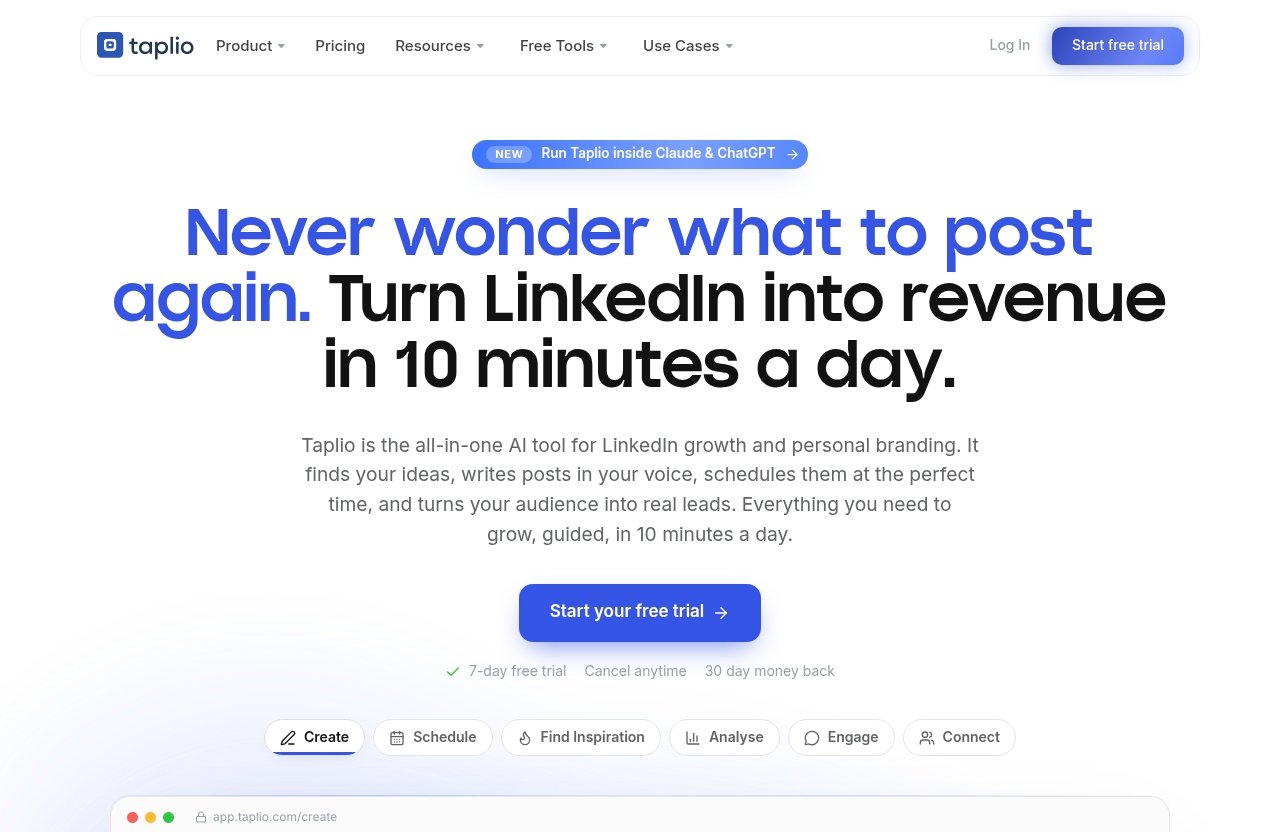
The official app login supports Google sign-in and email-based sign-in. Choose the same method you used when you originally created the account whenever possible.
Log in with Google
Google sign-in is usually the simplest route for users who registered through their Google account.
- Open
app.taplio.com. - Select the Continue with Google option on the login screen.
- Choose the Google account associated with your Taplio account.
- Complete Google’s sign-in or verification steps if requested.
- Wait for Taplio to open your account or continue your onboarding flow.
For a smooth taplio login, confirm that you are choosing the correct Google profile. This matters if your browser contains both personal and work Google accounts.
If Taplio opens a registration or onboarding screen, do not immediately create another account. First, verify that you selected the same Google address used for your original Taplio registration.
Log in with email and password
To complete a taplio login with email, start at the main app login page rather than the affiliate login page.
- Visit
app.taplio.com. - Select the email sign-in option.
- Enter the email address used during registration.
- Enter your password.
- Submit the form and follow any account confirmation prompts shown.
Use the email address exactly as you registered it. A small variation—such as using a work address instead of a personal address—can make it appear that your account is missing.
If you do not remember your password, avoid repeated guesses. Use the available password recovery option instead, then return to the main app after resetting it.
What to do if you see the sign-up flow instead of your dashboard
Seeing a sign-up flow does not automatically mean you have lost your account. It often means that you used a different sign-in method or email address than the one tied to your existing profile.
Check these points before proceeding:
- Did you choose Google sign-in when you originally registered?
- Are you signed into the correct Google account in your browser?
- Did you enter a personal email instead of a business email, or the reverse?
- Are you accidentally on the affiliate portal rather than the product app?
- Have you completed the confirmation and onboarding steps for this account?
For reliable taplio account access, do not create duplicate accounts unless you intentionally need another workspace. Try your original registration route first.
First-Time Taplio Setup After Login
A successful sign-in is only the first part of getting started. According to Taplio’s official help-center onboarding information, onboarding begins after you create an account, and the first step is downloading the Taplio X extension. You then connect your account.
Connect your LinkedIn account
The taplio connect linkedin step happens during onboarding after you have created your Taplio account and started the setup process.
Follow the prompts displayed inside Taplio carefully:
- Create or sign in to your Taplio account.
- Begin the onboarding sequence.
- Download the Taplio X extension as prompted.
- Continue to the LinkedIn connection step.
- Review the permissions and account details displayed before confirming.
Use the LinkedIn profile that you actually want to use with Taplio. If you have multiple LinkedIn accounts or browser sessions, take a moment to confirm you are signed into the intended one before continuing.
This setup matters because Taplio’s LinkedIn-focused tools are built around helping users create ideas and posts, schedule content, discover posts worth remixing, review analytics, and engage with relevant people.
Install the Taplio extension when prompted
The official onboarding guidance identifies the taplio extension download as the first step after account creation. Taplio refers to this as the Taplio X extension.
Install it only when prompted through Taplio’s official onboarding flow. After installation, return to the onboarding screen and continue with the connection steps shown there.
If your browser blocks an extension installation, check whether your browser permits extensions and whether you are using a supported browser environment. Do not download an extension from an unfamiliar third-party page claiming to be Taplio.
Complete onboarding and initial permissions
Once the extension is installed and LinkedIn connection begins, complete each screen in order. Read the permission prompts before approving them, and avoid closing the setup tab until the process finishes.
A completed onboarding process helps ensure your taplio login leads to the right account state rather than repeatedly returning you to setup. If you are redirected to onboarding later, it may indicate that a connection or confirmation step still needs attention.
Taplio’s official product information also lists resources such as the help center, free tools, LinkedIn Masterclasses, LinkedIn Benchmark, and LinkedIn Claude Skills. These can be useful once your basic account setup is complete.
Official website · Latest pricing & offers
Common Taplio Login Problems and Fixes
When taplio login not working, start with the simplest explanation: incorrect sign-in method, wrong email address, or an unfinished confirmation step. Work through one fix at a time so you can identify what resolves the issue.
Forgot password or not receiving reset email
For a taplio forgot password situation, use the password recovery option on the relevant official login screen. The affiliate login page specifically includes a Forgot your password? option.
Before requesting another reset message, verify the email address you entered. Then check:
- Your inbox and spam or junk folder
- Any email filtering or security rules used by your organization
- Whether you used Google sign-in instead of an email-and-password account
- Whether you are trying to reset a product account on the affiliate portal, or vice versa
If no reset email arrives after checking these items, use the official support route described later in this guide.
Confirmation email not arriving
The official affiliate login page includes a Send confirmation email option. If you are waiting for account confirmation, use that official recovery option where it is available.
Also check spam, promotions, junk, and any email quarantine system used by your workplace. Search your inbox for “Taplio” rather than relying only on recent-message sorting.
Avoid registering repeatedly with the same or slightly different addresses. Multiple sign-up attempts can make account identification more difficult when you contact support.
Wrong email address or multiple accounts
A common taplio login issue is having more than one possible email address. For example, you may have started with Google sign-in under one address and later attempted email login with another.
Create a short list of likely addresses:
| Check | Why It Helps |
|---|---|
| Personal email | You may have used it for a trial or initial registration |
| Work email | It may be linked to your LinkedIn or business workflow |
| Google account email | This is important if you used Continue with Google |
| Affiliate-program email | It may be separate from your Taplio app account |
Try one method at a time. If you find the right account, use that same route in future to avoid duplicate profiles.
Browser, cache, and extension issues
Browser problems can interrupt sign-in pages, confirmation screens, and the onboarding process. If the page loops, fails to load correctly, or does not respond after you submit a form, try these general browser checks:
- Refresh the page and sign in again.
- Open the official page in a private or incognito window.
- Clear browser cache and cookies for Taplio, then retry.
- Temporarily disable unrelated browser extensions that may block scripts or pop-ups.
- Confirm your browser is up to date.
- Try another browser if the issue continues.
If you are installing the Taplio X extension, do not disable the extension during the onboarding step unless troubleshooting requires it. Return to the official onboarding flow after making browser changes.
LinkedIn connection problems during onboarding
If the taplio connect linkedin step fails, first confirm that you can sign in to LinkedIn normally in the same browser. Then return to Taplio and restart the connection prompt if it is available.
Check that the Taplio X extension installation is complete, since official onboarding guidance places it before account connection. Also verify that you are using the LinkedIn profile you intend to connect.
If the error persists, take note of the exact message, the browser you used, and the stage where onboarding stopped. Those details make a support request clearer and reduce back-and-forth.
Taplio Account Access for Existing Users
Returning users typically need the main app rather than a new sign-up page. Go to app.taplio.com and use the same Google or email method associated with your account.
How to return to your dashboard
Start from the official taplio login page and complete sign-in using your original credentials. Once authenticated, Taplio should direct you to the appropriate account area or to any onboarding item that still requires completion.
If you land on a setup screen instead of the expected workspace, do not assume your subscription has disappeared. Check whether you have an incomplete extension, LinkedIn connection, or confirmation step.
How to confirm your subscription status
Taplio’s official pricing page states that plans start from $39/mo and mentions a free trial. For the current status of your own account, check the account or subscription information available after signing in.
Because individual account details can vary, rely on the information displayed in your logged-in Taplio area rather than assuming that a plan, trial, or feature access level applies to every account. If the displayed status is unclear, the official help resources are the safest next step.
Where invoices and billing settings live
After you regain taplio account access, look for the account, subscription, or billing area within your authenticated Taplio settings. That is the appropriate place to review billing-related information available to your account.
Do not share passwords, payment information, or account confirmation links in public messages. If you cannot locate a billing or invoice option after signing in, contact Taplio through its official help resources with the email tied to the account.
Taplio Pricing and Free Trial Context
Pricing can affect what happens after onboarding, but it should not be confused with the sign-in process. You generally need to access the correct account first before reviewing account-specific subscription details.
What Taplio pricing page says
The official taplio pricing page states that plans start from $39/mo. It also mentions a free trial.
Those are the verified public pricing points to use as a starting reference. For current plan choices and your own account details, review Taplio’s official pricing page and logged-in account information.
What the free trial is used for
The official pricing page mentions a taplio free trial, but public trial wording should not be treated as a guarantee of a particular feature set, duration, or eligibility for every user.
If you started through a trial, use the same registration method for your return visit. For example, return with Google if you initially selected Google sign-in, rather than trying an unrelated email-and-password path.
How pricing relates to login and onboarding
Pricing and onboarding are separate steps. You can begin by creating an account and following the official onboarding flow, including the Taplio X extension prompt and LinkedIn connection.
Once logged in, review the plan information presented for your account. Taplio’s product pages describe capabilities including scheduled posting, analytics, AI post creation, carousels, engagement, automation, and MCP support, but the account view is the right place to confirm what applies to you.
When to Contact Taplio Support
If you have tried the correct sign-in method, checked your email, and completed the basic browser troubleshooting steps, it is time to use official assistance. Keep your request concise and include only the relevant account details.
Use the help center for account and billing issues
The official taplio help center is the best starting point for account, onboarding, subscription, and billing questions. Taplio’s official resources identify the help center as a support destination for users.
When submitting a request, include:
- The email address associated with your Taplio account
- Whether you use Google sign-in or email login
- Whether the problem affects the main app or affiliate portal
- A screenshot or exact wording of any error message
- The browser and device you used, if relevant
This information helps support distinguish a taplio login issue from an onboarding or LinkedIn connection issue.
When login recovery does not work
Contact official support when password recovery emails do not arrive, confirmation cannot be completed, the wrong account keeps opening, or LinkedIn onboarding repeatedly fails after basic browser checks.
Do not rely on unofficial social-media replies or third-party sites for account recovery. For security and accuracy, use Taplio’s official help center and official login pages.
Official website · Latest pricing & offers
FAQ
Is Taplio free?
Taplio’s official pricing page says plans start from $39/mo and mentions a free trial. For current availability and the account options relevant to you, review the official pricing page after creating or accessing your account.
How do I log in to Taplio with email?
For taplio login with email, go to app.taplio.com, select the email sign-in path, and enter the email address and password used for registration. If you originally registered with Google, use Continue with Google instead.
Why can’t I log in to Taplio?
Login trouble can result from using the wrong email address, choosing the wrong sign-in method, forgetting a password, missing a confirmation email, browser issues, or unfinished onboarding. Start with the official main app page, then check your email, browser, and LinkedIn connection steps.
How do I connect my LinkedIn account to Taplio?
After creating your account, follow Taplio’s onboarding prompts. Official onboarding information says to download the Taplio X extension first, then connect your LinkedIn account when prompted.
What is the difference between Taplio login and Taplio affiliates login?
The main taplio login at app.taplio.com is for Taplio product users. The affiliate portal at affiliates.taplio.com/login is for Taplio Creators or affiliate access and includes separate affiliate account options such as email, password, password recovery, and confirmation email tools.
Related Reading
- Taplio tutorial for beginners
- Taplio review for recruiters
- How to replace ClickFunnels with Systeme.io