
Raycast for IT Pros: A Practical Workflow Review for 2026
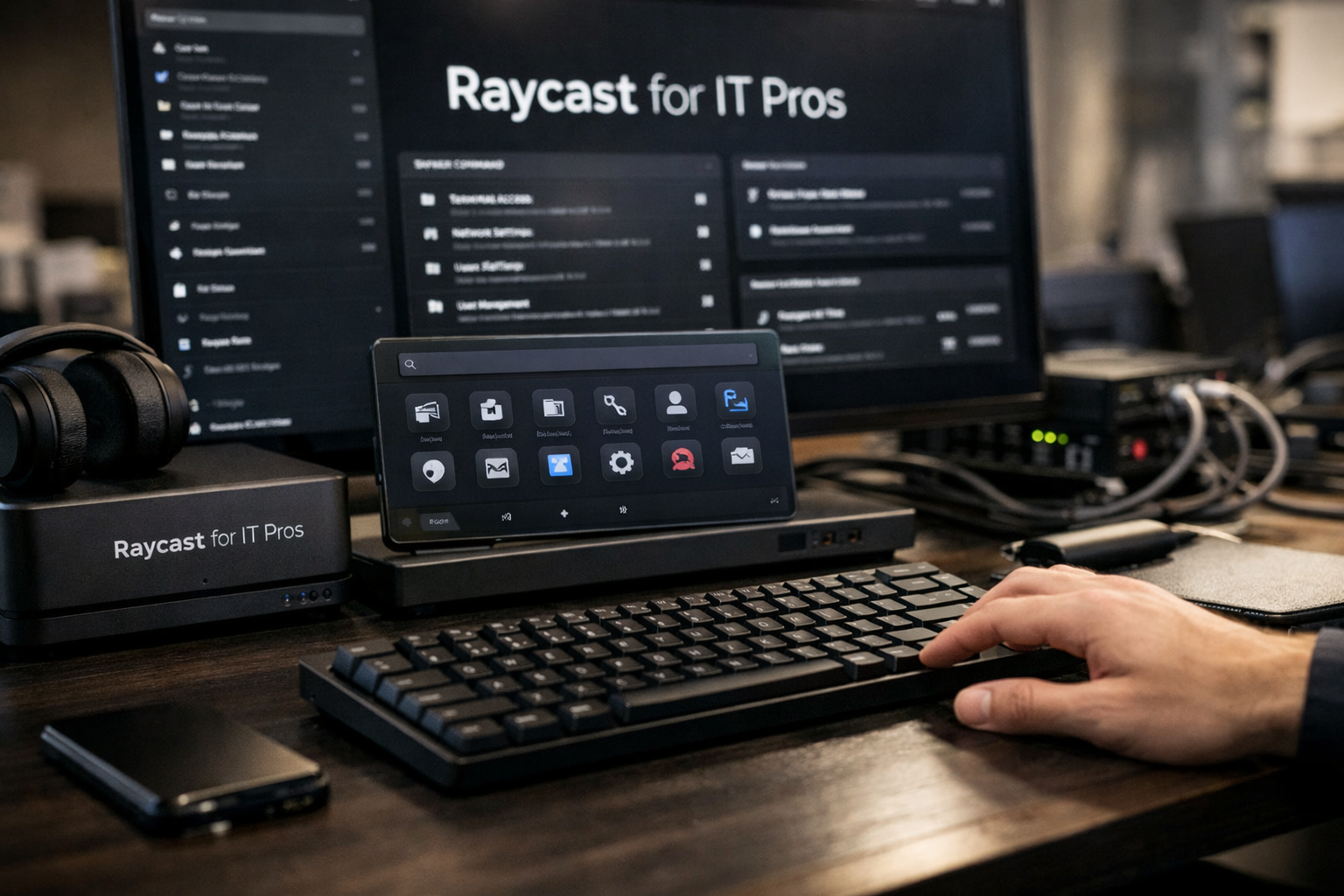
For technical teams, raycast for it pros is less about replacing a terminal, ticketing platform, or monitoring stack. It is an efficiency layer that reduces the friction between identifying a problem and opening the right tool, command, document, or response template.
This review focuses on the everyday work that creates operational drag: switching between dashboards, finding runbook links, retyping incident updates, recovering copied configuration values, and keeping troubleshooting context available. Raycast can make those small but repeated actions faster when it is configured around real IT workflows.
Disclosure: This article may contain affiliate links. If you choose to try Raycast through a link on this page, toptrustreview.com may earn a commission at no extra cost to you.
Official website · Latest pricing & offers
What Raycast Is and Why IT Pros Care
Raycast is a keyboard-first productivity tool built around launching actions, searching information, using extensions, managing windows, storing snippets, and more. For IT administrators, DevOps-minded support engineers, and technical power users, the appeal is straightforward: fewer mouse-driven detours and less context switching during repetitive work.
The official homepage states that macOS Tahoe and Apple Silicon are required for the Mac app. Raycast also has an official Windows page, which matters for broader teams working across device types, although the most mature keyboard-launcher workflow described here is centered on Mac-based operations.
Keyboard-First Launcher vs Traditional App Switching
Traditional app switching usually means opening a browser, locating a tab, navigating to a dashboard, copying an identifier, opening a second tool, and then returning to the ticket. None of those individual steps is difficult, but they add up quickly during a busy support queue or incident.
With raycast for it pros, a short keyboard invocation can open a saved quicklink, insert a response macro, retrieve clipboard history, or trigger a useful extension. The operational benefit is not dramatic automation for its own sake. It is the removal of dozens of tiny interruptions that break troubleshooting focus.
Where Raycast Fits in a Sysadmin Workflow
Raycast works best as the connective tissue between the tools an admin already uses. A typical workflow might begin with an alert, move to a monitoring dashboard, require a lookup in documentation, and end with a ticket update or escalation note.
Rather than claiming to replace those systems, Raycast helps an admin reach them faster. It can hold the links, snippets, notes, copied values, calculations, and AI-assisted drafts that commonly sit between the alert and the resolution.
For example, a support engineer could use a quicklink to open a status page, pull a prior command from Raycast Clipboard History, paste an incident update snippet, and keep a short investigation note nearby. That is a realistic form of raycast workflow automation: practical, human-controlled, and built around repeated work.
Who Will Get the Most Value From It
The strongest fit is a technical professional who spends much of the day moving among systems rather than working inside one application. That includes:
- Sysadmins handling user, endpoint, network, and access tasks
- IT support leads managing tickets and escalations
- SRE and DevOps practitioners who use dashboards, logs, and runbooks constantly
- Security-minded administrators who regularly work with hashes, IP addresses, URLs, and configuration values
- Technical managers who need faster access to team documentation and routine communication templates
A user who prefers keyboard navigation will see the quickest payoff. Raycast for sysadmins is especially useful when the same resources and response patterns reappear throughout the week.
Top Raycast Workflow Hacks for Sysadmins and Power Users
The best Raycast setup is personal at first. Build it around actions you perform repeatedly, then standardize the patterns that your team can safely share.
Use Quick AI for Instant Troubleshooting Prompts
Raycast Pro includes Raycast AI, which includes Quick AI, AI Chat, Agents, AI Commands, and AI Extensions. Quick AI can be useful when you need to turn rough technical context into a clearer next step without leaving the task at hand.
A realistic example is an alert with a dense error message and an unclear handoff note. You can paste the relevant text and ask for a concise troubleshooting checklist, a plain-English summary for a stakeholder, or a draft list of questions for the application owner.
The key is to treat Raycast Quick AI as an assistant for summarizing, structuring, and drafting—not as an authority on a production change. Verify suggestions against your runbooks, current environment, and change-control process before acting.
Build Snippets for Common Commands, Ticket Replies, and Runbooks
Raycast Snippets are one of the highest-value features for IT operations because the same small blocks of text appear everywhere. Think standard acknowledgement messages, escalation templates, maintenance notices, SSH command patterns, and incident timelines.
A useful naming convention is to create short prefixes by work type:
| Snippet Prefix | Example Use |
|---|---|
inc- |
Incident acknowledgement, update, or closure text |
net- |
Network troubleshooting commands and lookup templates |
usr- |
User access and onboarding ticket responses |
chg- |
Change request notes and validation checklists |
sec- |
Security escalation wording and evidence placeholders |
For example, an inc-update snippet could provide a structured message with placeholders for impact, scope, current findings, owner, and next update time. This makes raycast snippets more than text expansion; they become lightweight, repeatable runbook components.
Use Quicklinks to Jump Into Dashboards, Routers, Docs, and Status Pages
Quicklinks eliminate the browser-search step for resources you open every day. In an operations role, that might include monitoring dashboards, asset inventory, identity administration, remote support tools, internal documentation, vendor status pages, and a router or firewall management interface.
The practical trick is to organize raycast quicklinks by function rather than by vendor name. Labels such as “Monitoring — Core,” “Identity — Users,” “Docs — Incident Runbook,” and “Status — External” remain easy to find under pressure.
For dynamic services, create URL patterns where appropriate so a search term can become part of the destination. This is useful for common lookups such as ticket IDs, hostnames, user identifiers, or domain names, provided the destination URL format supports it.
Speed Up Repetitive Calculations and Conversions
The built-in Calculator is easy to overlook, but operations work is full of small calculations. You may need to convert storage units, calculate percentages for rollout progress, estimate an elapsed time, or compare a subnet-related number during a troubleshooting conversation.
The benefit is speed and reduced interruption. Instead of opening a browser tab or grabbing a phone, call up Raycast and calculate without leaving the incident channel, terminal, or ticket system.
This is also a good example of why raycast for it pros does not need to be all about advanced automation. Small ergonomic improvements often deliver the most consistent value.
Master Window Management for Multi-Monitor Admin Setups
IT work often requires multiple active panes: a ticket, a browser dashboard, a terminal, documentation, and a communication tool. Switching among them manually becomes tiring on a laptop display and inefficient even with external monitors.
Raycast includes Window Management in Free, while custom window management is listed in Pro. Set a few predictable shortcuts for common layouts: terminal left, dashboard right; ticket full screen; documentation on a secondary display; or chat positioned beside a monitoring view.
Good raycast window management does not change the tools you use. It reduces the time spent arranging them every time a task changes.
Use Clipboard History to Recover Commands, Configs, and Links
Clipboard History is invaluable in technical work because copied information is often important but short-lived. A command, log line, endpoint URL, temporary token reference, device serial, IP address, or hash can disappear the moment you copy the next item.
Raycast Free includes three months of Clipboard History, while Pro includes Unlimited Clipboard History. In practice, this makes it easier to recover a command you copied from a runbook, compare two configuration values, or retrieve the exact link sent in an earlier chat.
Use good judgment with sensitive content. Clipboard convenience should always be weighed against your organization’s policy and the type of data you routinely handle.
Use Notes and Cloud Sync to Keep Operational Context Portable
Raycast Notes can serve as a quick scratchpad for active work: incident timestamps, test results, unanswered questions, and links that need follow-up. The goal is not to replace formal documentation, but to prevent operational context from being scattered across temporary browser tabs and chat drafts.
Pro adds Cloud Sync for Snippets, Notes, and Chats between Mac, Windows, and iOS devices. For a technical lead moving between a primary workstation and another supported device, that can make short operational notes and personal productivity assets easier to retain.
A simple habit works well: create one temporary note per active incident or project, then move any durable knowledge into the team’s approved documentation system after resolution. This keeps raycast for it pros useful without turning personal notes into an unofficial source of truth.
Best Raycast Features for IT Operations
Raycast has a wide feature set, but IT professionals should focus on features that remove repeatable friction. The best configuration is usually modest, purposeful, and easy to maintain.
AI Chat, Quick AI, and AI Extensions
Raycast AI is part of paid Pro plans and includes 500 AI usage credits per month in Raycast Pro. It provides Quick AI, AI Chat, Agents, AI Commands, and AI Extensions, along with the ability to use files, generate images, connect tools, and add context from Screen Awareness, Memory, and Profile.
For operations work, the most practical uses are drafting ticket responses, summarizing alert text, turning notes into an incident update, translating a short message, or creating a troubleshooting checklist. Raycast Pro also supports Bring Your Own Key.
Do not assume the included standard Pro experience includes top-tier AI models; the verified plan details state those are included in Pro+ and Max, not standard Pro. Evaluate whether the available AI functions and monthly raycast AI credits match the type of assistance your role actually needs.
Clipboard History, Snippets, Quicklinks, and Notes
These are the core productivity features that make Raycast useful even without AI. Clipboard History, Quicklinks, Calculator, Snippets, Emoji Picker, Window Management, and Raycast Notes are included with Free.
For many admins, this group delivers the clearest return. Snippets standardize recurring communication, quicklinks speed access to systems, notes preserve immediate context, and clipboard history prevents accidental loss of copied technical details.
A disciplined raycast for IT pros review should recognize that these foundational capabilities may solve most day-to-day problems before a paid plan is necessary.
Window Management and Custom Themes
Window Management is included in Free, which is helpful for quickly arranging a support workspace. Pro adds Custom Window Management and Custom Themes, offering more personalization for people who spend a large portion of the day in a multi-window environment.
This is not a reason alone to upgrade, but it matters when visual organization and repeated window layouts are part of your operational rhythm. A clean, familiar desktop can make investigation work feel more controlled during high-volume support periods.
Cloud Sync Across Mac, Windows, and iOS
Pro includes Cloud Sync for Snippets, Notes, and Chats between Mac, Windows, and iOS devices. That is particularly relevant for users who start a task at a Mac workstation and later need access to their own working context elsewhere.
The operational value is continuity rather than collaboration. Shared assets are addressed more directly through Teams Pro, while individual Cloud Sync helps a single technical user keep personal workflow components consistent across supported devices.
Dictation and Translator for Cross-Team Communication
Pro includes Dictation and Translator. These features can be useful for quickly capturing a thought during incident coordination or translating short, practical messages for a distributed team.
For IT professionals, the best use is often communication speed: a concise update to a stakeholder, a clearer handoff note, or a translated message that reduces back-and-forth. As with any operational text, review content before sending it into formal channels.
Official website · Latest pricing & offers
Raycast Pricing: Which Plan Makes Sense for IT Pros?
The right plan depends on whether you need core personal productivity, AI assistance, shared team assets, or organization-wide controls. Here is the verified raycast pro pricing structure and what it means in an IT context.
| Plan | Verified Price | Best Fit for IT Work |
|---|---|---|
| Raycast Free | $0/month | Individual admins who need core launcher features without AI |
| Raycast Pro | $8/month, or $120 reduced to $96 billed annually | Power users who want AI, sync, dictation, translator, and unlimited clipboard history |
| Teams Pro | $12/user/month, or $180 reduced to $144 billed annually | Teams that need shared commands, snippets, quicklinks, and a Private Store |
| Raycast for Enterprise | Custom pricing, billed annually only | Organizations requiring listed administrative controls |
Raycast Free: What You Get Without AI
Raycast Free costs $0 per month and includes essential productivity tools without AI. It includes Clipboard History with a three-month history size, Quicklinks, Calculator, Snippets, Emoji Picker, Window Management, Raycast Notes, Raycast for iOS, thousands of extensions, Custom Extensions, and Developer Tooling.
For a solo administrator, Free is the sensible first step. Build quicklinks, create ticket and runbook snippets, test clipboard history, and determine whether keyboard-first access genuinely reduces task time.
Raycast Pro: Pricing, Credits, and Included Features
Raycast Pro costs $8 per month. The yearly option is listed as $120 reduced to $96 billed annually, reflecting a 20% discount.
Pro includes everything in Free plus 500 credits of AI usage every month, Raycast AI, fast and powerful AI models from leading providers, Bring Your Own Key, Cloud Sync, Dictation, Translator, Unlimited Clipboard History, Custom Window Management, and Custom Themes.
For raycast for it pros, Pro is most compelling when AI drafting and summarization are regular parts of the workflow, or when unlimited history and Cloud Sync solve a real daily annoyance. It is a productivity purchase, so assess it against time saved rather than buying it solely for access to AI.
Teams Pro: Collaboration and Shared Productivity Tools
Raycast Teams Pro costs $12 per user per month, or $180 reduced to $144 billed annually. It includes everything in Pro, 500 credits per user each month, fast and powerful AI models, Bring Your Own Key, Shared Commands, Shared Snippets, Shared Quicklinks, and a Private Store.
This plan is where personal shortcuts become a team productivity system. A support group can distribute approved incident-response snippets, standardized dashboard links, and commonly used commands instead of asking every new hire to build them from scratch.
For teams standardizing technical workflows, Raycast Teams Pro is most useful when there is a clear owner for maintaining shared assets. Outdated shortcuts and stale snippets create confusion, so shared productivity libraries need basic governance.
Enterprise: Controls for Security-Conscious Organizations
Raycast for Enterprise uses custom pricing and is billed annually only. The verified organization admin controls include SAML and SCIM, Domain Capture, MDM sign-in enforcement, Full Cloud Sync Control, Full Dictation Control, 2FA Enforcement, Extensions Allow-List, and IP Allow-List.
These controls make Raycast Enterprise the appropriate conversation for organizations that cannot rely on unmanaged individual adoption. Enterprise evaluation should involve the teams responsible for identity, endpoint management, procurement, and internal policy.
How to Choose Based on Solo Admin, Small Team, or Enterprise Rollout
Use this simple framework:
- Solo admin or technical power user: Start with Free. Upgrade if AI, sync, unlimited clipboard history, or customization becomes a recurring need.
- Small support or operations team: Consider Teams Pro when shared snippets, commands, and quicklinks would reduce onboarding and standardize common responses.
- Larger regulated or centrally managed organization: Evaluate Enterprise when the listed identity, MDM, extension, sync, dictation, and IP controls are required.
If you want to assess the paid experience, you can review Raycast through Top Trust Review and compare the plan details against your existing workflow.
Setup Ideas: A Starter Raycast Stack for IT Pros
Do not try to configure everything in one afternoon. Start with the workflows you repeat every day, then add assets after you notice a recurring interruption.
Suggested Commands and Extensions to Pin First
A solid starter setup for raycast for it pros includes:
- Quicklinks for monitoring, ticketing, documentation, identity management, and vendor status pages
- Snippets for incident updates, ticket acknowledgement, escalation, maintenance notices, and common commands
- Clipboard History for recovery of copied IP addresses, URLs, commands, and log lines
- Calculator for quick operational math
- Window Management shortcuts for terminal, ticket, dashboard, and chat layouts
- Notes for active investigation context
Raycast includes thousands of extensions and supports Custom Extensions. Focus first on extensions that connect to tools already approved and used by your team rather than installing a large collection of rarely used actions.
A Minimalist Daily Routine for Ops Work
A workable daily sequence is simple. Open Raycast to launch the tools needed for the shift, use quicklinks rather than hunting through bookmarks, and keep a temporary note for active investigations.
When a ticket arrives, retrieve a response snippet, collect copied evidence through clipboard history, and use the calculator or translator where needed. If you have Pro, use AI to organize or draft—not to bypass technical validation.
This routine makes raycast productivity hacks operationally meaningful because each feature is tied to a repeatable action.
How to Organize Snippets by Incident Type
Organize snippets by event type and urgency. Avoid vague names such as “update 2” or “ticket text,” which become difficult to find during a real incident.
A practical structure might include:
inc-p1-ackfor an urgent incident acknowledgementinc-updatefor scheduled progress updatesinc-closefor closure language and follow-up expectationsaccess-infofor access request guidancemaint-startandmaint-endfor maintenance communicationshandofffor shift transition notes
Keep placeholders obvious, such as [SERVICE], [IMPACT], and [NEXT UPDATE]. This helps ensure that a saved snippet accelerates work without encouraging incomplete or misleading communication.
How to Standardize Quicklinks for Your Team
When using Teams Pro, agree on a naming convention before sharing quicklinks. Put the service area first, then the destination: “Monitoring — Production,” “Docs — Network Runbook,” or “Identity — User Search.”
Assign someone to review links periodically, especially links to dashboards and documentation that may change. Shared raycast quicklinks are most effective when they are treated as curated operational assets, not a dumping ground for bookmarks.
Limitations and Considerations Before You Adopt Raycast
Raycast can improve individual and team efficiency, but it is not automatically the right fit for every environment. A useful adoption decision accounts for platform fit, policy, and actual workflow habits.
Platform Fit and Device Ecosystem
The official homepage specifies macOS Tahoe and Apple Silicon for the Mac app. Raycast also has an official Windows page, and Pro lists Cloud Sync for Snippets, Notes, and Chats between Mac, Windows, and iOS devices.
Still, assess the experience on the devices your team actually uses before standardizing it. A team with mixed endpoints, locked-down workstations, or limited ability to install productivity software should validate fit through its normal evaluation process.
AI Governance and Data-Handling Considerations
Raycast AI can be useful for summarizing and drafting, but technical teams should decide what information is appropriate to enter into any AI-enabled workflow. This is especially important for logs, configuration data, customer information, internal infrastructure details, and incident records.
Review internal AI and data-handling policies before encouraging widespread use. Where an organization needs administrative controls, the verified Enterprise offering includes SAML, SCIM, MDM sign-in enforcement, Full Cloud Sync Control, Full Dictation Control, 2FA Enforcement, Extensions Allow-List, and IP Allow-List.
When a Simple Launcher May Be Enough
Not every user needs a paid plan or a complex configuration. If your work rarely involves repeated links, ticket macros, copied technical values, or multi-window workflows, a basic launcher may cover your needs.
Likewise, users who do not prefer keyboard-first work may not see the same value. Raycast for IT pros is strongest when the user has recurring operational patterns and is willing to invest a little time in setting up shortcuts that match those patterns.
Final Verdict: Is Raycast Worth It for IT Pros?
Raycast is worth considering for technical professionals who routinely lose time to small administrative transitions. It does not replace your monitoring, ticketing, documentation, terminal, or endpoint management tools; it helps you move among them with less friction.
Best for Power Users and Keyboard-Driven Admins
The strongest candidates are admins who spend their day switching among browser-based consoles, documentation, chats, terminals, and tickets. Quicklinks, snippets, clipboard history, and window controls can provide immediate practical value without changing established operational processes.
For these users, raycast for it pros is a well-matched productivity layer rather than another system to maintain.
Best for Troubleshooting, Documentation, and Repetitive Ops
Raycast shines when the work is repetitive but still requires human judgment. Recovering a copied command, opening an incident dashboard, inserting a validated response template, rearranging windows, and keeping quick investigation notes are all small actions that compound over time.
Pro becomes more appealing when Quick AI, AI Chat, Cloud Sync, unlimited clipboard history, dictation, and translation fit into genuine daily work. Teams Pro makes more sense once a group has repeatable runbooks and communication patterns worth sharing.
Who Should Start on Free vs Upgrade to Pro
Start with Free if you want to test the core workflow: quicklinks, snippets, notes, window management, Calculator, extensions, and three months of clipboard history. That is enough to learn whether Raycast improves your workday.
Upgrade to Pro if you regularly benefit from AI assistance, need Cloud Sync across Mac, Windows, and iOS, want Unlimited Clipboard History, or value the additional customization. For technical teams, raycast for it pros is most valuable when it is built gradually around real support, systems, and operations tasks.
Official website · Latest pricing & offers
FAQ
Is Raycast Good for Sysadmins?
Yes. Raycast is well suited to sysadmins who repeat the same navigation, communication, and troubleshooting steps throughout the day. Quicklinks, snippets, clipboard history, notes, and window management can reduce context switching between dashboards, tickets, terminals, and documentation.
What Is the Best Raycast Feature for IT Pros?
There is no single best feature for every role, but the most consistently useful options are Quick AI, Snippets, Quicklinks, Clipboard History, and Window Management. Together, they help technical users move faster through troubleshooting, ticket communication, and routine operational tasks.
Does Raycast Cost Money?
Raycast has a Free plan at $0 per month and paid plans. Raycast Pro costs $8 per month or $96 billed annually after the listed 20% yearly reduction; it includes 500 AI usage credits monthly and additional features such as Raycast AI, Cloud Sync, Dictation, Translator, and Unlimited Clipboard History.
Can Raycast Be Used for Team Workflows?
Yes. Teams Pro adds Shared Commands, Shared Snippets, Shared Quicklinks, and a Private Store. For larger organizations, Raycast for Enterprise provides listed controls including SAML, SCIM, MDM sign-in enforcement, extension allow-listing, and IP allow-listing.
Is Raycast Available on Windows?
Raycast has an official Windows product page. The verified Pro plan information also states that Cloud Sync for Snippets, Notes, and Chats works between Mac, Windows, and iOS devices.
Related Reading
References
- Raycast – Your shortcut to everything
- Raycast Pricing: Free and Pro Plans with AI
- Raycast Pro: AI, Cloud Sync & Custom Themes, Your Way
- Raycast for Windows