Genki ShadowCast Explained: Play Your Console on a Laptop (2026)
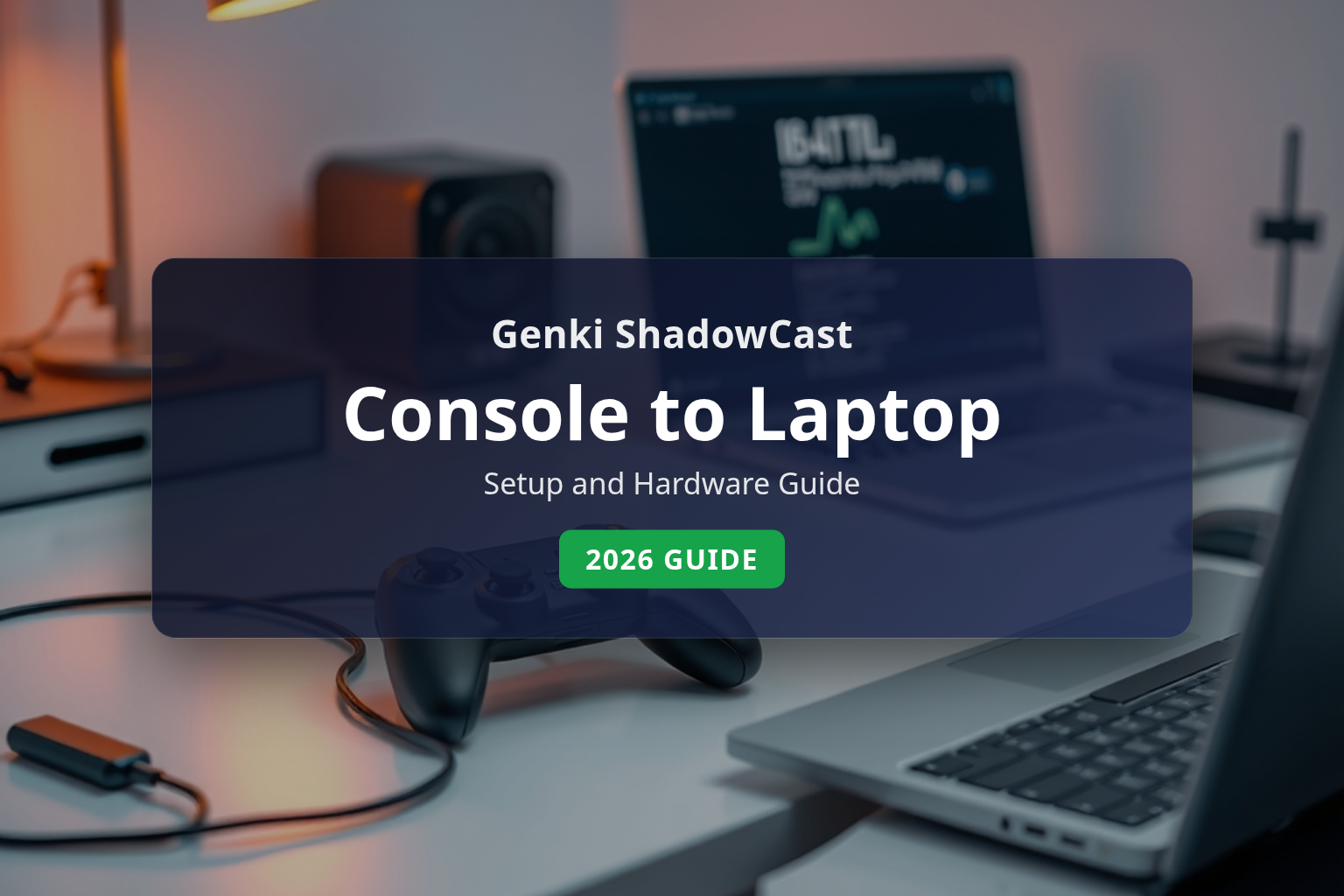
The genki shadowcast is a compact video capture accessory designed by Genki (Human Things Inc.) that allows players to connect an HDMI gaming console directly to a laptop or computer screen via USB. Instead of carrying a dedicated television or bulky external monitor while traveling, gamers use this tool to feed console video signals into a computer display window. Before purchasing, it is important to understand how this hardware operates, how it fits into the broader Genki product catalog, and what specific limitations you should check on the official website.
Affiliate disclosure: This article may contain affiliate links. If you buy through them, we may earn a commission at no extra cost to you. Details were checked on November 18, 2026 and can change.
Official website · Latest pricing & offers
Quick Answer: What Is Genki ShadowCast and How Does It Work?
Laptops are built with HDMI-out ports to send their display signal to external projectors or monitors, meaning they cannot accept an incoming HDMI signal directly from a console like a Nintendo Switch, PlayStation, or Xbox. The Genki ShadowCast solves this physical bottleneck by acting as an ultra-compact USB video capture device. It plugs into the video source via HDMI and converts the outgoing console signal into a standard webcam-style USB video data stream that your computer can read through compatible software.
- Primary function: Translates console HDMI output into a USB video stream readable by your laptop.
- Portability focus: Designed as a pocket-friendly alternative to traditional desktop capture cards.
- Associated hardware: Featured alongside accessories like the Shadow Cast Pro and Covert Dock on Genki’s official storefront.
- Where to verify current specs: Exact latency metrics, resolutions, and system requirements should always be confirmed directly on genkithings.com before ordering.
What Is the Genki ShadowCast in the Genki Ecosystem?
Genki is a hardware brand operated by Human Things Inc., known for creating gaming peripherals under the tagline “Rare Gear for Real Players.” The company gained attention within the gaming community by targeting specific quality-of-life problems faced by portable console owners. Rather than manufacturing general PC accessories, Genki focuses heavily on travel-friendly tools that streamline power, audio, and video connectivity.
Within the official Genki lineup, the ShadowCast sits in the video capture and connectivity category. On the official storefront at genkithings.com, you will find it positioned alongside companion hardware such as the Covert Dock, Covert Dock 3, Moonbase, and the higher-tier Shadow Cast Pro. The product family also includes custom protection and carrying accessories like the Sleeper Case, Force Field, Saya Carry, and Aegis Shield.
Understanding where the hardware fits into this ecosystem is helpful because Genki products are often designed to complement one another. For example, gamers frequently pair video capture dongles with portable charging solutions like the Covert Dock to eliminate the bulk of standard console docks when traveling. If you want a wider overview of how Genki approaches portable gaming power and accessories, read our Genki review.
The Hardware Dilemma: Why You Cannot Plug a Console Directly into a Laptop
Many console owners wonder why an accessory like the ShadowCast is even necessary. Nearly all modern laptops equipped with an HDMI port seem, at first glance, like they should be able to accept an HDMI cable coming from a gaming dock. However, this is a fundamental misunderstanding of PC hardware architecture.
Standard laptop HDMI ports are strictly “HDMI Out” interfaces. Their internal graphics processing unit (GPU) and motherboard circuitry are wired to transmit display data outward to an external panel, television, or office projector. The internal display panel of the laptop is hardwired directly to the internal graphics controller, without any hardware routing available to ingest external video signals.
To view an external device on a laptop screen, the incoming video signal must enter through a data port—such as a USB Type-C or USB Type-A port—and be interpreted by the operating system as an incoming media stream. This is where dedicated capture cards and compact tools like the ShadowCast come into play. They receive the raw HDMI signal, process it through an internal encoder chip, and transmit it over USB using standard video device protocols.
How the Genki ShadowCast Works to Stream Consoles to Laptops
The operational concept behind the genki shadowcast relies on standard USB Video Class (UVC) architecture. This is the exact same driver standard that external webcams and USB cameras use to communicate with operating systems like Windows, macOS, and ChromeOS without requiring proprietary driver installations.
When you plug the dongle into a console’s HDMI port and connect the USB cable to your laptop, the computer recognizes the incoming connection not as a monitor, but as an external camera input. A dedicated viewer application or capture utility then opens a live preview window of that incoming feed on your desktop.
| Stage | Device / Cable | Operational Role |
|---|---|---|
| 1. Signal Output | Console / Dock | Outputs raw digital audio and video through a standard HDMI port. |
| 2. Signal Ingestion | Genki ShadowCast | Receives the HDMI output and digitizes/encodes the stream internally. |
| 3. Data Transfer | USB-C Link Cable | Carries encoded audio and video packets to the laptop as a UVC device stream. |
| 4. Screen Display | Laptop Viewing App | Renders the incoming feed in a window or full-screen mode on the laptop panel. |
Because the signal is treated as an active video stream, you can run your console feed inside a resizable window alongside web browsers, communication tools, or work documents. This flexibility is a primary reason travel-focused players prefer capture hardware over carrying dedicated screens.
ShadowCast vs. Shadow Cast Pro: What Genki’s Catalog Shows
As Genki’s product line has matured, the brand introduced both the original ShadowCast and the Shadow Cast Pro on its international storefronts. While both devices serve the core purpose of bridging HDMI sources to computer screens, they address different performance expectations and user setups.
The standard ShadowCast is engineered around maximum portability and minimalist travel. It features an ultra-small form factor built primarily for casual gaming on the go, where convenience and lightweight packing take priority over complex broadcast pipelines. It plugs directly into an HDMI port with minimal cable clutter.
In contrast, Genki also offers the Shadow Cast Pro on genkithings.com as an alternative capture solution. High-tier capture hardware typically features an HDMI pass-through port in addition to the USB data interface. This pass-through allows the user to send an uncompressed, zero-latency signal directly to an external gaming television while simultaneously sending a captured video stream to a computer for recording or live broadcasting.
Because Genki periodically updates hardware revisions, port standards, and firmware support, you should always consult the specific product specification charts on genkithings.com to verify whether your intended use case requires the standard travel dongle or the Pro model.
Step-by-Step Setup Guide: Using Capture Gear on Your Laptop
Setting up a portable capture device involves coordinating video, power, and software simultaneously. Follow this general setup framework when preparing to use console-to-laptop capture hardware:
- Power Your Console Appropriately: Consoles like the Nintendo Switch cannot output video without sufficient power delivered to their dock or power hub. If you are using a portable hub or Genki’s dock hardware, ensure it is plugged into a wall outlet capable of delivering the required wattage. For an in-depth breakdown of portable dock requirements, check our guide on the Genki Covert Dock.
- Connect the Capture Dongle: Insert the HDMI end of your capture accessory firmly into the HDMI output port of your console dock or source device.
- Attach the USB Data Cable: Plug the provided USB-C cable into the capture dongle, and connect the other end directly into a high-speed USB port on your laptop. Avoid unpowered USB hubs that could choke data bandwidth.
- Launch Viewing Software: Open your designated camera viewing application or dedicated Genki software utility on your laptop.
- Select the Input Device: Within your software settings, designate the capture hardware as your primary video and audio input source.
- Adjust Audio and Aspect Ratio: Verify that the window scale matches your console’s native output (typically 16:9) and that desktop audio is unmuted so you hear the game audio through your laptop speakers or headphones.
Performance Realities: Latency, Resolution, and Display Limits
While playing console games on a laptop screen is remarkably convenient, buyers must understand the technical realities of USB video capture. No capture dongle operates in the exact same manner as a native direct display cable.
Encoding and Processing Latency
Whenever an HDMI signal is converted into USB data packets, a microsecond processing delay is introduced. The hardware must capture the frame, compress it, transmit it over the bus, and let the laptop’s operating system decode and render it on your display. While high-end capture hardware minimizes this delay to fractions of a second—making role-playing games, strategy titles, and casual adventure games feel smooth—it is not identical to a raw 1ms gaming monitor.
If you regularly compete in frame-sensitive competitive fighting games or high-precision rhythm titles, that slight processing buffer can impact your timing. Casual and mainstream gaming, however, is generally well within acceptable thresholds for travel play.
Resolution and Refresh Rate Boundaries
Compact capture adapters are engineered to balance heat dissipation, power draw, and USB bandwidth. Unlike massive desktop graphics cards, miniature dongles have strict thermal boundaries. As a result, compact capture tools generally focus on standard HD capture rates rather than ultra-high-refresh 120Hz or 240Hz pipelines.
Always inspect the official product technical sheet on genkithings.com to verify whether your target model captures at 1080p, 720p, or 4K input tiers, and check what maximum frame rates are supported under various resolution profiles.
Official Ordering, Shipping, and International Store Policies
Before purchasing hardware from Genki, review how the company manages storefront regions, localized distribution, and warranty fulfillment. A review of genkithings.com reveals several key operational facts about ordering directly from the brand.
Regional Warehousing and Currency Options
Genki operates an international e-commerce platform powered by localized fulfillment. According to official announcements on their storefront, Genki ships locally from regional hubs within the United Kingdom and the European Union for customers located in those territories. Furthermore, the website features an extensive country and currency selector spanning dozens of global markets—including USD ($), GBP (£), EUR (€), CAD ($), AUD ($), JPY (¥), and many others.
Local fulfillment in key regions helps reduce cross-border customs delays and unexpected import surcharges. When ordering, make sure your specific country is selected in the site’s footer dropdown so that applicable tax handling and currency calculations reflect your home territory accurately.
Refunds, Warranties, and Customer Support
Genki maintains designated operational pages for legal and customer care matters, including their “Refunds and Warranty,” “Shipping Policy,” and “Return Form” portals. Human Things Inc. outlines specific criteria for product returns, unopened exchanges, and manufacturer defect claims.
Because consumer protection laws differ depending on whether you purchase via North American, UK, or EU distribution channels, verify the current return window and warranty coverage periods directly on their official Support and Warranty documentation before placing an order.
Pros and Cons of the Genki ShadowCast Concept
Evaluating any niche gaming hardware requires weighing its physical benefits against its operational compromises. Below is an objective summary of how portable USB capture tools compare against traditional monitor setups.
Advantages
- Extreme Portability: Eliminates the need to pack a dedicated portable monitor, power brick, and extra HDMI cabling in your luggage.
- Multi-Tasking on One Display: Allows you to play console games in a window while keeping Discord, guides, work chats, or streaming tools visible on the same laptop screen.
- Broad Operating System Compatibility: Relies on universal UVC protocols, which standardizes compatibility across modern Mac and PC operating systems.
- Minimal Cable Clutter: Uses a single USB connection between the dongle and your computer, keeping travel desks clean.
Disadvantages
- Inherent Capture Latency: Video processing introduces minor signal latency that is less ideal for competitive esports or frame-perfect rhythm titles.
- Software Dependency: Requires your laptop to be powered on, booted into an operating system, and running a compatible video capture utility.
- Laptop Battery Drain: Decoding a live, high-bitrate video stream causes continuous GPU and CPU utilization, which will drain a laptop battery faster if not connected to mains power.
- Dock Still Required: Consoles like the Nintendo Switch still require dock functionality to activate their HDMI output mode; the dongle cannot bypass the console’s internal video routing rules.
Who Is the Genki ShadowCast Best For (and Who Should Skip It)?
Understanding your gaming habits will help determine whether a compact capture adapter aligns with your needs or whether an alternative hardware route makes more sense.
Ideal Candidates
- Frequent Travelers and Digital Nomads: Gamers who live out of a suitcase and already travel with a high-end laptop display, avoiding the extra weight of a secondary screen.
- College Students and Dorm Residents: Players living in cramped quarters where desk space cannot accommodate both a dedicated television and a computer workstation.
- Casual and Narrative Gamers: Players who focus on single-player adventures, visual novels, and turn-based games where fractional input delays have zero impact on gameplay enjoyment.
- Mobile Screen Recorders: Users who occasionally want to grab quick gameplay footage or share their screen via video conferencing apps without configuring a full desktop broadcast rig.
Who Should Look for Alternatives
- Competitive Esports Players: If your primary games are fast-paced fighting games, competitive first-person shooters, or rhythm titles, a direct HDMI-connected portable gaming monitor with native response times is strongly recommended.
- Players Without Laptops: If you do not already travel with a capable laptop, buying a laptop solely to act as a screen is vastly more expensive than buying a standalone battery-powered portable display.
- High-End Studio Streamers: Creators requiring uncompressed 4K60 HDR multi-channel capture with hardware audio mixing should consider dedicated desktop PCIe cards or professional desktop capture boxes instead of travel dongles.
Troubleshooting Common Console-to-Laptop Video Issues
When routing console video through a capture interface, issues can occasionally arise due to software permissions, sleep modes, or power delivery. Here is how to diagnose common setup roadblocks using guidance aligned with Genki’s support resources:
1. The Screen Shows a Black Window
A black screen inside your viewing utility usually indicates a handshake failure along the HDMI or USB line. First, verify that the console is actively docked and powered on—a sleeping console sends no video signal. Second, disconnect and reconnect the USB-C cable at both ends to force the computer operating system to re-poll the UVC interface. Finally, ensure your computer’s operating system permissions allow your chosen capture app to access “Camera” hardware.
2. Video Stutters or Drops Frames
Video stutter is almost always related to USB bus bandwidth or laptop CPU throttling. Ensure your capture dongle is connected directly to a high-speed port rather than through an unpowered dongle or passive hub. If your laptop is running in an extreme “Battery Saver” profile, the operating system may downclock video decoding threads; connect your laptop to its power supply and recheck performance.
3. Video Plays But Audio Is Silent
Because UVC capture hardware treats video and audio as separate incoming streams over the same USB connection, your viewing application must be instructed to monitor the audio device. Check your sound control panel or software preferences to verify that the capture hardware is designated as an active audio input, and ensure your software’s “Audio Output Mode” is set to output desktop audio rather than capture-only mode.
Official website · Latest pricing & offers
FAQ
Does the Genki ShadowCast work with any gaming console?
The device is designed to accept incoming video from standard digital HDMI outputs. This means it can interface with modern home consoles that output standard HDMI signals, provided the console is connected through its required dock or power interface. It cannot connect directly to handheld systems that lack video-out capabilities.
Can I use my laptop keyboard and trackpad to control the console?
No. The capture hardware only transmits video and audio signals from the console into a display window on your laptop. It does not send controller or keyboard data back to the console. You must continue using your standard wireless or wired console controllers paired directly to your console.
Do I need to install special drivers to use the device?
Because Genki’s capture hardware utilizes standard USB Video Class (UVC) protocols, modern operating systems like Windows and macOS recognize it automatically as an external video device. Genki offers dedicated viewing tools, but users can also view incoming video through common open-source camera and streaming software.
What is the difference between ShadowCast and Shadow Cast Pro on the official site?
On genkithings.com, the standard ShadowCast is built for ultra-portable, compact travel gaming directly to a single computer screen. Consult the official product listings on genkithings.com to compare the specific feature sets, ports, and performance differences between the standard and Pro models.
Does Genki ship products internationally?
Yes. Genki’s official website supports ordering across dozens of countries and currencies. In addition, Genki maintains local shipping from regional hubs within the UK and EU to streamline fulfillment for European customers. Check the region selector in the site footer for specific local currency rates.
Where can I find official firmware updates and warranty terms?
Official firmware updates, setup guides, and warranty terms are managed directly through the “Support,” “Genki Guide,” and “Refunds and Warranty” pages located on genkithings.com. Always refer to those official links for the most up-to-date documentation regarding your hardware batch.
Related Reading
- Genki Covert Dock Review: Features and Specs Guide (2026)
- Genki Review 2026: Switch and Gaming Gear Explained