OpusClip Free Plan: What You Get, Credits, and Limits (2026)
The opusclip free plan provides video creators with an entry-level tier to generate short-form vertical videos from longer footage without paying an upfront subscription fee. Designed as a permanent zero-dollar tier rather than a time-limited free trial, it offers 60 monthly processing credits, automatic 9:16 reframing, and AI-generated captions with keyword highlighting. However, it imposes strict operational boundaries, including visible watermarks, a rigid three-day export window, and the absence of timeline editing tools.
Affiliate disclosure: This article may contain affiliate links. If you buy through them, we may earn a commission at no extra cost to you. Details were checked on November 18, 2026 and can change.
Official website · Latest pricing & offers
Quick Answer: What Does the OpusClip Free Plan Include?
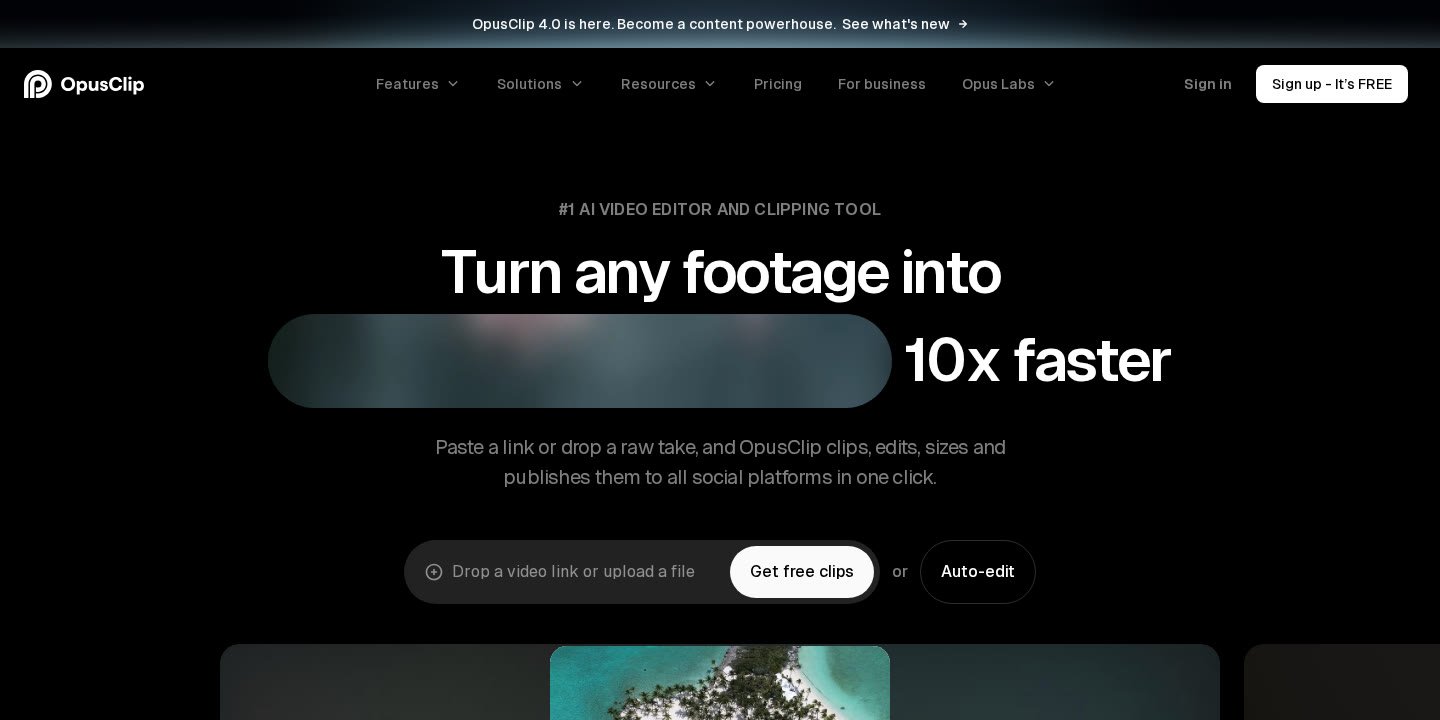
The free tier of OpusClip is labeled by the platform as “Free forever” at $0 USD per month. It allows users to test the platform’s core automated clipping and transcription mechanics using their own local video files. While it allows you to see how the system cuts footage and aligns subtitles, the final exports carry restrictions designed to encourage commercial users to upgrade.
- Monthly Allowance: 60 credits per month refreshed on a recurring basis.
- Export Quality: Up to 1080p rendered clips in MP4 format.
- Watermarking: All exported clips contain a visible OpusClip watermark.
- Export Time Limit: Clips expire after 3 days; once that window passes, projects are no longer exportable.
- Video Reframing: Standard 9:16 vertical aspect ratio with auto reframe capabilities.
- Captions: Automated AI captions with emoji and keyword highlighter, supporting over 20 languages.
- Editing Restrictions: No access to text- or timeline-based video editing.
- Import Restrictions: Supports local video file uploads up to 10GB per video; direct URL imports from external platforms are reserved for paid tiers.
- Support Channel: Community and automated assistance via Discord AI chat.
Understanding the OpusClip Free Plan Credit Allowance and Processing Rules
To evaluate whether the zero-dollar tier fits your production schedule, you must first understand how OpusClip allocates compute capacity. Under the free tier, accounts are granted 60 credits per month. In the OpusClip ecosystem, credits represent processing time for your raw footage, allowing the underlying AI models to analyze spoken dialogue, identify scene transitions, and detect coherent standalone segments.
Unlike paid tiers where processing occurs at accelerated speeds, free tier projects are queued at regular processing speed. During peak server loads, rendering your clips may take longer compared to paying subscribers. Furthermore, unused free credits do not roll over into subsequent months. Each billing cycle resets your balance back to the standard 60-credit threshold.
File ingestion under this tier also has specific operational parameters. You can upload local video files up to 10GB per file. However, automated video import features and external cloud imports are disabled. If you want to review broader pricing tiers or credit allocation mechanics across all subscription packages, check out our comprehensive OpusClip pricing guide.
Core Features Included in the OpusClip Free Plan
Despite being a no-cost tier, the free account delivers access to several automated AI clipping tools that form the backbone of the platform’s technology stack.
1. AI Clipping Engine
The platform’s automated engine analyzes uploaded footage to extract short highlights suitable for vertical formats like TikTok, YouTube Shorts, and Instagram Reels. While the free tier omits the proprietary “Virality Score” found on Starter and Pro tiers, the system still identifies contextually relevant segments based on spoken audio and pacing.
2. Auto Reframe in 9:16
Horizontal footage recorded in standard 16:9 widescreen formats must be adjusted for mobile screens. The free plan includes automated 9:16 reframing. This feature centers active speakers or focal points within the vertical canvas so you do not have to manually crop your footage using third-party software.
3. AI Captions with Emojis and Keyword Highlighting
Viewer retention on short-form social feeds often depends on readable, on-screen subtitles. Free accounts receive automated transcription and animated caption templates. The software automatically applies keyword highlights and relevant emojis based on the spoken words. The transcription engine supports English, German, Spanish, French, Portuguese, and more than 20 additional languages.
4. Rendered Exports up to 1080p
Many free video tools restrict output resolution to 720p standard definition. OpusClip allows free users to export rendered clips at up to 1080p resolution in MP4 format, ensuring crisp visual clarity on modern smartphone displays.
5. Discord AI Chat Support
Free users do not have access to Intercom live chat. Instead, technical support is handled through a Discord AI chat system, where automated agents and community resources address common questions regarding errors, transcription accuracy, and account limits.
Key Limitations of the OpusClip Free Plan You Must Know
While the feature set offers a practical demonstration of AI clipping, the free package includes several firm constraints that prevent most creators from relying on it indefinitely for professional publishing.
1. Mandatory Watermarks
Every clip rendered and downloaded from a free account includes an embedded OpusClip watermark. The platform’s caption templates also carry watermarked branding. If you run a business, agency, or branded social media account where clean, professional visuals are required, watermarked output represents a major hurdle.
2. Strict 3-Day Project and Storage Expiration
The most critical operational limit on the free tier is data retention. Media storage expires after three days. More importantly, official plan terms dictate that after three days, your generated clips will no longer be exportable. If you process a batch of videos on Monday, you must review and download your completed MP4 files before Thursday. Once the three-day window lapses, the files cannot be downloaded, requiring you to consume fresh credits and re-upload your source files if you still need those clips.
3. Complete Absence of Timeline and Text Editing
On paid tiers, OpusClip provides an AI Editor that supports text-based timeline adjustments, manual subtitle corrections, b-roll insertions, and filler word removals. On the free tier, “No editing” is strictly enforced. What the AI generates is what you receive. You cannot trim start or end times inside the platform, adjust subtitle timing, remove bad takes, or manually swap out incorrect words without upgrading or using external video editing software.
4. Restricted Import Sources
On the Pro plan, creators can paste direct URLs from YouTube, Google Drive, Vimeo, Zoom, Rumble, Twitch, Facebook, LinkedIn, Twitter, Loom, Riverside, and StreamYard. The free tier does not support automated or URL-based imports. You must manually download your source footage to your local device and upload the file directly through your browser, subject to a 10GB per-file ceiling.
5. Single Aspect Ratio (9:16 Only)
The free tier renders videos exclusively in vertical 9:16 dimensions. If you need square (1:1) clips for LinkedIn or standard horizontal (16:9) cutdowns for widescreen platforms, you cannot adjust the canvas aspect ratio on the free plan.
OpusClip Free Plan vs. Paid Tiers: Feature and Specification Comparison
To help you determine whether the free account is sufficient for your current production demands or if a paid subscription is necessary, the following table contrasts the official plan specifications provided by OpusClip.
| Feature / Specification | Free Plan | Starter Plan ($15/mo) | Pro Plan ($29/mo or $14.50/mo billed annually) |
|---|---|---|---|
| Monthly Price | $0 USD | $15 USD billed monthly | $29 USD billed monthly / $174 billed annually |
| Credits Included | 60 credits / month | 150 credits / month | 3,600 credits / 12 months (or tiered packs) |
| Watermark Status | Has watermark | Watermark-free export | Watermark-free export |
| Export Retention Window | Expires after 3 days | No 3-day limit listed | No 3-day limit listed (roll over credits for 2 mo) |
| Timeline & Text Editor | No editing tools | Powerful editor included | Advanced AI Editor with XML export |
| Video Import Sources | Local video upload only (up to 10GB) | Local video upload | 10+ sources (YouTube, Drive, Zoom, Twitch, etc.) |
| Virality Score | Not included | Included | Included (with Viral Hook & Motion Graphics) |
| Aspect Ratios | 9:16 only | 9:16 | Multiple: 9:16, 1:1, 16:9 |
| Brand Templates | None | 1 brand template | 2 brand templates |
| Social Auto-Post / Scheduling | None (Manual download only) | Auto post to Shorts, TikTok, IG Reels | Full social media scheduler (6 account connections) |
| Export Quality | Up to 1080p MP4 | Up to 1080p MP4 | Up to 1080p MP4 (XML export for Premiere/DaVinci) |
| Customer Support | Discord AI chat | Check official site for support details | Intercom live chat support |
For an in-depth evaluation of the software’s overarching performance and tools, explore our comprehensive OpusClip review.
Step-by-Step Guide: How to Get Started on the OpusClip Free Plan
Setting up an account and processing your first batch of clips on the free tier takes only a few minutes. If you want a complete walkthrough of workflow optimization, read our guide on how to use OpusClip. Follow these exact steps to register and work within the free plan rules:
- Register an Account: Navigate to the official website and click “Sign up – It’s FREE”. You can create your account using Email OTP (one-time password) authentication without entering credit card details.
- Prepare Your Video File: Ensure your raw footage is saved locally on your computer or device. Confirm that the file size is under the 10GB threshold. Supported formats include standard local video recordings such as MP4 files.
- Upload the File: Inside the web dashboard, drag and drop your video file into the local upload container. Since URL pasting is unavailable on the free plan, you must upload the raw media directly from your storage drive.
- Select Language Settings: Specify the language spoken in your footage. OpusClip supports English, German, Spanish, French, Portuguese, and over 20 other languages. Choosing the correct primary language ensures that the automated transcription engine applies accurate spelling and punctuation.
- Generate Clips: Confirm the submission. The platform will deduct the required processing credits from your 60-credit monthly balance and place your project into the regular processing queue.
- Review and Download Within 3 Days: Once processing is finished, navigate to your dashboard to review the extracted clips. Check the 9:16 framing and animated subtitles. Remember: you must click download on your desired MP4 files immediately, as the project and its download links will be permanently disabled after three days.
Who Should Use the OpusClip Free Plan (and Who Needs an Upgrade)?
The free tier serves specific user scenarios effectively, but it quickly reveals its boundaries when applied to commercial publishing pipelines.
The Free Plan Is Best For:
- Evaluating AI Framing and Transcription Accuracy: If you are unsure whether automated tools can understand your accent, technical terminology, or visual composition, the 60 free credits allow you to test real footage without financial commitment.
- Casual Hobbyists: Creators publishing non-monetized content who do not mind having a visible watermark in the corner of their videos.
- Students and Educators: Individuals repurposing classroom lectures or presentations for internal study groups where branding and watermarks are irrelevant.
- Rapid Prototyping: Video editors wanting to quickly scan a long interview to discover potential timestamps and narrative hooks before performing manual, high-precision edits in dedicated NLE software.
Who Needs to Upgrade to Starter, Pro, or Business:
- Professional Creators and Influencers: Anyone distributing content across YouTube Shorts, Instagram Reels, or TikTok for monetization requires clean, watermark-free visuals.
- Marketing Agencies and Social Media Managers: Teams managing client accounts cannot deliver watermarked clips. Agencies also require brand templates, custom fonts, and multi-platform publishing schedules found on the Pro and Business plans.
- Podcasters Relying on Cloud Links: Creators recording via Zoom, Riverside, StreamYard, or YouTube who want to paste links directly instead of downloading massive 10GB files locally first.
- Editors Demanding Control: Anyone who needs to fix misspelled words in subtitles, remove verbal pauses or bad takes, or export timeline XML files to Adobe Premiere Pro or DaVinci Resolve.
Troubleshooting Common OpusClip Free Plan Issues and Limitations
When operating under the zero-dollar account tier, users frequently encounter standard platform restrictions. Here is how to navigate them according to official guidelines.
1. The 3-Day File Expiration Deadline
The most common issue free users encounter is discovering that their dashboard projects no longer permit exports. The official pricing documentation specifies that media storage expires after three days, and clips become unexportable. There is no automated grace period. To avoid losing work, establish a routine where you download rendered MP4 files immediately after the AI finishes processing.
2. Reaching the 60-Credit Ceiling
If your project requires more processing time than your remaining balance, the job will fail to initiate. The free plan does not allow on-demand credit top-ups; those are exclusive to paid packages. If you exhaust your 60 credits, you must wait until your next monthly billing cycle resets your allowance or upgrade to the Starter ($15/mo for 150 credits) or Pro tier.
3. Handling Subtitle Inaccuracies Without an Editor
Because the free tier does not include timeline or text editing, you cannot correct typos or adjust caption timing inside the web app. If transcription errors occur on the free plan, verify that you selected the appropriate language model before uploading. If errors persist, the only way to modify text natively is by moving to a tier that includes the AI Editor.
4. Large File Ingestion Errors
Local uploads must not exceed 10GB per video. If your browser freezes or the upload times out, check your local file size and home internet connection. Compressing extremely high-bitrate raw files locally prior to uploading can help keep file sizes well within the 10GB restriction.
Alternative Approaches and Workflow Considerations in Video Repurposing
When determining whether to utilize an automated tool like OpusClip or pursue other methods, creators generally weigh two standard workflows:
Manual Editing Workflows
In a traditional production pipeline, an editor imports long-form footage into desktop editing suites like Adobe Premiere Pro, Final Cut Pro, or DaVinci Resolve. The editor manually identifies key timestamps, crops the horizontal video into a 9:16 vertical sequence, keyframes the position to track speakers, and generates subtitle tracks. While this method provides complete creative control without recurring credit limitations or watermarks, it demands significant technical skill and hours of manual labor per clip.
AI-Assisted Automated Repurposing
AI clipping platforms automate speech recognition, speaker tracking, framing, and dynamic subtitle generation. Tools in this category exchange manual keyframing for rapid processing. The opusclip free plan provides a glimpse into this automated workflow. While the free tier removes the manual editing workload, it trades off timeline flexibility and clean branding. Evaluating whether automated speed outweighs the presence of a watermark depends entirely on whether your video output is personal or commercial.
Official website · Latest pricing & offers
FAQ
Does the OpusClip free plan expire after a certain number of days?
No, the account tier itself is listed as “Free forever” at $0 per month. However, individual projects and rendered clips do expire. According to official plan terms, media storage expires after 3 days, and your generated clips will no longer be exportable once that 3-day window passes.
Can I remove the watermark on the OpusClip free plan?
No. Watermark removal is not available on the free tier. Both the video output and caption templates contain watermarks. To obtain watermark-free video exports, an upgrade to at least the Starter plan ($15 USD/month) is required.
How many credits do I get on the free plan, and do they roll over?
The free plan includes 60 credits per month. Unused credits do not roll over from month to month on the free tier. Credit rollover (up to 2 months) is an exclusive feature of the Pro plan.
Can I paste a YouTube link into the OpusClip free plan?
No. External link importing (from YouTube, Google Drive, Vimeo, Zoom, Rumble, Twitch, and others) is restricted to paid tiers. Free plan users are limited to uploading local video files from their device, up to a maximum file size of 10GB per video.
Can I edit my clips, text, or b-roll on the free plan?
No. The free plan lists “No editing” and does not include the timeline or text-based editing suite. Features such as filler word removal, manual caption adjustments, b-roll insertions, and XML export are reserved for the Starter and Pro plans.
What video resolution does the free plan export?
The free plan exports rendered MP4 clips at up to 1080p resolution, maintaining standard high-definition visual quality for mobile vertical formats.
What customer support is provided for free plan users?
Free plan accounts receive support via a Discord AI chat system. Intercom live chat and dedicated Slack support are reserved for paid tiers such as Pro and Business.
Related Reading
- OpusClip Pricing: Free vs Paid Plans Explained (2026 Guide)
- OpusClip Review 2026: Features, Pricing, and Credit Limits
- How to Use OpusClip to Turn Long Videos Into Shorts (2026 Guide)