OpusClip AI Editor and AI B-Roll Explained (2026 Guide)
The opusclip ai editor is an all-in-one video repurposing interface designed to trim long-form footage, apply automated B-roll, clean up audio, and format vertical video assets without requiring traditional non-linear editing skills. Built into OpusClip 4.0, the tool allows creators and video teams to refine automatically generated clips or export project files directly to professional suites like Adobe Premiere Pro and DaVinci Resolve.
Affiliate disclosure: This article may contain affiliate links. If you buy through them, we may earn a commission at no extra cost to you. Details were checked on November 25, 2026 and can change.
Official website · Latest pricing & offers
Quick Answer: What Is the OpusClip AI Editor and How Does It Work?
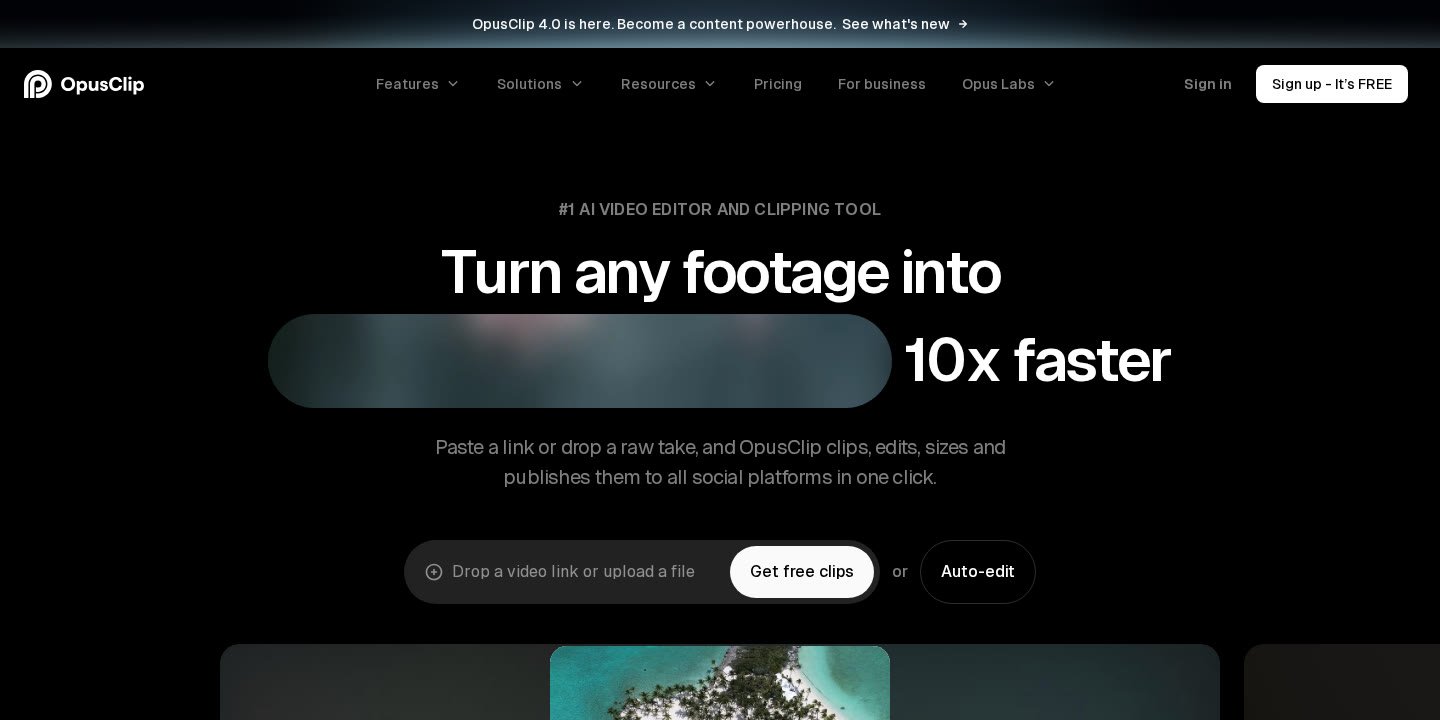
The OpusClip AI editor is a browser-based, text- and timeline-driven post-production workspace. Rather than relying solely on automated algorithms that pick highlights and force an immediate export, OpusClip provides an interactive editor where users can adjust cuts word by word, rearrange timelines, and enrich their shorts with automated assets.
Key highlights of the editing system include:
- Text and Timeline Editing: Cut, trim, and adjust video clips using the generated transcription or a visual timeline interface.
- AI B-Roll Integration: Generate and insert relevant visual cutaways—including images, video clips, and stock media—in one click in under one minute, with AI video B-roll powered by Agent Opus.
- Speech Enhancement & Cleanup: Automatically isolate speech, remove background noise, delete filler words, clear out unnatural pauses, and trim bad takes.
- Professional NLE Export: Export sequences to XML files to continue fine-tuning edits inside Adobe Premiere Pro or DaVinci Resolve.
- Automated Layouts and Reframe: Switch aspect ratios between 9:16 vertical, 1:1 square, and 16:9 landscape using AI object tracking and dynamic split layouts.
While basic clipping can be automated completely on the platform, accessing the AI editor and its advanced media features depends on your plan tier. Free accounts do not include timeline or text editing, whereas the Starter and Pro plans unlock editor controls and advanced asset generation.
Core Capabilities of the OpusClip AI Editor
Video clipping platforms often force users to accept whatever cut the algorithm decides to deliver. In contrast, the opusclip ai editor operates on a hybrid model: the underlying models identify key moments, generate hooks, and calculate a Virality Score, but the user retains total creative authority over the final cut.
Text-Based Video Trimming
The editor synchronizes your video frames directly with the generated transcript. If you want to remove an unnecessary sentence, delete an off-topic tangent, or shorten an answer, you can highlight the words in the text interface and delete them. The video timeline automatically updates to reflect the text cut, ensuring seamless pacing without manually scrubbing back and forth across frames.
Timeline-Based Adjustments
For editors who prefer visual timeline controls, the editor includes a standard track view. This timeline allows you to adjust cut points, lengthen or shorten pauses, rearrange clip segments, and review where graphics and text overlays appear. Having both text and timeline modes accommodates both non-technical creators who prefer reading a script and experienced video editors who want exact frame placement.
Automated Silence, Filler, and Bad Take Removal
Raw conversational footage is often bogged down with conversational filler. The OpusClip AI editor includes automated speech cleanup tools that detect “ums,” “ahs,” and long silences. Users can remove these interruptions across the entire clip with a single command. On higher tiers, the editor also supports bad take removal, recognizing repeated sentences when a speaker stumbles and restarts a thought, automatically retaining only the polished take.
Visual Layouts and Dynamic Reframe
Repurposing horizontal footage (16:9) into vertical platforms (9:16) often cuts off visual context. The editor integrates OpusClip’s ReframeAnything model, which uses AI object tracking to follow the speaker across the screen. If the video features multiple speakers, gameplay, or a shared screen, the editor provides dynamic layout switching. You can split the screen to display both an interviewer and a guest, or position a presenter’s facecam directly above a product demonstration or gameplay clip.
OpusClip AI B-Roll: Automated Cutaways in Under a Minute
Static talking-head videos often suffer from high drop-off rates on short-form platforms. Adding B-roll manually usually requires searching stock libraries, downloading clips, importing them into an editor, and aligning them with the vocal track. OpusClip addresses this with its automated AI B-roll system.
How AI B-Roll Works
The AI B-roll engine analyzes the script and spoken concepts in your clip to identify moments where visual illustrations would enhance retention. According to OpusClip’s technical specifications, the tool fetches and places relevant B-roll in one click, processing the request in under one minute.
The system pulls from three primary visual formats:
- AI-Generated Images: Contextual visual stills created to match specific concepts described by the speaker.
- Curated Stock Media: Licensed, high-definition video clips that correspond to practical subjects (e.g., cityscapes, business settings, technology).
- AI Video B-Roll: Dynamic video cutaways generated specifically for the video sequence, powered by OpusClip’s Agent Opus model.
Manual Control and Asset Replacement
While the initial B-roll selection is fully automated, users can customize every cutaway directly inside the editor. If an auto-selected clip does not align with your branding or tone, you can open the B-roll inspector to swap the asset, upload your own proprietary B-roll footage, adjust the start and end points of the overlay, or remove the cutaway entirely.
To learn more about how captions and visual styles interact with these overlays, you can read our OpusClip captions guide.
Speech Enhancement and Audio Processing in the OpusClip AI Editor
High video quality cannot compensate for poor audio. Recording outside of professional studio environments frequently introduces background hum, room echo, and inconsistent vocal volume. OpusClip incorporates audio-specific processing directly into the editor interface.
Enhance Speech Tool
The Enhance Speech feature delivers pro-level vocal clarity without requiring dedicated mixing plugins or hardware equalizers. When activated, the AI separates the primary voice track from background disturbances, eliminating ambient noise such as air conditioners, outdoor traffic, or mechanical fan hum. It also balances vocal levels so that soft-spoken remarks remain intelligible without clipping louder exclamations.
Audio Dubbing in Your Own Voice
OpusClip 4.0 introduces an AI video dubbing model capable of dubbing videos into alternative languages using the speaker’s own cloned voice. This feature is integrated alongside the platform’s multi-language transcription system, which supports English, German, Spanish, French, Portuguese, and over 20 additional languages.
Background Music and Sound Effects
The editor allows creators to layer royalty-free background tracks directly into the project timeline. The platform automatically mixes the music underneath the voice track to ensure the spoken dialogue remains the primary focus. Additionally, AI sound effects can be applied at key transition moments or text highlight cues to retain viewer focus.
Exporting to XML: Moving Projects to Premiere Pro and DaVinci Resolve
One of the primary bottlenecks of web-based video repurposing tools has historically been the “walled garden” problem: once an AI edits a clip, users can only download a flattened MP4 file. If any element needs fine-tuning—such as micro-timing cuts, color grading, or complex keyframing—the editor has to rebuild the project from scratch in a professional desktop program.
OpusClip solves this through its Export to XML functionality, available on paid Pro and Business accounts.
How the XML Export Workflow Operates
Instead of rendering a single flattened video file, exporting to XML outputs a structured project file compatible with industry-standard non-linear editing software (NLEs), specifically:
- Adobe Premiere Pro
- DaVinci Resolve
When you import the generated XML into Premiere or DaVinci, your timeline is populated with individual, editable media tracks. The original source footage cuts, B-roll layers, audio edits, and reframing instructions are preserved as native timeline elements rather than burned-in pixels.
Why Professional Editors Rely on XML Handoff
This workflow enables production agencies and professional creators to use OpusClip as an advanced rough-cut engine. Rather than spending hours scrubbing through two-hour podcast episodes to find hooks and piece together initial sequences, editors can let OpusClip generate the base timeline, clean the dialogue, and place draft B-roll. The project is then transferred to Premiere Pro or DaVinci Resolve for final color correction, custom motion graphics, brand-specific typography, and audio mastering.
For more details on framing adjustments prior to exporting, check our breakdown of OpusClip AI Reframe.
Plan Requirements: Accessing the OpusClip AI Editor and B-Roll
Access to editing, B-roll, and export features varies significantly across OpusClip’s pricing tiers. Understanding which plan provides access to the opusclip ai editor is crucial before committing to a workflow.
| Feature / Capability | Free ($0/mo) | Starter ($15/mo) | Pro ($29/mo or $14.50/mo annual) | Business (Custom) |
|---|---|---|---|---|
| Monthly Credits | 60 credits | 150 credits | 3,600 credits/yr (300/mo equivalent) | Custom packs |
| Timeline & Text Editor | No (No editing allowed) | Yes | Yes | Yes |
| AI B-Roll (Image/Stock/Video) | No | No | Yes (Agent Opus support) | Yes |
| Export to Premiere & DaVinci (XML) | No | No | Yes | Yes |
| Speech Enhancement | No | No | Yes | Yes |
| Watermark | Has watermark | Watermark removed | Watermark removed | Watermark removed |
| Project Expiration | Clips expire in 3 days | Auto-save projects | Auto-save / 2-month credit rollover | Dedicated storage |
| Team Seats | 1 user | 1 user | 2 seats included | Custom seats |
As outlined in the official plan specifications, the Free tier does not provide video editing. Free accounts receive 60 monthly credits to test automated clipping and auto-reframing, but the clips carry a watermark, cannot be adjusted inside the editor, and expire after 3 days.
The Starter plan ($15/month) unlocks the core text- and timeline-based editor and removes the watermark, but it excludes AI B-roll generation, speech enhancement, and XML exports. Users requiring automated visual cutaways, studio-quality speech cleanup, or Adobe Premiere/DaVinci Resolve handoff must subscribe to the Pro plan (priced at $29 billed monthly, or $14.50 per month when paid annually at $174) or custom Business plans. For a complete financial breakdown of credits and subscription tiers, review our guide to OpusClip pricing.
Step-by-Step: Using the OpusClip AI Editor from Ingestion to Export
Navigating the OpusClip editing pipeline involves a straightforward path from raw footage to distributed social content.
Step 1: Input Raw Footage or Remote Links
OpusClip allows creators to upload raw media files directly from their desktop (supporting local uploads up to 10GB per video). Pro accounts can also import directly using public or private links from 10+ supported platforms, including:
- YouTube
- Google Drive
- Vimeo
- Zoom
- Rumble
- Twitch
- Loom
- Riverside
- StreamYard
Step 2: Automated Clipping and Virality Scoring
Once ingested, the ClipAnything engine scans the footage. Unlike older algorithms limited strictly to dialogue podcasts, ClipAnything evaluates multiple content categories—including vlogs, sports broadcasts, gaming, educational explainers, and interviews. The platform identifies hook moments, segments the long video into short-form clips, and calculates a Virality Score predicting engagement potential.
Step 3: Open the AI Editor
Select any generated clip from your project dashboard to launch the editor interface. Here, the video player displays your clip in vertical (9:16), square (1:1), or widescreen (16:9) formats. Beside the player, you will find the interactive transcript, timeline tracks, and design settings.
Step 4: Refine Dialogue and Layouts
Use text-based trimming to clean up speech. Toggle the Filler & silence removal option to automatically cut pauses. If the footage involves multiple subjects, activate ReframeAnything to verify that speakers remain centered, or switch to a dynamic split-screen layout if you want to feature screenshares or conversation partners simultaneously.
Step 5: Apply AI B-Roll and Speech Enhancement
On Pro accounts, click the AI B-Roll button to let the system generate context-aware visual overlays. Review the suggested cutaways on your timeline, replacing any stock footage or generated images that do not fit your editorial standards. Next, toggle Enhance Speech to eliminate room reverberation and background hiss.
Step 6: Choose Export Destination
Depending on your publishing strategy, you can either:
- Render and download a finished 1080p MP4 file.
- Publish immediately or schedule the post using the built-in Social Media Scheduler (supporting TikTok, YouTube Shorts, and Instagram Reels).
- Click Export to XML to download the project sequence file for Adobe Premiere Pro or DaVinci Resolve.
Evaluating the Strengths and Trade-offs of the OpusClip AI Editor
Assessing any software tool requires weighing practical strengths against workflow limitations. Based purely on official product specifications, several clear advantages and operational constraints emerge.
Operational Strengths
- Accelerated Rough Cuts: Creators do not have to review hours of timeline footage manually; the AI generates initial hooks, transcribes dialogue, and structures sequences.
- Multi-Format B-Roll: Combining stock libraries, AI images, and Agent Opus-powered video cutaways within a single interface removes the friction of managing third-party stock subscriptions.
- True NLE Compatibility: XML export protects professional workflows by preventing lock-in to web-rendered MP4 files.
- Broad File Import: Supporting direct URLs from Riverside, StreamYard, Zoom, Google Drive, and major social video hubs minimizes the need to download and re-upload large files locally.
Operational Limitations
- Editing Locked on Free Tier: Users testing the platform without a credit card cannot test the editor interface; free accounts are strictly limited to auto-rendered, watermarked clips.
- Feature Tiering: Essential production tools—notably AI B-Roll, Speech Enhancement, and XML export—are unavailable on the $15/month Starter tier, requiring an upgrade to Pro.
- Storage Expiration Limits: Unpaid projects on Free accounts are deleted after 3 days. While Pro plans include auto-saving and credit rollover for 2 months, long-term dedicated storage is reserved for Business plans.
Who Should Use the OpusClip AI Editor (and Who Should Look Elsewhere)?
The feature balance inside OpusClip 4.0 targets specific creative workflows while leaving others better served by dedicated desktop tools.
Recommended For:
- Podcasters and Talk Show Hosts: Teams producing episodic conversational content can automatically isolate engaging questions, apply split-screen layouts, eliminate filler words, and add B-roll with minimal manual effort.
- Marketing Agencies and Social Teams: Marketing departments managing multiple brands can use brand kits, custom fonts, and scheduled auto-publishing across TikTok, YouTube, and Instagram.
- Professional Video Editors Needing Rough-Cut Speed: By generating initial clips in OpusClip and exporting to XML, editors can cut rough-assembly time drastically before finishing the project in Premiere Pro or DaVinci Resolve.
Not Ideal For:
- Zero-Budget Creators Wanting Unwatermarked Exports: The Free plan places watermarks on rendered videos and forbids manual timeline editing. Creators unwilling to pay for Starter or Pro cannot use the editor.
- Narrative Filmmakers and Complex VFX Artists: OpusClip is engineered specifically for short-form social repurposing. Projects requiring complex multi-cam syncing, advanced compositing, or granular sound design must be handled in full desktop NLEs.
Official website · Latest pricing & offers
FAQ
Does the OpusClip AI editor work on the Free plan?
No. According to OpusClip’s official pricing page, the Free plan does not include video editing capabilities. Free accounts receive 60 credits per month with automated clipping, auto-reframe, and captions, but the resulting clips carry a watermark and cannot be modified inside the timeline editor.
Which plans include AI B-Roll generation?
AI B-Roll (supporting images, video cutaways powered by Agent Opus, and stock media) is available on the Pro plan ($29/month or $14.50/month billed annually) and custom Business plans. It is not included in the Free or Starter tiers.
Can I export my OpusClip project directly to Premiere Pro and DaVinci Resolve?
Yes. OpusClip supports Export to XML on its Pro and Business plans. This exports an industry-standard sequence file that can be opened in Adobe Premiere Pro or DaVinci Resolve, preserving cut points, B-roll layers, and audio edits for further fine-tuning.
What video sources can I import into OpusClip?
You can upload local video files up to 10GB in size. Additionally, Pro plan users can paste links from YouTube, Google Drive, Vimeo, Zoom, Rumble, Twitch, Facebook, LinkedIn, Twitter, Loom, Riverside, StreamYard, and more.
What does the Enhance Speech feature do?
Enhance Speech is an audio optimization tool that cleans up spoken vocals without additional hardware. It separates dialogue from background ambient noise, removes room echo, and balances vocal clarity. It is available on Pro and Business plans.
Does OpusClip support languages other than English in the editor?
Yes. OpusClip supports transcription, animated captions, and speech editing in English, German, Spanish, French, Portuguese, and over 20 additional languages. It also offers AI video dubbing to translate videos using your own voice.
Related Reading
- OpusClip Pricing: Free vs Paid Plans Explained (2026 Guide)
- OpusClip Captions: How to Add, Style, and Brand Them (2026 Guide)
- OpusClip AI Reframe: Resize Videos for Every Platform (2026)
- OpusClip Review 2026: Features, Pricing, and Credit Limits