
Raycast vs Spotlight: Which Mac Launcher Is Better in 2026?
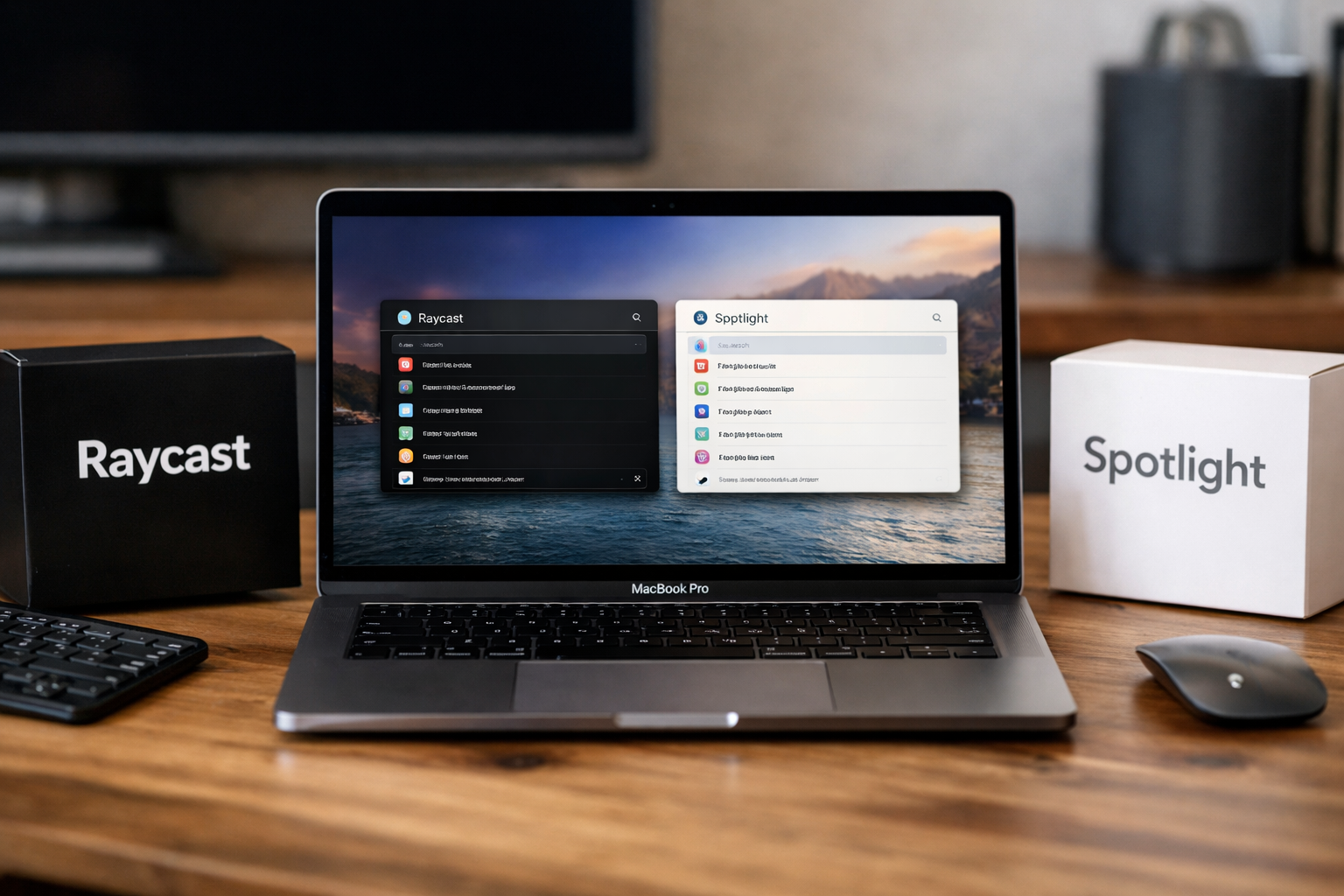
Choosing between raycast vs spotlight comes down to how you use your Mac. Raycast is the stronger choice for people who want a keyboard-first productivity hub with extensions, clipboard tools, snippets, window controls, and optional AI features. Spotlight remains the sensible option for users who mainly want to launch apps, locate files, and keep everything built in.
This article may include an affiliate link. Our recommendation is based on verified Raycast product information and a practical, hands-on-style evaluation of real workflow trade-offs—not on commission. If you decide Raycast fits your workflow, you can review it through this Raycast offer page.
Official website · Latest pricing & offers
Quick Verdict: Raycast vs Spotlight in 2026
For most casual Mac users, Spotlight is enough. It is already available, familiar, and requires no setup beyond learning its keyboard shortcut.
For productivity-focused users, raycast vs spotlight is not a close comparison. Raycast turns the launcher into a broader command center, while Spotlight remains primarily a straightforward way to search and launch items on your Mac.
Who should choose Raycast
Choose Raycast if your day involves repeated small actions across several apps. Examples include copying frequently used text, opening project links, managing windows, calculating values, running quick commands, searching developer tools, or working from the keyboard for long stretches.
Raycast is especially compelling if you want one consistent interface for app launching, Clipboard History, Snippets, Quicklinks, Calculator, Emoji Picker, Notes, and extensions. Its Free plan already covers a substantial portion of what makes it useful, so you can test its fit without committing to a paid plan.
Who should stick with Spotlight
Spotlight is the better fit if you want a lightweight, native search tool and do not want to configure anything. If your normal pattern is “open an app, find a document, occasionally do a quick search,” a more capable launcher may simply be unnecessary.
In the raycast vs spotlight decision, minimalism is a valid priority. Spotlight has less to learn, no extension ecosystem to evaluate, and no reason to rethink habits that are already working well.
The shortest answer for busy readers
Raycast is the best Mac launcher for advanced workflows because it goes beyond search with productivity utilities, customization, and extensibility. Spotlight is best for basic launching and file discovery with the least possible friction.
My practical recommendation: start with Raycast Free if you regularly use keyboard shortcuts or switch between tools all day. Stay with Spotlight if your Mac launcher is something you use briefly, not a workspace you want to optimize.
What Raycast and Spotlight Actually Are
The difference in raycast vs spotlight starts with their purpose. Both can help you get to apps, files, and actions quickly, but they are built around different expectations.
Raycast as an extendable command center
Raycast is a keyboard-first launcher designed to become personal to your workflow. Its verified Free features include Clipboard History, Quicklinks, Calculator, Snippets, Emoji Picker, Window Management, Raycast Notes, Raycast for iOS, thousands of extensions, custom extensions, and developer tooling.
That range matters because it reduces context switching. Rather than opening separate utilities for small tasks, you can access many of them through one command interface. Raycast describes its experience as fast, ergonomic, personal, reliable, and 99.8% crash-free; those are vendor claims, but they align with the product’s clear keyboard-centric design.
Spotlight as Apple’s built-in search launcher
Spotlight is Apple’s built-in search and launching experience. It is the familiar default for Mac users who want to find applications, documents, folders, and other available results without installing another product.
In a typical raycast vs spotlight comparison, Spotlight’s advantage is not workflow depth. Its advantage is that it is already there, uncomplicated, and immediately understandable to nearly any Mac user.
Why this comparison matters now
The question is no longer just whether a launcher opens apps quickly. Many people want a mac productivity launcher that handles recurring actions without forcing them to hunt through menus, browser tabs, or separate utilities.
Searches such as “raycast vs spotlight reddit,” “raycast vs spotlight tahoe,” and “raycast vs alfred vs spotlight” show that buyers are trying to understand the same practical issue: do they need a simple search tool, or would a configurable command center save enough friction to be worth adopting?
Raycast vs Spotlight: Feature-by-Feature Comparison
A good raycast vs spotlight evaluation should focus on daily use rather than a feature-count contest. The useful question is whether each capability saves meaningful time or mental effort in your own routine.
| Area | Raycast | Spotlight |
|---|---|---|
| Core role | Extendable command center | Built-in Mac search and launcher |
| App and file access | Available alongside commands and tools | Strong fit for simple search and launching |
| Clipboard tools | Clipboard History; unlimited history in Pro | Not the main reason users rely on it |
| Workflow customization | Quicklinks, Snippets, extensions, custom extensions | Minimal customization approach |
| Window tools | Window Management; Custom Window Management in Pro | Not positioned as a dedicated window workflow tool |
| AI | Raycast AI in Pro with included monthly credits | Keep expectations centered on basic native search |
| Setup | Requires some exploration for best results | Ready to use immediately |
Speed and keyboard-first workflow
Speed is partly subjective. A launcher only feels fast when its commands match the actions you repeat, and that is where Raycast has more room to improve over time.
For raycast vs spotlight, Spotlight may feel faster on day one because it has no learning curve. Raycast can become faster after you create Quicklinks, learn its commands, and build a few shortcuts around the work you actually do.
Search and launcher capabilities
Both tools serve the basic need to locate something and open it. If app launching and file search are all you need, Spotlight remains a credible and often preferable answer because there is no extra layer to manage.
Raycast approaches search as one component of a wider command system. That distinction becomes useful when a search query leads not only to an app or file, but also to a saved link, snippet, calculation, note, extension command, or another repeatable action.
Clipboard history and snippets
Clipboard management is a major practical divider in raycast vs spotlight. Raycast Free includes Clipboard History and Snippets, while Raycast Pro adds Unlimited Clipboard History.
These features are valuable for anyone repeatedly reusing text: email replies, product descriptions, code fragments, support responses, invoice details, links, and meeting templates. Spotlight may still help you find a document containing that information, but Raycast is designed to surface the copied item or saved phrase directly.
Window management and productivity tools
Raycast Free includes Window Management, plus utilities such as Calculator, Quicklinks, Emoji Picker, and Raycast Notes. Raycast Pro includes Custom Window Management for users who want more control over their preferred layouts.
This is where the raycast vs spotlight gap becomes tangible for multitaskers. Spotlight helps you open the apps; Raycast can also help you organize the workspace and execute routine in-app-adjacent tasks without leaving the keyboard.
Extensions and automation
Raycast offers thousands of extensions, custom extensions, and developer tooling in the Free plan. That does not mean every user needs to install many extensions—quite the opposite. The best setup normally begins with a handful that remove specific repetitive steps.
A Spotlight alternative should earn its place by simplifying work, not by creating a new catalog to browse. Raycast’s extension model is most useful when you identify clear gaps: a service you access every day, a command you repeat, or information you constantly look up.
AI features and assisted workflows
Raycast Pro includes Raycast AI access, 500 AI credits included every month, fast and powerful AI models, and Bring Your Own Key. It also includes Dictation and Translator, which can be useful for drafting, rewriting, language support, and quick text handling.
The AI distinction in raycast vs spotlight should not be overstated. AI is helpful when it shortens a real task, but it is not a reason to pay for a launcher if you only need to open applications and files.
Why Raycast Beats Spotlight for Advanced Workflows
Raycast wins when your launcher becomes a place where work starts, not just a place where apps start. The more short, repeated actions you perform each day, the more useful a unified command layer becomes.
More than app launching
In a real raycast vs spotlight workflow, launching an app is only the beginning. A developer may need a saved repository link, a reusable code snippet, a calculator, clipboard access, and a service-specific command before writing a line of code.
A creator may need to open a project folder, paste a client response, retrieve a color or emoji, and arrange windows. Raycast’s strength is that these actions can live in the same keyboard-first environment rather than being spread across menu bars and separate apps.
One hotkey for multiple tasks
A single launcher hotkey is valuable because it becomes a habit. Instead of asking, “Which app or menu contains this?” you start by opening the same command interface and typing what you need.
For raycast vs spotlight, this is the strongest argument for Raycast among experienced Mac users. The benefit is not one dramatic automation; it is the accumulated reduction in tiny interruptions throughout the day.
Replacing scattered utility apps
Raycast Free combines tools that some users otherwise seek separately: clipboard history, snippets, quick links, notes, calculator access, emoji selection, and window management. Consolidation can make a Mac setup feel more coherent, especially if you prefer keyboard interaction.
That said, replacing utilities should be intentional. If a standalone tool already serves you well, do not switch simply to reduce the number of icons. Raycast is most convincing when its integrated tools reduce actual friction.
Cross-tool workflows for power users
Power users often work across browsers, project tools, communication apps, documents, and local files within the same hour. In that environment, the raycast vs spotlight choice is really about whether your launcher can connect recurring actions across those contexts.
Raycast extensions, Quicklinks, Snippets, and custom extensions make it possible to shape a command layer around that working pattern. The exact payoff depends on your setup, but the workflow logic is sound: fewer repeated navigation steps generally means less interruption.
Official website · Latest pricing & offers
When Spotlight Still Wins
Raycast is more capable, but capability is not automatically value. Spotlight remains the better choice when additional features create more decisions than benefits.
Built-in and already on every Mac
Spotlight’s most practical advantage is availability. It is part of the Mac experience, so there is no installation, account decision, plan comparison, or exploration phase before it can help with basic search.
For users comparing raycast vs spotlight because they dislike adding software, that point should carry weight. A built-in solution that you use consistently is better than a configurable alternative that you never fully adopt.
Simpler learning curve
A simple tool is easier to trust. Spotlight has a narrow job: help you find and open things. Its limited scope means there are fewer commands to remember and fewer settings to tune.
Raycast asks for a little more curiosity. You can use it simply, but its strongest benefits appear when you invest modest time in shortcuts, Quicklinks, snippets, and extensions.
Good enough for basic app and file search
If you mainly open a browser, a notes app, a few work applications, and familiar documents, Spotlight is usually sufficient. There is no need to turn a basic action into a productivity project.
This is an important raycast vs spotlight reality check: Raycast is not mandatory software for every Mac. It earns its place when you have enough repeatable work to benefit from its extra layers.
Best for users who want zero customization
Some people deliberately avoid customization because they want fewer dependencies and less maintenance. That preference is reasonable, particularly on a shared computer or a Mac used mostly for personal tasks.
Spotlight is the cleaner answer for that audience. It is also a good fallback even for Raycast users who prefer to keep native system search available for occasional use.
Raycast Pricing: Free vs Pro vs Teams
Pricing is where buyers should separate “interesting” from “worth paying for.” The good news is that raycast vs spotlight does not require an immediate paid decision because Raycast has a capable $0/month Free plan.
What is included in Raycast Free
Raycast Free costs $0/month. It includes Clipboard History, Quicklinks, Calculator, Snippets, Emoji Picker, Window Management, Raycast Notes, Raycast for iOS, thousands of extensions, custom extensions, and developer tooling.
For many individuals, that is enough to determine whether Raycast genuinely improves daily work. It also makes Raycast a serious contender for the best Mac launcher conversation without requiring a subscription from the start.
What you get with Raycast Pro
Raycast Pro costs $8/month or $96 billed annually, shown as $120 crossed out and $96 billed annually. It includes everything in Free, plus 500 AI credits included every month, Raycast AI access, fast and powerful AI models, Bring Your Own Key, Cloud Sync, Dictation, Translator, Unlimited Clipboard History, Custom Window Management, and Custom Themes.
The raycast pro pricing question is therefore straightforward: Pro is for users who will actively use AI, cloud syncing, unlimited clipboard history, dictation, translation, or deeper personalization. It is not necessary to unlock the core Raycast experience.
Who Teams Pro and Enterprise are for
Teams Pro costs $12/user/month or $144 billed annually, shown as $180 crossed out and $144 billed annually. It includes everything in Raycast Pro, plus 500 credits per user included every month, fast and powerful AI models, Bring Your Own Key, Shared Commands, Snippets, and Quicklinks, and Private Store.
Raycast for Enterprise has custom pricing and is billed annually only. Its listed features include Organization Admin Controls, SAML and SCIM, Domain Capture, MDM sign-in enforcement, Full Cloud Sync Control, Full Dictation Control, 2FA Enforcement, Extensions Allow-List, and IP Allow-List.
Which plan makes sense for most readers
For most readers considering raycast vs spotlight, begin with Raycast Free. It lets you test the main productivity case—extensions, snippets, clipboard history, window management, and quick commands—without paying.
Consider Pro only after you know you will use its specific additions. Teams Pro and Enterprise make more sense when shared workflows, administration, or organizational controls are part of the purchasing decision.
Best Use Cases: Which Mac User Fits Each Launcher?
The best choice depends less on job title than on how repetitive and keyboard-driven your work is. Still, a few common personas make the trade-offs clearer.
Developers
Developers are often the strongest match for Raycast because the product includes developer tooling, custom extensions, and thousands of available extensions. Quicklinks, snippets, clipboard history, calculations, and command access can all reduce interruptions during technical work.
In a raycast vs spotlight decision, Spotlight remains adequate for opening an editor or locating a project file. Raycast becomes more appealing when repositories, documentation, recurring commands, copied values, and multiple services are part of the normal workflow.
Designers and creators
Designers and creators often benefit from snippets, clipboard access, Quicklinks, notes, emoji selection, and window management. These are not creative tools themselves, but they can make the surrounding administration of creative work less disruptive.
Raycast is particularly useful if you repeatedly access asset folders, client links, brief templates, publishing tools, or common messages. Spotlight is enough if your process is mostly opening one creative application and browsing files.
Students and general productivity users
Students can get real value from Raycast Free through notes, calculator access, snippets, clipboard history, and saved Quicklinks. It is useful for recurring research links, class portals, citations, repeated email wording, and organizing a busy desktop.
Still, raycast vs spotlight should not become an unnecessary upgrade project for every student. If your needs are limited to launching apps and opening assignments, Spotlight is simpler and probably all you need.
Teams and operations-heavy workflows
Operations, support, sales, and administrative teams often repeat links, instructions, internal commands, and response templates. Teams Pro’s Shared Commands, Snippets, and Quicklinks address that type of shared workflow, while its Private Store can matter in managed environments.
For larger organizations, Enterprise features such as SAML and SCIM, MDM sign-in enforcement, and allow-lists are relevant to governance. Individual users should not pay for team-oriented features they do not need.
How to Switch from Spotlight to Raycast
Learning how to replace Spotlight with Raycast does not require rebuilding your entire Mac setup in one afternoon. The smoothest approach is to use Raycast alongside existing habits first, then make it your primary launcher only after it proves useful.
Set Raycast as your default launcher
Start by choosing a launcher shortcut you can remember and use comfortably. The goal is to make Raycast your first instinct when you want to open an app, find a command, access a link, or retrieve copied text.
You do not need to eliminate Spotlight immediately. Keeping it available during the transition is sensible and lets you compare the two tools honestly in your own daily work.
Import your habits and build a starter setup
Begin with the actions you already repeat. Add a few Quicklinks for websites you open constantly, create Snippets for phrases you type often, and use Clipboard History for information you tend to copy between apps.
This is the point where raycast vs spotlight becomes personal rather than theoretical. If Raycast handles your repeated actions with less friction, keep expanding the setup; if not, there is no downside to staying with Spotlight.
Begin with essential extensions and shortcuts
Do not install extensions just because they are available. Start with a small number connected to genuine habits, then evaluate whether they reduce steps or merely add more commands to remember.
A practical starter setup often includes app launching, Clipboard History, a few Snippets, several Quicklinks, Calculator, and basic Window Management. Once those become natural, explore Raycast extensions that align with your work tools.
Common mistakes to avoid during the switch
The first mistake is over-customizing before you understand your own needs. The second is assuming you need Pro before trying the Free plan. The third is expecting every feature to matter equally.
Treat Raycast as a gradual workflow improvement, not a system overhaul. The best mac productivity launcher is the one you use consistently, not the one with the longest configuration list.
Final Recommendation
The final raycast vs spotlight recommendation is clear: choose based on workflow complexity, not feature envy. Both tools can be useful, but they serve different kinds of Mac users.
Best overall
Raycast is the best overall choice for advanced users who want a launcher that can grow into a command center. Its Free plan includes enough core capabilities—extensions, Clipboard History, Snippets, Quicklinks, window management, notes, and developer tooling—to make it useful before you ever consider Pro.
For people who spend much of the day at a keyboard, Raycast offers the better long-term productivity platform. Review the available plans and current checkout details through the Raycast page here; check the official promo banner and checkout coupon field for any current offers.
Best free option
Raycast Free is the best free option for users who want more than simple search without immediately paying. At $0/month, it provides a meaningful way to test whether a more powerful launcher changes your daily workflow.
Spotlight is also effectively the no-extra-setup choice for basic use. The difference is that Raycast Free is designed to expand with your needs, while Spotlight is designed to stay simple.
Best for lightweight users
Spotlight is best for lightweight users who only launch apps, open files, and occasionally search their Mac. It is native, familiar, and unlikely to demand attention.
If you need extensions, reusable text, clipboard access, window tools, automation-like commands, or optional AI features, Raycast is the better decision. If you need only simple search, stay with Spotlight confidently.
Official website · Latest pricing & offers
FAQ
Is Raycast better than Spotlight?
Raycast is better for advanced workflows involving extensions, automation-oriented commands, clipboard history, snippets, window management, and AI features in Pro. Spotlight is better if you want simple built-in search and the least setup possible.
Can Raycast replace Spotlight on Mac?
For many users, yes. Raycast can cover launching, search, clipboard access, snippets, window management, notes, Quicklinks, and more. Spotlight can still remain useful if you prefer native system search for basic tasks.
Is Raycast free?
Yes. Raycast Free costs $0/month and includes core tools such as Clipboard History, Quicklinks, Calculator, Snippets, Emoji Picker, Window Management, Raycast Notes, Raycast for iOS, thousands of extensions, custom extensions, and developer tooling.
What is the difference between Raycast Free and Pro?
Raycast Pro includes everything in Free, plus Raycast AI access, 500 AI credits included every month, fast and powerful AI models, Bring Your Own Key, Cloud Sync, Dictation, Translator, Unlimited Clipboard History, Custom Window Management, and Custom Themes.
Should I use Spotlight if I only launch apps and open files?
Probably yes. If you do not need raycast extensions, snippets, clipboard history, or advanced productivity tools, Spotlight is usually enough and is already built into macOS.
Related Reading
References
- How Apple’s New Spotlight Compares to Raycast
- Replace Raycast with the new Spotlight (Macos Tahoe)
- Raycast vs Alfred vs Spotlight (2026): Mac Launcher