
Repurpose.io Tutorial for Beginners 2026: Set Up Automations and Connect Platforms Fast
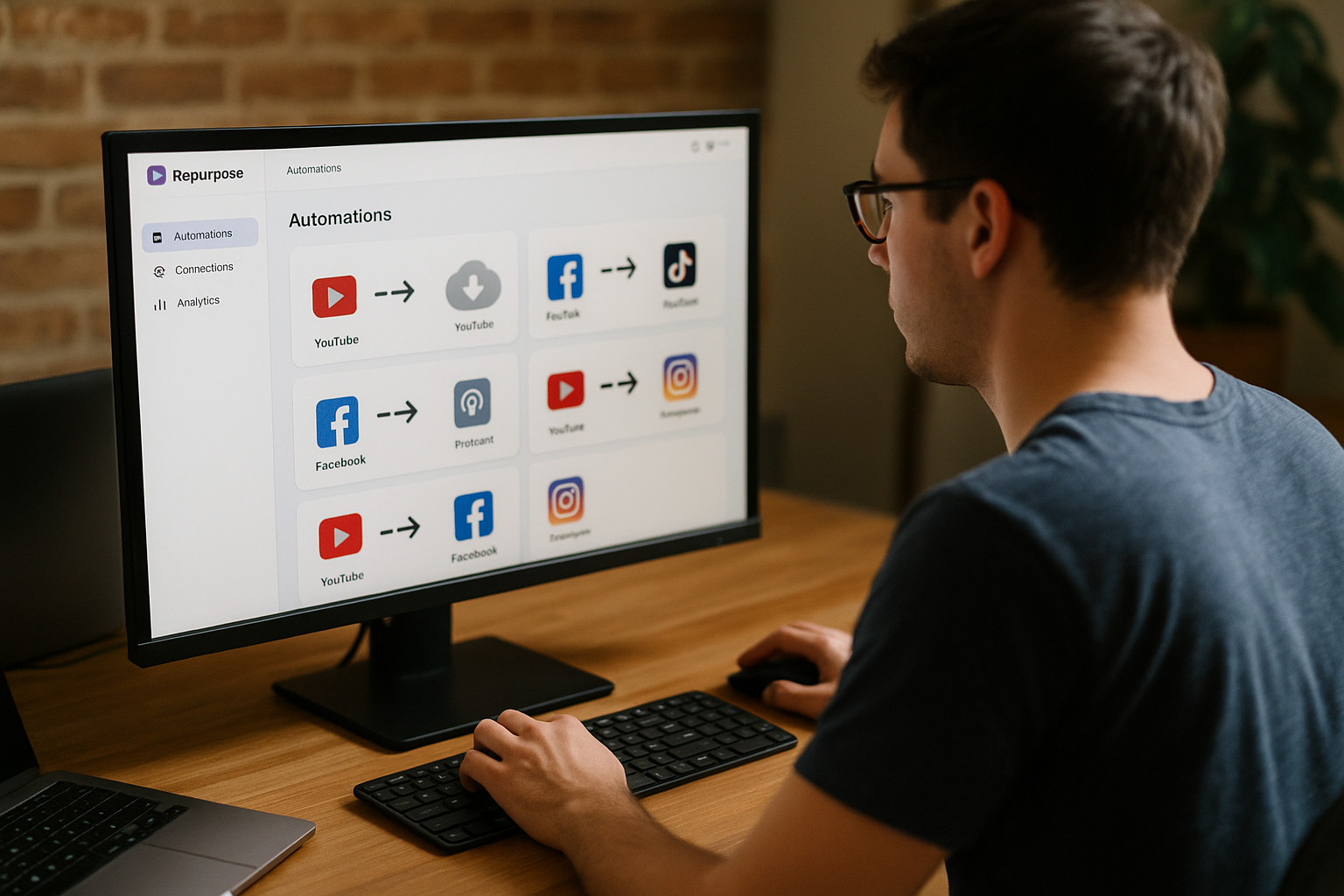
If you are tired of uploading the same video, clip, podcast, or social post to multiple platforms, this repurpose.io tutorial will walk you through the fastest beginner-friendly way to get started in 2026.
Repurpose.io is built to help creators and businesses repurpose content automatically. In plain English, you connect the platform where your content starts, choose where you want it to go, create a workflow, test it, and let automation handle the repeat publishing tasks.
This guide keeps things practical. You will learn how to connect accounts, build your first automation, avoid common setup mistakes, and decide whether Repurpose.io fits your content workflow.
Official website · Latest pricing & offers
What Repurpose.io Is and Who It’s Best For
Simple definition of Repurpose.io
Repurpose.io is a content repurposing and distribution platform. Its main job is to help you take content from one place and send it to another without manually downloading, editing, uploading, and posting every time.
The official Repurpose.io homepage describes it as a platform for content repurposing and distribution. The official quick-start resources also explain that users can set up connections, build workflows, automate publishing, and manage content more easily.
Think of it like this:
| Beginner Question | Simple Answer |
|---|---|
| What does it do? | Moves and repurposes content between platforms |
| Who controls the rules? | You choose the source, destination, and workflow settings |
| Is it fully automatic? | It can automate publishing after setup, depending on your workflow |
| Do I still need to check posts? | Yes, especially when you are testing your first workflows |
This repurpose.io tutorial focuses on the practical setup process: connect source, choose destination, test, then automate.
Best use cases for creators, marketers, podcasters, and small businesses
Repurpose.io is especially useful if you already create content consistently. It helps most when you have one main content source and want to distribute that content to several other channels.
For example, a YouTuber may want to repurpose YouTube videos into short-form posts. A podcaster may want to turn episodes into social clips and back up content to Google Drive or Dropbox. A small business may want to publish announcements, short videos, or image-based content across multiple social platforms.
Good beginner use cases include:
- Repurposing YouTube videos into TikTok or Instagram Reels-style content
- Sending Facebook Live content to YouTube Shorts
- Backing up published videos to Google Drive or Dropbox
- Reusing podcast content for social media repurposing
- Distributing image posts across TikTok, Instagram, and Facebook where supported
If you are comparing tools, you may also like our related guides on creative automation, including [Adcreative.ai Tutorial: Create Ads in 10 Minutes](/adcreative-ai-tutorial/) and [How Does Adcreative.ai Work? A Beginner-Friendly 2026 Guide](/how-does-adcreative-ai-work/).
When Repurpose.io is a good fit vs. when you may not need it
Repurpose.io is a good fit if you publish often and want to reduce repeated manual uploading. It is also helpful if your audience is spread across different platforms and you want a cleaner way to keep those channels active.
You may not need it yet if you post once a month, use only one platform, or prefer to customize every caption and format manually. In that case, a simple checklist or manual upload process might be enough.
This repurpose.io tutorial is best for beginners who want a repeatable system, not just a one-time upload shortcut.
Repurpose.io Tutorial for Beginners: Quick Start Overview
What you need before setup
Before starting your Repurpose.io setup, gather the accounts and content sources you plan to use. This will save you from stopping halfway through the connection process.
You will usually want:
- Login access to your source platform, such as YouTube, TikTok, Facebook, Instagram, or podcast feed access
- Login access to your destination platform, such as YouTube Shorts, Instagram, TikTok, Google Drive, or Dropbox
- Admin or owner permissions for business pages or channels
- A few published content pieces to test with
- A simple first workflow idea
For official setup details, the Repurpose.io quick-start guide is useful because it reflects current support documentation. I recommend checking it alongside this repurpose.io tutorial if you want to verify the latest interface wording.
The basic Repurpose.io workflow in 3 steps
The beginner workflow is simpler than it first looks. You do not need to understand complex automation logic before starting.
Here is the basic Repurpose.io quick start model:
- Connect a source
This is where your original content comes from, such as YouTube, TikTok, a podcast, or Facebook.
- Choose a destination
This is where Repurpose.io will send the content, such as Instagram, YouTube Shorts, TikTok, Google Drive, or Dropbox.
- Create and test a workflow
The workflow tells Repurpose.io what to move, where to send it, and whether to automate future posts.
A workflow is simply a rule. For example: “When I publish a new TikTok video, send it to Instagram.”
How the automation process works after you connect accounts
After you connect accounts and build a workflow, Repurpose.io can monitor your selected source. When content matches your workflow rules, it can send that content to your chosen destination.
You should still test your first workflow before relying on it. Check whether the correct account is connected, the content format looks right, and the destination post appears where expected.
This repurpose.io tutorial recommends starting with one source and one destination. Once that works, you can expand into more Repurpose.io workflows.
Step 1: Create Your Repurpose.io Account and Start Safely
How to sign up
To start, go to the official Repurpose.io website and create an account. Use an email address you can access easily because you may need it for account confirmation, support, or billing notices.
During signup, avoid rushing through permission screens. Repurpose.io needs access to selected platforms so it can read source content and publish to destinations you choose.
A safe beginner approach is:
- Create your account.
- Confirm your email if prompted.
- Open the dashboard.
- Connect only the accounts you plan to use first.
- Build one test workflow before connecting everything else.
This keeps your first repurpose.io tutorial experience controlled and easier to troubleshoot.
What to check on the dashboard first
Once inside the dashboard, look for areas related to connections, workflows, content, and account settings. The exact interface may change, so use the official Repurpose.io tutorial page or help center if labels look different from what you expect.
Before building anything, check:
- Your profile or account settings
- Connected account options
- Workflow creation area
- Any onboarding checklist
- Help or support links
- Current publishing limits or plan information
Do not worry if the dashboard feels unfamiliar. Most beginners only need two sections at first: connections and workflows.
Free trial and plan entry points
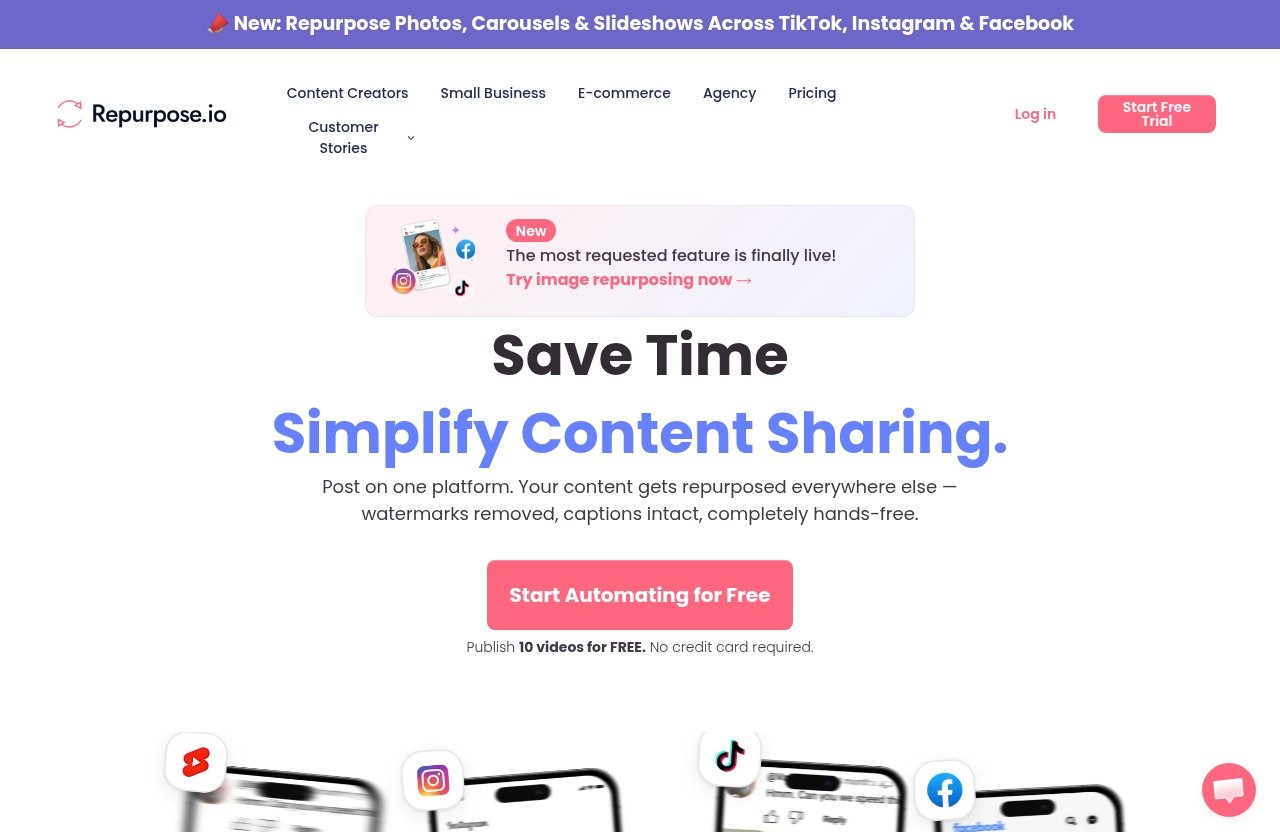
The verified official homepage messaging says users can publish 10 videos for free and that no credit card is required. That makes it easier to test Repurpose.io before committing to a paid plan.
Because pricing and plan details can change, do not assume any paid plan name, price, or limit unless you confirm it on the official site. In this repurpose.io tutorial, we will focus on setup and testing rather than unverified pricing claims.
A good first goal is simple: use the free entry point to test one workflow with real content.
Step 2: Connect Your Content Sources
Connect YouTube
YouTube is one of the most common starting sources because many creators already publish long-form videos there. If your goal is to repurpose YouTube videos, connect the YouTube channel where your original content lives.
A beginner connection flow usually looks like this:
- Open the connections area.
- Choose YouTube as the platform.
- Sign in with the correct Google account.
- Select the right YouTube channel if you manage more than one.
- Approve the requested permissions.
- Confirm that Repurpose.io shows the connection as active.
Be careful if you manage client accounts or multiple brand channels. A common mistake is connecting a personal YouTube channel instead of the business channel you actually want to use.
Connect TikTok
TikTok is useful as both a source and a destination. You may want to repurpose TikTok videos to other platforms, or you may want to send clips from another source to TikTok.
When connecting TikTok, make sure you are logged into the correct TikTok account in your browser. If your browser is already signed into the wrong account, Repurpose.io may connect that account by default.
After connecting, check the account name or profile image inside Repurpose.io. This quick check can prevent publishing to the wrong place later.
Connect Instagram, Facebook, podcast feeds, or cloud storage
Repurpose.io can be used with several source types mentioned in official quick-start content, including TikTok, YouTube, and podcasts. The official guidance also mentions destinations such as Instagram, YouTube Shorts, and Google Drive.
For Instagram and Facebook, permissions can be more detailed because business pages, creator accounts, and Meta permissions may be involved. If you run content for a brand, make sure you have admin access before starting.
Podcast feeds are useful if you want to turn audio or video podcast content into social assets. Cloud storage connections, such as Google Drive or Dropbox, are helpful for backup workflows.
For podcast teams, you may also want to compare a dedicated podcast content tool. Our [Podsqueeze for Marketing Teams Review 2026](/podsqueeze-for-marketing-teams/) covers that type of workflow in more detail.
Connection permissions and common errors
Connection problems are normal when setting up any content repurposing tool. Most issues come from account mismatch, missing permissions, expired authorization, or selecting the wrong page or channel.
Common fixes include:
| Problem | Likely Cause | Beginner Fix |
|---|---|---|
| Platform will not connect | Browser logged into wrong account | Log out, clear session, try again |
| Page or channel missing | Not enough admin permissions | Check account role on the platform |
| Connection worked but later failed | Token or permission expired | Reconnect the account |
| Wrong profile connected | Multiple accounts in same browser | Use a private browser window |
| Content not visible | Source selection issue | Recheck selected channel, feed, or playlist |
If something fails, do not rebuild everything immediately. First reconnect the platform, confirm permissions, and verify that the source content is actually published and available.
Step 3: Choose Where Repurpose.io Will Publish Content
Pick destinations for short-form video
After connecting your source, choose where your repurposed content should go. For short-form video, common destinations include TikTok, Instagram, Facebook Reels, and YouTube Shorts, depending on your workflow and available integrations.
The best destination is not always “everywhere.” Beginners usually get better results by choosing one or two destinations first, then checking quality before expanding.
For example:
- YouTube video clips to TikTok
- YouTube video clips to Instagram Reels
- TikTok videos to Instagram
- Facebook Live clips to YouTube Shorts
This repurpose.io tutorial recommends starting with the platform where your audience is already active.
How repurposing to YouTube Shorts works
YouTube Shorts is designed for short-form vertical video. If your workflow sends content there, pay attention to length, format, and how the clip appears after publishing.
Repurpose.io can help automate the routing, but you are still responsible for making sure the source content makes sense as a short video. A long intro, slow opening, or horizontal-only framing may not perform well as a short.
A good beginner test is to send one short clip to YouTube Shorts, watch it on mobile, and check whether the first few seconds are clear.
Using Google Drive or Dropbox for backup workflows
Backup workflows are underrated. The official quick-start content mentions backing up content to Google Drive or Dropbox, which is useful if you want an organized archive.
A simple backup workflow could be:
- Source: TikTok
- Destination: Google Drive
- Purpose: Save copies of published videos
Or:
- Source: Podcast content
- Destination: Dropbox
- Purpose: Keep a team-accessible content archive
This is one of the safest first automations because it does not immediately publish to a public social profile. If you are nervous about automation, start with a backup workflow.
Step 4: Build Your First Automation Workflow
Selecting a source-to-destination path
This is the core of any repurpose.io tutorial: building your first workflow. A workflow tells Repurpose.io what content to take and where to send it.
Start with one clear path, such as:
- YouTube to TikTok
- YouTube to Instagram
- TikTok to Instagram
- Facebook Live to YouTube Shorts
- Podcast to Google Drive
Avoid creating five workflows on day one. If something goes wrong, you will not know which setting caused the problem.
Your first workflow should have a simple purpose. For example: “When I publish a new YouTube video, create a version for TikTok.”
Setting publish rules and automation logic
Automation logic sounds technical, but it simply means the rules Repurpose.io follows. You decide what qualifies for publishing and how the destination should be handled.
Beginner-friendly rules to think about include:
- Should the workflow run automatically or manually?
- Should it process all future content or only selected items?
- Should it include existing content?
- Which destination account should receive the content?
- Do you want a backup copy before public posting?
The official quick-start resources mention that users can repurpose existing content and automate future content. That means you should be intentional about whether you want Repurpose.io to process older posts or only new ones.
For a first test, manual or limited automation is usually safer. Once you trust the workflow, you can allow more automated publishing.
Testing the workflow before turning it on
Testing is where many beginners skip a step. Do not.
Before turning on broad automation, run one test item through the workflow. Then check the destination platform manually.
Use this checklist:
- Did the correct source content get selected?
- Did it publish to the correct destination account?
- Does the video or image display properly?
- Is the caption acceptable?
- Is the timing right?
- Did the workflow duplicate anything?
- Would you be comfortable letting this happen automatically next time?
If the test works, you can turn on automation with more confidence. If it does not, adjust one setting at a time and retest.
Official website · Latest pricing & offers
How to Repurpose Different Content Types
Turning videos into short clips
Repurpose.io can help creators create clips from long-form videos, according to official quick-start/help content. This is valuable if you publish longer YouTube videos, webinars, interviews, or training videos.
The key is choosing clips that work independently. A short clip should have a clear idea, a strong opening, and enough context for someone who has never seen the full video.
Good clip ideas include:
- A quick tip
- A surprising answer
- A before-and-after example
- A short customer story
- A common mistake and fix
When using this repurpose.io tutorial for video, do not treat automation as a replacement for content judgment. Automation moves content faster; you still choose what is worth sharing.
Repurposing live streams, podcasts, and long-form videos
Live streams and podcasts are excellent source material because they often contain multiple smaller ideas. A single 45-minute conversation can become several social clips, backup files, or short-form posts.
For example, a Facebook Live replay could become a YouTube Shorts workflow. A podcast episode could be routed to social clips and backed up to Google Drive or Dropbox.
If your podcast workflow needs more editing, transcripts, or team collaboration, Repurpose.io may be one part of your system rather than the whole system. That is where dedicated podcast repurposing tools may also help.
Using image repurposing for photos, graphics, announcements, and memes
The official homepage snippet says Repurpose.io now supports image repurposing across TikTok, Instagram, and Facebook. That is useful if your content strategy includes photos, graphics, announcements, slideshows, carousels, or image posts.
Image repurposing can help small businesses that post promotions, quotes, event reminders, menu updates, or product announcements. Instead of manually rebuilding the same visual post on each platform, you can use a workflow to distribute it more efficiently.
Still, check the final result on each destination. Image dimensions, captions, and carousel behavior can vary by platform, so test before relying on full automation.
Best Beginner Workflow Examples for 2026
YouTube to TikTok and Instagram Reels
This is one of the most practical beginner workflows in 2026. If you already publish YouTube videos, you can use Repurpose.io to help distribute short-form versions to TikTok and Instagram.
A simple workflow could look like this:
| Source | Destination | Best For |
|---|---|---|
| YouTube | TikTok | Reaching short-form discovery audiences |
| YouTube | Sharing educational or promotional clips | |
| YouTube | Google Drive | Saving copies for your archive |
Start with one YouTube video and one destination. Once it works, add a second destination.
This repurpose.io tutorial approach keeps your setup clean and prevents confusion.
Facebook Live to YouTube Shorts
If you host Facebook Live sessions, you may already have valuable content sitting in your Facebook account. Repurposing that content into YouTube Shorts can help you reach people who prefer quick videos.
This workflow is useful for:
- Coaches
- Local businesses
- Community managers
- Educators
- Product demonstrators
The main thing to watch is clip quality. Live streams often include greetings, pauses, and audience interaction, so the best short-form clips usually come from the most focused moments.
Podcast to social clips and backup storage
Podcast content can be repurposed into social clips, but backup storage is also important. A beginner-friendly podcast workflow might send content to social destinations and also save copies in Google Drive or Dropbox.
Example workflow:
| Source | Destination | Purpose |
|---|---|---|
| Podcast | Instagram or TikTok | Promote episode highlights |
| Podcast | YouTube Shorts | Share quick insights |
| Podcast | Google Drive or Dropbox | Store files for future use |
This is especially useful for marketing teams that publish every week. It turns each episode into a repeatable distribution process.
Common Repurpose.io Setup Problems and Fixes
Platforms not connecting
If a platform does not connect, start with the simple checks. Confirm that you are logged into the correct account, have the right permissions, and are not using a browser session tied to the wrong profile.
Try these fixes:
- Log out of the platform and log back in
- Use an incognito or private browser window
- Disable browser extensions temporarily
- Confirm admin access for pages or channels
- Reconnect the account inside Repurpose.io
This kind of issue is common with tools that need publishing permissions. It does not always mean Repurpose.io is broken.
Workflow not publishing as expected
If your workflow does not publish, check the source and destination first. Many beginner issues come from selecting the wrong source account or expecting the workflow to process content that does not match the rules.
Ask yourself:
- Is the source content published and visible?
- Did I choose the correct source account?
- Did I select the correct destination?
- Is the workflow turned on?
- Did I choose manual processing instead of automatic publishing?
- Is there a platform-specific delay?
The official Repurpose.io quick-start guide is a good place to verify the current workflow process if your dashboard looks different.
Content formatting or timing issues
Sometimes automation works, but the post does not look the way you expected. This can happen because platforms handle formats, captions, video lengths, and images differently.
For short-form video, check:
- Orientation
- Length
- Opening seconds
- Caption formatting
- Thumbnail or preview
- Audio quality
For image repurposing, check:
- Crop and dimensions
- Carousel order
- Caption display
- Platform-specific layout
If timing matters, such as for announcements or promotions, test ahead of time. Do not wait until a live campaign deadline to run your first automated workflow.
How to get help from support
Repurpose.io provides official tutorial and help resources, including the Repurpose.io tutorial page, the support quick-start guide, and a YouTube tutorial playlist.
When contacting support or searching help articles, include details such as:
- Source platform
- Destination platform
- Workflow name
- Error message
- Whether the issue happens with one post or all posts
- Screenshots if available
Support is easier when you can describe the exact path: source, destination, rule, and result.
Repurpose.io Pricing, Free Trial, and What to Verify Before Buying
How to check the current official pricing page
The verified official homepage messaging says users can publish 10 videos for free and that no credit card is required. That is the safest confirmed free-start detail available from the provided product facts.
However, no verified paid pricing plan details were accessible from the provided official pricing page content, which returned a 403 Forbidden response. Because of that, this repurpose.io tutorial will not list paid plan names, prices, or limits.
Before buying, go directly to the official Repurpose.io website and check the current pricing page while logged in or from your region.
What to confirm before choosing a plan
Before choosing any paid option, verify the details that matter for your workflow. Do not rely on old screenshots, outdated reviews, or unverified pricing tables.
Confirm:
- Current monthly or annual pricing
- Number of allowed published videos or posts
- Supported platforms
- Number of connected accounts
- Automation limits
- Image repurposing availability
- Backup options such as Google Drive or Dropbox
- Cancellation terms
- Refund policy, if any
If you later need subscription guidance, we also have a practical guide on [How to Cancel Repurpose.io Subscription in 2026](/how-to-cancel-repurpose-io-subscription/).
Why beginners should verify features directly on the official site
Repurpose.io features and integrations may change as social platforms update their rules. That is why beginners should verify the current details directly inside the product or on official help pages before purchasing.
This is especially important for platform-specific workflows. If your entire plan depends on one destination, confirm that destination is supported and works the way you expect before upgrading.
A careful setup protects your time and budget.
Is Repurpose.io Worth It for Beginners?
Pros for first-time users
Repurpose.io is worth considering if you want to save time and reduce repetitive publishing. The beginner-friendly advantage is that the workflow logic is easy to understand: connect accounts, choose a source, choose a destination, then automate.
Main benefits include:
- Less manual downloading and uploading
- Easier social media repurposing
- Helpful backup workflows
- Support for repurposing existing and future content
- Useful options for video, podcast, and image-based content
- A free-start option to test before paying
For creators who publish every week, the time savings can add up quickly.
Possible limitations to consider
Repurpose.io still requires setup attention. You need to connect accounts correctly, approve permissions, test workflows, and verify that posts look right on each platform.
It is also not a magic content strategy tool. It helps distribute and repurpose content, but you still need strong original content, clear clips, good captions, and a reason to post on each platform.
Also, because verified paid pricing details were not available from the provided pricing source, you should check live pricing before making a purchase decision.
Best alternative use cases if your workflow is simpler
If your workflow is very simple, you may not need Repurpose.io yet. For example, if you only post one video manually to one platform each week, automation may be unnecessary.
You might start with manual posting if:
- You publish rarely
- You only use one channel
- Every post needs heavy customization
- You do not have repeatable content yet
- You are still testing your audience strategy
But if you already create regularly and want to repurpose content automatically, Repurpose.io becomes much more useful.
Final Verdict and Next Steps
Who should try Repurpose.io first
Repurpose.io is a strong fit for creators, marketers, podcasters, coaches, and small businesses that already publish content and want faster distribution. If you are manually reposting videos, podcasts, clips, images, or backups across platforms, it can help you build a cleaner system.
This repurpose.io tutorial is especially relevant if your goal is to set up automations quickly without getting lost in technical details.
How to get started today
Start small. Create your account, connect one source, choose one destination, and test one workflow before turning on broader automation.
A good beginner path is:
- Choose your strongest content source.
- Connect that account.
- Pick one destination.
- Build one workflow.
- Test with one post.
- Review the result.
- Expand only after it works.
That approach gives you confidence and prevents messy automation mistakes.
Suggested next action
If you want to test the platform, start with the free option mentioned on the official homepage and confirm the current plan details before buying. When you are ready to try the full setup experience, you can use our affiliate link to start with Repurpose.io here.
My practical recommendation: do not build ten automations on day one. Use this repurpose.io tutorial to launch one reliable workflow first, then add more sources and destinations once you trust the process.
Official website · Latest pricing & offers
FAQ
How do I use Repurpose.io for the first time?
Create an account, connect one source platform, choose one destination, and build a simple workflow. Test it with one piece of content before turning on broader automation.
What platforms can I connect with Repurpose.io?
Official quick-start content mentions sources such as TikTok, YouTube, and podcasts, plus destinations such as Instagram, YouTube Shorts, Google Drive, and Dropbox. Integration support can change, so confirm the current platform list inside Repurpose.io or on the official help pages.
Can Repurpose.io automatically republish my videos?
Yes, Repurpose.io can automate publishing after you connect accounts and create workflows. You choose the source, destination, and rules, then the automation can handle future content based on your setup.
Does Repurpose.io support image repurposing?
Yes. The official homepage snippet says Repurpose.io supports image repurposing across TikTok, Instagram, and Facebook, including image-style social content such as photos, carousels, slideshows, and image posts.
How do I choose the best Repurpose.io workflow?
Start with the platform where you already publish most often, then send content to one or two destinations. For beginners, the best workflow is the one you can test easily, verify quickly, and repeat without confusion.
Related Reading
References
- Repurpose.io
- Repurposing Content for Social Media | Quick Start Tutorial
- Quick Start Guide | Repurpose.io Help Desk
- Repurpose.io: Content Repurposing How-To Videos