How to Speed Up WordPress with Cloudways

If you want to speed up WordPress with Cloudways, start by treating performance as a full system—not a single caching-plugin setting. Hosting resources, server response time, theme code, plugins, images, DNS, and ongoing maintenance all affect how quickly visitors and administrators experience your site.
This guide explains a practical process to speed up WordPress with Cloudways while avoiding the common mistakes that create short-lived gains. The goal is not to chase unrealistic benchmark scores; it is to build a faster, more stable site based on your actual theme, plugins, traffic levels, and server capacity.
Affiliate disclosure: TopTrustReview may earn a commission if you sign up through our Cloudways partner link, at no extra cost to you. Our recommendations focus on verified platform features and practical implementation advice.
Official website · Latest pricing & offers
What Actually Slows Down WordPress Sites
WordPress performance problems rarely come from one cause. In my experience troubleshooting slow sites, the biggest issues tend to be an undersized server, poorly configured caching, oversized media files, and plugins that add unnecessary database or front-end requests.
Before trying to speed up WordPress with Cloudways, identify whether visitors are waiting for the server, the browser, or both. That distinction determines whether you need infrastructure changes, asset optimization, or a cleaner WordPress setup.
Shared Hosting Bottlenecks
Basic shared hosting can become inconsistent when multiple accounts compete for underlying resources. A site may feel fast in the morning and sluggish during busier periods, even if you have not changed WordPress itself.
This is often visible as a slow initial server response. If you are trying to reduce TTFB WordPress results, the available server resources and hosting architecture should be among the first things you examine.
Plugin Bloat And Heavy Themes
Every plugin is not automatically a problem, but each one adds potential code, database activity, scripts, stylesheets, or third-party connections. The same applies to feature-heavy themes with page builders, animations, sliders, and dozens of optional modules enabled.
A useful audit starts with a simple question: does this plugin provide a feature that directly supports revenue, publishing, compliance, or the visitor experience? If not, deactivate it temporarily and test the difference.
Poor Caching And Image Delivery
Without page caching, WordPress may need to run PHP and query the database for every anonymous page view. That creates avoidable server work, especially on content-heavy blogs and WooCommerce stores.
Large images compound the issue. A fast hosting stack cannot fully compensate for a page that downloads several uncompressed hero images, oversized background visuals, and unoptimized product photos.
Slow DNS, Server Response Time, And Admin Lag
Slow DNS resolution can delay the first connection to your site. Meanwhile, server response time can rise when resources are insufficient, database requests are inefficient, or plugins generate expensive background tasks.
WP-admin lag is a separate but important signal. If the dashboard, editor, order screens, or plugin settings take too long to open, your front-end performance may also be vulnerable during traffic spikes. This is one reason site owners look to speed up WordPress with Cloudways rather than relying exclusively on front-end tweaks.
Why Cloudways Is Built For WordPress Performance
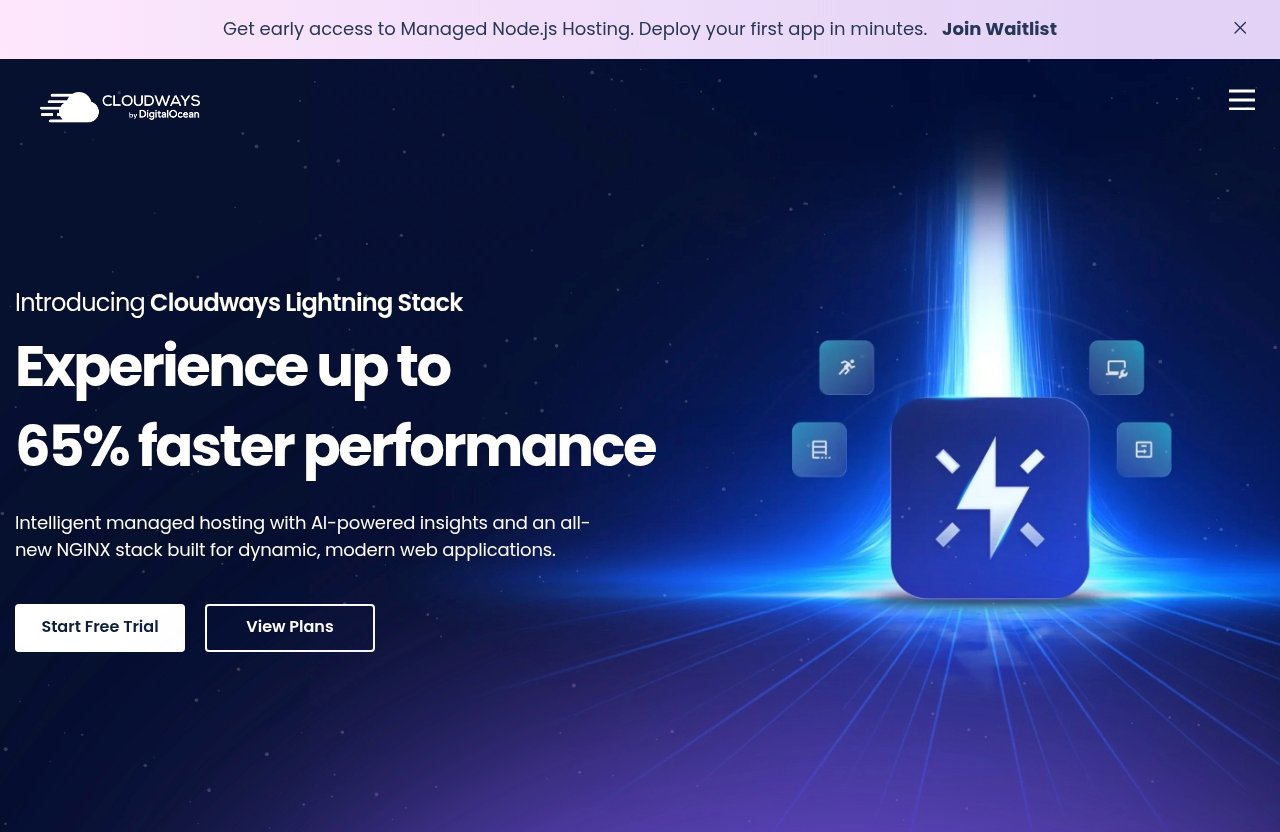
Cloudways positions itself as customisable managed hosting for WordPress. That matters because WordPress speed work is easier when the hosting environment gives you a more deliberate foundation than a one-size-fits-all shared setup.
Cloudways also supports WordPress alongside Laravel, Magento, WooCommerce, and PHP applications. While the right configuration still depends on your site, its platform is designed around performance, security, expert support, free migration, and free SSL.
Customisable Managed Hosting For WordPress
Managed hosting should reduce the operational burden of running a WordPress site while allowing you to make infrastructure choices that suit your workload. For WordPress performance on Cloudways, that means beginning with the right provider, server capacity, and optimization habits instead of hoping a generic plan will fit every website.
The platform is not a substitute for maintaining your site. You still need to control plugins, optimize media, test changes, and monitor your most valuable pages.
Cloud Provider Choice: DigitalOcean, Vultr, Linode, AWS, And GCE
Cloudways officially lists DigitalOcean, Vultr, Linode, AWS, and GCE as cloud provider options. This provider choice gives site owners and agencies room to consider factors such as visitor geography, projected traffic, application needs, and budget.
When you speed up WordPress with Cloudways, provider selection is not about declaring one option universally best. It is about selecting an infrastructure starting point that aligns with where your users are and how resource-intensive your WordPress site has become.
Performance-Focused Platform Features
Cloudways lists Performance, Security, 24×7 Expert Support, Free Migration, and Free SSL among its powerful platform features. It also offers options and add-ons including Cloudflare Enterprise CDN, SafeUpdates, Malware Protection, Priority Support, and DNS Made Easy.
These features support performance operationally. A CDN can help distribute assets, safer updates can reduce the risk of a rushed fix breaking a fast site, and knowledgeable support can help during a difficult migration or configuration issue.
When Cloudways Autonomous Makes Sense
Cloudways also offers Cloudways Autonomous, described as fully managed hosting for WordPress. It may be relevant for site owners who want a more hands-off WordPress hosting experience rather than a platform where they make as many infrastructure decisions themselves.
The best choice depends on your comfort level and workload. Agencies, developers, and hands-on owners may value configuration flexibility, while busy businesses may prefer a more fully managed route.
Step 1: Choose The Right Cloudways Hosting Stack
The first meaningful decision when you speed up WordPress with Cloudways is choosing resources that match your current workload and expected growth. A small brochure site, an active editorial publication, and a WooCommerce shop do not create the same demands.
Do not judge server needs using traffic alone. Logged-in users, search filters, page builders, scheduled tasks, product variations, and external integrations can all increase resource usage.
Match Server Size To Traffic And Workload
Look at your busiest periods, not just average monthly visits. Check whether your site processes orders, memberships, bookings, form submissions, or large volumes of logged-in activity, because these actions may not benefit from caching in the same way as public blog pages.
If your dashboard is slow or server response deteriorates during busy periods, it may be time to reassess capacity. The aim is to leave enough headroom for traffic bursts and essential background tasks.
Pick The Cloud Provider That Fits Your Budget And Latency Needs
Choose from the Cloudways-supported cloud providers based on practical considerations. Start with where most visitors are located, then test from those regions after launch.
Latency is only one piece of the puzzle, but placing infrastructure sensibly can support WordPress load time reduction. Avoid making a provider decision solely from a generic recommendation in a forum, because your audience geography may be completely different.
Use A Clean WordPress Install Before Migrating
A clean starting point makes Cloudways WordPress speed optimization easier. Remove unused themes, inactive plugins you no longer need, duplicate analytics scripts, and outdated staging content before the move where possible.
Document your current configuration first. Take note of your PHP version, active plugins, key theme settings, caching rules, cron tasks, and third-party services so you can validate them after migration.
Plan For Future Growth Instead Of Squeezing Small Resources
The cheapest possible server may be adequate today but create a bottleneck after a successful promotion, content campaign, or seasonal sales period. Plan around realistic growth rather than waiting for a performance incident.
This does not mean overbuying resources. It means monitoring usage, diagnosing constraints, and allowing room for a site to operate reliably as traffic and functionality expand.
Step 2: Migrate To Cloudways Without Breaking Performance
A Cloudways migration is more than moving files and a database. It is a chance to establish a clean baseline, eliminate obsolete components, and test the site before visitors see the new environment.
Cloudways officially includes Free Migration as a platform feature. Use that assistance thoughtfully, but remain responsible for reviewing your site’s critical functions after the move.
Use Cloudways Free Migration
Before requesting or carrying out a migration, prepare a list of pages and functions that must work: contact forms, search, logins, checkout, payment actions, membership content, email delivery, and scheduled jobs.
A successful Cloudways migration should preserve functionality first. Once everything works, you can improve caching, assets, and CDN delivery with confidence.
Verify PHP, Plugins, And Theme Compatibility After Migration
Check that your active theme and plugins behave normally in the new environment. Do not assume a page that visually loads is fully working; test forms, media uploads, editor actions, e-commerce workflows, and logged-in account areas.
If you see a problem, disable nonessential plugins one at a time in a staging environment. This is often faster than changing multiple settings at once and losing track of the actual cause.
Benchmark Before And After Launch
Record a baseline before changing DNS or launching the migrated version. Test with the same device type, test region, page URL, and tool settings whenever possible.
For reliable comparisons, capture:
| Checkpoint | What To Record |
|---|---|
| Server response | Initial response behavior and TTFB trend |
| Page weight | Total transferred data and image weight |
| Requests | Scripts, styles, fonts, and third-party calls |
| Core Web Vitals | Largest content, interaction, and layout indicators |
| User workflows | Login, forms, cart, checkout, and admin tasks |
When you speed up WordPress with Cloudways, consistent testing matters more than a single favorable result from one test location.
Check WP-Admin And Front-End Load Times Separately
Public pages can be fast because they are cached while WP-admin remains slow due to plugins, database activity, or background jobs. Test both experiences separately.
Open the post editor, media library, WooCommerce order screen, and plugin settings that your team uses regularly. A site is not truly optimized if visitors are happy but your content team loses time every day.
Step 3: Enable Caching And Preloading The Right Way
Caching is one of the highest-impact improvements for public WordPress content. It reduces repeated work by serving stored versions of pages and assets instead of rebuilding everything for each visitor.
However, caching must be configured around your site’s behavior. Dynamic pages, account pages, checkout steps, and personalized content require more care than a static blog post.
Use Breeze As The Performance Plugin
The Breeze plugin is closely associated with Cloudways caching workflows and provides a focused place to manage common front-end performance settings. Start with its main caching controls before adding multiple overlapping optimization plugins.
In my experience, one well-configured caching solution is easier to troubleshoot than three plugins all trying to minify scripts, defer assets, and create page caches. Keep your setup understandable.
Configure Page Caching And Browser Caching
Page caching is most helpful for anonymous visitors viewing public pages. Browser caching instructs returning visitors’ browsers to reuse certain assets instead of downloading them again unnecessarily.
After enabling Cloudways caching settings, test logged-out browsing in a private window. Then test logged-in workflows separately to ensure user-specific pages are excluded where appropriate.
Turn On Asset Minification Carefully
Minification can reduce unnecessary characters in CSS and JavaScript files, but combining or aggressively altering assets can sometimes affect complex themes and plugins. Change one setting at a time.
After each adjustment, check menus, sliders, forms, cookie tools, popups, product variations, and mobile layouts. If an issue appears, reverse the last change rather than continuing to stack optimizations.
Test Preloading To Avoid Broken Layouts
Preloading can help make important resources available earlier, but loading too many items early may compete with the assets needed to render the visible page. Prioritize only truly critical resources, such as a key font or hero image when justified.
This measured approach to the Cloudways Breeze plugin helps prevent an optimization setting from making the perceived page experience worse. Always compare before and after waterfall results.
Official website · Latest pricing & offers
Step 4: Optimize Images, Fonts, And Front-End Assets
Hosting and caching provide the foundation, but heavy front-end files can still make a site feel slow. To speed up WordPress with Cloudways effectively, optimize the content your visitors download after the server responds.
Focus first on the largest page elements. On many sites, that means hero images, product galleries, background videos, web fonts, and third-party scripts.
Compress And Resize Images Before Upload
Upload images close to their intended display dimensions. A 3000-pixel-wide image used in a 600-pixel blog column forces visitors to download data they do not need.
Use an image compression workflow before or during upload, then inspect your key templates. Pay special attention to homepage banners, category archives, and WooCommerce product images.
Serve Next-Gen Formats When Possible
Modern image formats can reduce file size in suitable situations. Test your visual quality after conversion, especially for product photography, logos, and images containing text.
Do not assume every image needs the same treatment. The right balance depends on the content type, quality requirements, and actual savings visible in testing.
Preload Critical Fonts And Hero Assets
A branded font can improve design consistency, but too many font files and weights delay rendering. Keep the number of font families and variants reasonable, and preload only assets essential to the first visible screen.
For WordPress performance on Cloudways, this front-end discipline complements server-side improvements. It helps visitors see meaningful content sooner instead of waiting for decorative resources.
Reduce Render-Blocking CSS And JS
Review page builders, marketing tools, chat widgets, analytics tags, social embeds, and animation libraries. Each may add scripts that delay rendering or create extra network requests.
Remove tools that no longer provide value, and delay noncritical scripts where appropriate. Test carefully because conversion tools and forms may be business-critical even if they are not required for initial page rendering.
Step 5: Use Cloudways Platform Features That Support Speed
Performance is not only about the first optimization pass. Operational features help protect gains by reducing maintenance friction, improving delivery, and making troubleshooting less stressful.
The following Cloudways performance features should be evaluated based on your site’s needs rather than enabled blindly.
Cloudflare Enterprise CDN Add-On
Cloudways offers Cloudflare Enterprise CDN as an add-on. A CDN can help deliver cached content and assets closer to visitors, which may be particularly useful for sites serving audiences across multiple regions.
Test the Cloudways CDN effect on your real pages, including uncached first visits, image-heavy posts, and ecommerce templates. Confirm that caching rules do not interfere with dynamic pages or logged-in experiences.
SafeUpdates For Controlled WordPress Updates
SafeUpdates is listed among Cloudways add-on and feature mentions. Controlled updating matters because an untested plugin, theme, or core update can damage both functionality and performance.
Update with a process: back up, test, monitor, and retest key pages. Never assume that a successful update automatically preserves your previous caching and asset behavior.
24×7 Expert Support For Performance Issues
Cloudways lists 24×7 Expert Support as a platform feature. Support is especially useful when you have already collected clear evidence: the URL affected, error details, timing, recent changes, screenshots, and a repeatable way to reproduce the issue.
Cloudways also lists Advanced Support at a current price of $100 per month, with a new discounted price of $25 per month flat. Confirm current terms before purchasing because support options and promotions can change.
Free SSL And Security Features That Reduce Maintenance Friction
Free SSL is an official Cloudways feature, and security-related options include Malware Protection. Security does not directly make every page render faster, but a well-maintained site is less likely to suffer from disruptive cleanup work, compromised scripts, or emergency fixes.
Cloudways currently displays a limited-time summer offer of 40% off all hosting plans plus unlimited free migrations, valid until 15th September 2026. Check the official offer terms before relying on it, especially if your purchase date is close to the deadline.
Step 6: Measure, Diagnose, And Iterate
The best way to speed up WordPress with Cloudways over the long term is to build an optimization routine. A fast launch can regress after a new plugin, theme feature, marketing script, image upload process, or content redesign.
Measure first, make one meaningful change, then measure again. This gives you evidence instead of assumptions.
Track Core Web Vitals And Waterfall Timing
Core Web Vitals help you assess real user experience signals, while waterfall testing shows how individual assets load. Use both because one score alone does not explain why a page is slow.
Look for large images, delayed fonts, slow external domains, render-blocking files, and long server waits. Then prioritize the item with the most visible impact rather than tweaking low-value details.
Test Homepage, Blog Posts, And Checkout Pages Separately
Different templates have different performance profiles. Your homepage may contain more images and scripts, blog posts may include ads or embeds, and checkout pages may be dynamic and intentionally excluded from caching.
Create a short testing list for each important site type:
- Homepage and primary landing page
- Typical long-form blog post
- Category or archive page
- Product page and cart
- Checkout or booking flow
- Logged-in account page
- WP-admin editor or order-management screen
Identify Plugin Conflicts And Slow Queries
When performance drops after an update, begin with recent changes. Disable or replace nonessential plugins in a safe testing environment, then retest using the same URL and conditions.
Slow queries may appear on sites with large content libraries, complex filters, membership data, or ecommerce records. The solution could involve plugin cleanup, database maintenance, a different query approach, or more suitable server resources.
Create A Monthly Optimization Routine
A monthly routine prevents performance debt from building unnoticed. I recommend checking your most important URLs, reviewing new plugins and scripts, testing mobile behavior, and validating backup and update processes.
Use this practical checklist:
- Test key pages from the same locations each month.
- Review page weight, request count, and server response trends.
- Remove unused plugins, themes, and tracking tags.
- Check new images for oversized uploads.
- Verify cache exclusions for carts, checkouts, and account areas.
- Test recent updates before treating the job as complete.
Cloudways Vs Typical WordPress Hosting For Speed
The comparison should focus on control, operational support, and fit—not vague claims that one hosting model is always faster. Typical basic shared hosting can be sufficient for smaller sites, but it may offer less flexibility when a WordPress installation becomes more resource-intensive.
Cloudways is positioned around customisable managed hosting for WordPress, with a choice of DigitalOcean, Vultr, Linode, AWS, and GCE infrastructure. That flexibility can be valuable for owners who need to align their stack with workload and audience needs.
Why Managed Infrastructure Often Outperforms Basic Shared Hosting
Managed infrastructure can simplify several speed-related tasks, including server management, migrations, SSL setup, support access, and caching workflows. The benefit is not automatic: poor plugins and oversized assets will still slow any WordPress installation.
For businesses working to speed up WordPress with Cloudways, the potential value is having a more purposeful hosting foundation on which to implement best practices.
What You Gain From Provider Choice And Platform Tooling
Provider choice lets you consider location and workload instead of accepting a fixed infrastructure option. Platform tools such as free migration, free SSL, Cloudflare Enterprise CDN, SafeUpdates, and support options can also reduce the operational work around performance.
This is why Cloudways WordPress speed optimization is more than installing a cache plugin. Hosting decisions, front-end discipline, update procedures, and monitoring all work together.
Who Should Upgrade First: Bloggers, Stores, Agencies, And Developers
Active bloggers with growing search traffic may benefit when server response and content delivery become inconsistent. Ecommerce stores should prioritize testing dynamic commerce workflows, while agencies may value repeatable migration and maintenance processes across multiple client sites.
Developers and hands-on site owners may appreciate the cloud provider choice. Less technical businesses may find Cloudways Autonomous worth considering if fully managed WordPress hosting better matches their operating model.
Common Mistakes That Make WordPress Slow Again
The biggest WordPress speed mistake is treating optimization as a one-time project. Performance declines gradually when new features are added without retesting, images become heavier, and old plugins remain installed “just in case.”
Avoid these errors to preserve WordPress performance on Cloudways after your initial setup.
Installing Too Many Performance Plugins
Multiple caching, minification, lazy-loading, and database plugins can overlap and create conflicts. More optimization plugins do not necessarily mean a faster site.
Use a clear stack built around the Breeze plugin and only add other tools when they solve a verified gap. Document what every optimization setting does before changing it.
Ignoring Theme Bloat
A visually impressive theme can still be inefficient if it loads large libraries, animations, icons, and templates everywhere. Disable modules you do not use and avoid adding a second page builder on top of an already complex theme.
Evaluate theme changes using real page tests, not only a demo site. Your plugins, content, fonts, and marketing scripts create a very different workload.
Skipping Server And PHP Checks
Front-end changes cannot solve every backend issue. If admin pages, uncached pages, or dynamic requests remain slow, review server capacity, PHP compatibility, plugin behavior, and database activity.
This is particularly important for WooCommerce, memberships, and high-interaction sites. To speed up WordPress with Cloudways sustainably, diagnose the actual bottleneck before applying another generic fix.
Not Retesting After Changes
Every update can affect caching, scripts, queries, and user flows. Retest after adding a plugin, redesigning a template, changing analytics tools, or launching a campaign.
The strongest recommendation is straightforward: use Cloudways as a performance-focused WordPress hosting base, then combine it with careful caching, optimized media, sensible asset loading, and recurring measurement. Results will depend on your theme, plugins, traffic, and server size, but this layered approach gives you a realistic path to speed up WordPress with Cloudways without relying on unsupported performance promises.
Official website · Latest pricing & offers
FAQ
How Can I Optimize My WordPress Site For Speed?
Use a layered approach: choose suitable hosting, enable page and browser caching, optimize images, reduce unnecessary scripts and fonts, consider CDN delivery, and test regularly. Cloudways can provide a performance-focused hosting foundation, while your theme, plugin choices, and content workflow determine how much improvement is possible.
Is Cloudways A Good Hosting Provider?
Cloudways is positioned as customisable managed hosting for WordPress and offers cloud provider choices including DigitalOcean, Vultr, Linode, AWS, and GCE. Its official features include Performance, Security, 24×7 Expert Support, Free Migration, and Free SSL, making it worth evaluating for site owners who want managed hosting with infrastructure flexibility.
Why Are People Moving Away From WordPress?
Some people move away because their WordPress site became difficult to maintain or slow after accumulating too many plugins, a heavy theme, poor hosting, and unoptimized media. These are usually implementation problems rather than inherent WordPress limitations; a well-maintained WordPress site can remain fast, flexible, and practical.
Is WP Fastest Cache Free?
Check the official WP Fastest Cache website or WordPress plugin directory for its current free and paid offering details, as third-party plugin pricing can change. For a Cloudways-focused setup, start by assessing Breeze and your existing Cloudways caching configuration before adding another caching plugin.
Related Reading
References
- Cloudways – Managed Cloud Hosting Platform Simplified
- Cloudways – Performance
- Cloudways Blog – WordPress Speed Optimization with Simple Preloading Tips
- Cloudways Blog – 23 Easy Tips to Speed Up Your WordPress Website in 2026