Cloudways Backup: How Safe Is It for Website Disaster Recovery?
A reliable cloudways backup plan can be the difference between a short maintenance interruption and a costly website recovery project. For WordPress owners, agencies, and freelancers, the real question is not whether backups exist—it is whether they are easy to configure, accessible during an incident, and dependable enough for your risk level.
Cloudways includes backup controls within its managed hosting dashboard, making it appealing to buyers who want recovery tools without managing a separate backup server from day one. Still, a built-in backup feature should be part of a broader disaster-recovery routine, especially for revenue-generating websites, stores, and client projects.
Official website · Latest pricing & offers
What Cloudways Backup Is and Why It Matters
Quick Definition of Cloudways Backup
A cloudways backup is a copy of website data that can be used to recover an application after an unwanted change, data loss event, failed update, or site issue. Cloudways documents backup controls in its platform, including scheduled backups, retention preferences, local backup options, restore tools, and application backup downloads.
The important distinction is that a backup is a recovery resource, not a guarantee that every outage or security incident will be solved automatically. It gives you a known point to return to, provided the backup is recent enough and contains the data you need.
Why Backup Strategy Is Central to Disaster Recovery
Cloudways disaster recovery planning starts with accepting that website problems are normal. A plugin update can trigger a fatal error, a developer can accidentally delete production files, or a migration can overwrite a working configuration. Even experienced WordPress users encounter issues that are faster to reverse than diagnose.
In my experience reviewing managed hosting workflows, the best recovery process is simple: identify the last known-good version, restore it carefully, test key pages, and communicate with stakeholders. The fewer manual steps involved during that stressful moment, the more useful the backup system becomes.
A sensible recovery plan also accounts for the age of your backup. Restoring a site from before a major content update may resolve a technical issue while losing recent orders, posts, or form submissions. That is why backup frequency and retention deserve attention before launch rather than after an incident.
What Buyers Usually Worry About Before Signing Up
Buyers evaluating Cloudways commonly want answers to four practical questions:
| Buyer Concern | Why It Matters |
|---|---|
| Can I schedule backups? | Regular backups reduce the recovery gap after changes. |
| Can I restore a specific application? | Agencies often need to recover one site without affecting others. |
| Can I get a copy outside the dashboard? | Download access supports an additional recovery layer. |
| Can I test the process? | A backup is only useful if restoration works when needed. |
Cloudways positions Flexible as customizable managed hosting for WordPress, while Cloudways Autonomous is described as fully managed hosting for WordPress. Both descriptions may be attractive to site owners who prefer managed infrastructure, but you should assess backup controls independently from broader hosting features such as performance, security, support, SSL, and migration assistance.
How Cloudways Backups Work Based on Official Docs
Server-Level Backups vs Application-Level Backups
The official Cloudways backup and recovery documentation distinguishes between server-level backup settings and application-level recovery actions. In practical terms, the server area is where you configure backup preferences, while the application area is where you work with a specific website when restoration is needed.
A Cloudways server-level backup setup is useful for users managing multiple applications on one server because the schedule and retention preferences are configured from the server side. When a problem affects one WordPress installation, the application management area provides the relevant restore workflow.
This structure is sensible for agencies. You can maintain server-level backup preferences while still approaching recovery at the website level instead of treating every incident as a server-wide emergency.
Scheduled Backup Settings: Frequency, Retention, and Timing
According to the official Cloudways Help Center backup guidance, users can select backup preferences that include schedule time, backup frequency, and retention. These settings should be chosen according to how often your website changes and how much recent data you could reasonably afford to lose.
For example, a brochure website updated once a month may not need the same schedule as a WooCommerce store processing daily customer activity. A busy publishing site, membership platform, or client site under active development should generally have a tighter recovery objective than a mostly static portfolio.
Cloudways backup retention is equally important. Retention determines how long older recovery points remain available under your selected settings. Before relying on a schedule, consider whether it gives you enough historical coverage to catch a problem that is discovered days later, such as a slowly spreading malware issue or an unnoticed configuration error.
Local Backup Option and What It Adds
Cloudways documents a Local Backup option in the backup settings area. The option is designed to add a local copy alongside the platform’s backup process, giving users another place to access backup data from the server environment.
A Cloudways local backup can be helpful for technically confident users who want a copy available locally on the server. However, it should not be treated as the only backup layer. If an incident affects the server itself or your account access, a separate downloadable copy and a tested recovery plan can provide more confidence.
For a new WordPress project, configure backup settings as part of your initial deployment checklist, alongside a proper [Cloudways WordPress setup](/cloudways-wordpress-setup/). It is much easier to make thoughtful choices before the site is live and receiving traffic.
How Safe Is Your Website on Cloudways?
What Backups Can Protect You From
A cloudways backup is most valuable when the problem is caused by a change you can reverse. Common examples include a bad WordPress plugin update, a theme edit that breaks the frontend, accidental deletion of files, database changes, site corruption, or a migration mistake.
The ability to return to an earlier backup can prevent a routine problem from becoming a long troubleshooting session. This is especially useful for freelancers responsible for several client sites, where a fast and calm recovery process protects both the site and the working relationship.
The documented application restore workflow also gives site owners a clearer path during an incident. Rather than rebuilding from scratch, you can select the affected application and work from the Backup and Restore area.
What Backups Cannot Protect You From
Backups are not a replacement for site security, strong passwords, limited administrator access, update testing, or routine WordPress maintenance. A restore may resolve the visible effects of a mistake, but it does not identify why the issue happened in the first place.
A cloudways backup also cannot eliminate the operational impact of restoring older data. If your latest recovery point predates new orders, user registrations, uploads, or content edits, those changes may need to be recreated. This is why dynamic websites require more deliberate planning than static sites.
Cloudways does list security and 24×7 Expert Support among its platform features, but buyers should avoid assuming any hosting provider’s backup system is a complete security or business-continuity guarantee. Good disaster recovery combines hosting tools with responsible site administration.
Cloudways Backup Safety Considerations Buyers Should Verify
Before putting a production site live, verify these points inside your own account and dashboard:
- Whether the available backup frequency fits your update and transaction volume.
- Whether your chosen retention period covers the period in which problems are usually detected.
- Whether the Local Backup option suits your technical workflow.
- Whether you can locate application restore controls quickly.
- Whether you know how to retrieve an application backup through SFTP or SSH.
- Whether you have tested recovery on a staging or non-critical environment.
This is the practical answer to “How safe is Cloudways?” The platform provides documented backup and recovery controls, but the safety of your real-world outcome depends heavily on how you configure, monitor, and test those controls.
How to Restore or Download a Cloudways Backup
Where to Find Backup and Restore in the Dashboard
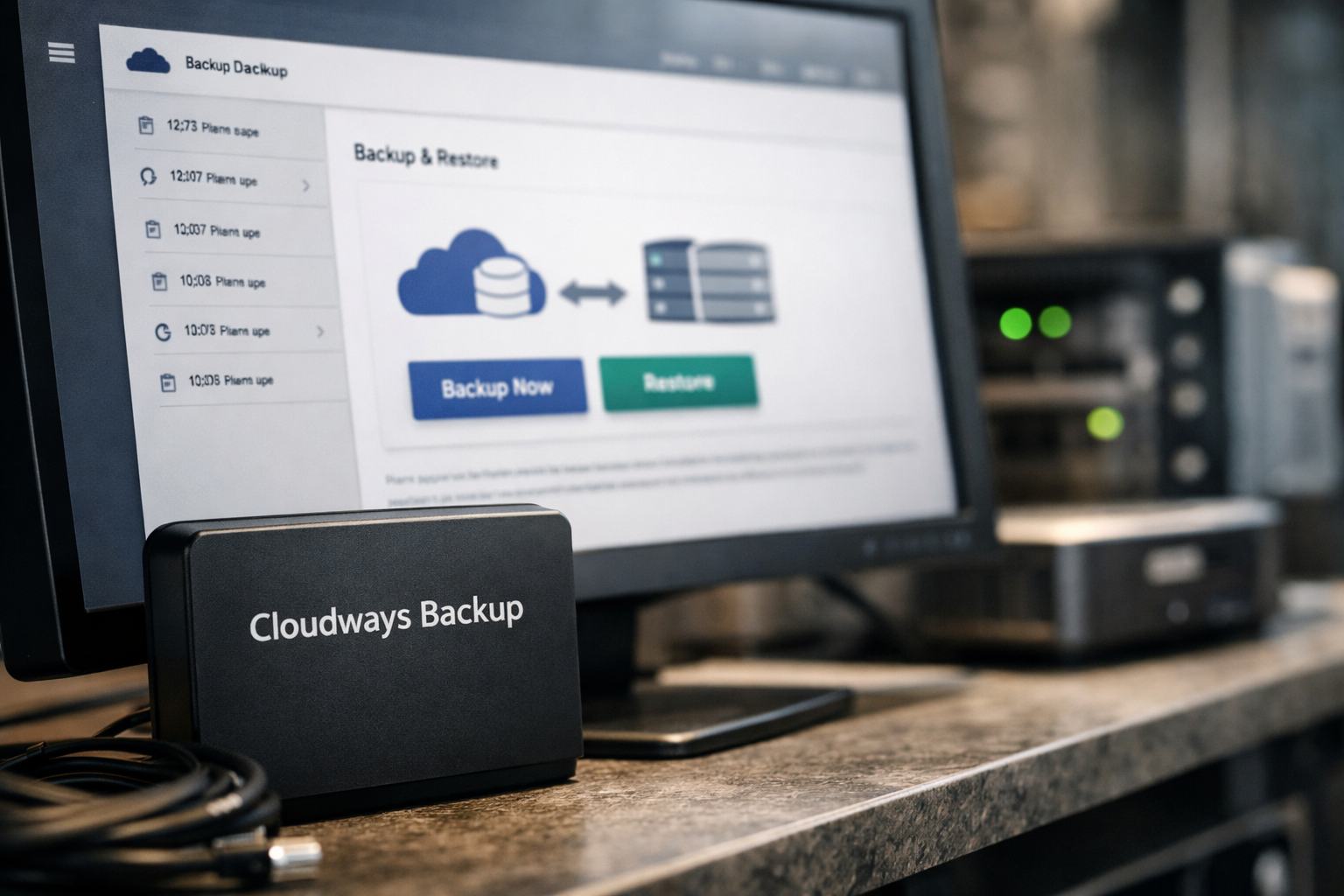
The official Cloudways guidance directs users through the Servers section to the relevant application. From there, open Application Management and select Backup and Restore for the website you need to recover.
This straightforward navigation matters during an emergency. You do not want to search through a hosting dashboard for the first time while a client site is unavailable or a checkout page is failing.
When preparing a new account, take a few minutes to locate this area before you need it. Document the path in your agency handover notes or internal runbook, particularly if multiple people can administer the server.
How Application Restore Works
A Cloudways restore backup begins by choosing the target application and selecting an available restore point through the Backup and Restore interface. The platform documentation covers the application recovery workflow, helping users restore the relevant site rather than manually uploading archives and importing databases.
Before initiating a restore, note what has changed since the selected backup was created. For a content site, that may include newly published articles or uploaded media. For a store or membership site, it may involve orders, customer records, payment-related activity, or account changes that require closer review afterward.
After recovery, check the homepage, key landing pages, login functionality, forms, checkout paths where relevant, and recent content. A successful restore should be followed by validation, not assumed to be the final step.
How Backup Download Works Through SFTP or SSH
Cloudways also provides an official Help Center workflow for downloading application backups through SFTP or SSH. A Cloudways backup download is useful when you want an independently accessible copy for record keeping, migration preparation, or a layered recovery approach.
The download process is particularly reassuring for agencies. It means you are not limited to relying solely on the dashboard when you want to retain a copy of an important application backup.
Use secure access practices when working with SFTP or SSH credentials. Downloaded archives can contain sensitive website files and database content, so store them in an access-controlled location and avoid leaving them on an unprotected personal device.
Official website · Latest pricing & offers
Backup Settings Buyers Should Check Before Launching a Site
Backup Frequency
Your backup frequency should reflect your site’s rate of change. A marketing website with occasional edits has a different risk profile from an active WooCommerce store, a news site, or a client portal receiving daily changes.
Think in terms of acceptable loss. If losing a day of updates would be painful, your schedule should reflect that reality. If each hour includes important transactions or content submissions, consider whether the built-in schedule alone meets your recovery expectations.
Retention Period
Cloudways backup retention should be long enough to cover delayed discovery of problems. A plugin conflict might be noticed immediately, but other issues can remain hidden for several days until a client reports an error or a specific form is tested.
Retention is also valuable during redesigns and migrations. If a change looks fine initially but introduces subtle performance or functionality problems later, older restore points may provide a safer fallback than the most recent copy alone.
Local Backup Usage
Consider the Local Backup setting as an additional operational option rather than a substitute for planning. For some users, a local copy may be convenient when working directly with server files or maintaining their own technical archive.
If you enable a cloudways backup workflow with local copies, confirm your team understands where the files are accessed and who is responsible for protecting them. Convenience can create risk when sensitive backups are left unmanaged.
Testing a Restore Before a Real Incident
The most valuable backup test is a controlled restore test on a non-production environment where possible. You do not need to simulate every disaster, but you should know the dashboard path, the available recovery points, and the checks required after restoration.
For WordPress sites, test a typical workflow: update a plugin on staging, confirm the change, and rehearse your recovery plan if something breaks. If speed is also a priority for your build, pair this with performance testing using guidance such as [How to speed up WordPress with Cloudways](/how-to-speed-up-wordpress-with-cloudways/).
Cloudways Backup Pros and Limitations
Pros for Non-Technical Site Owners
The biggest advantage of Cloudways backups is convenience. Backup preferences are available in the managed hosting environment, and application recovery is handled through a dashboard workflow rather than requiring every user to build a manual backup system from scratch.
Other practical strengths include:
- Backup schedule, frequency, and retention controls documented by Cloudways.
- Application-level Backup and Restore access in Application Management.
- A Local Backup option for users who want an additional local copy.
- Official guidance for downloading application backups with SFTP or SSH.
- A recovery workflow that fits common WordPress error scenarios.
For a freelancer supporting several small business sites, these tools can reduce the friction of routine recovery work.
Limitations to Be Aware Of
Cloudways backup pricing should be confirmed directly in your account or on the official pricing information before purchasing, because backup-related costs and included allowances should never be assumed. The official pricing page emphasizes flexible, transparent pricing, but buyers should verify the terms that apply to their selected configuration.
The other limitation is conceptual: a backup is only as useful as its timing and recoverability. A stale backup may not contain current business data, and an untested process can feel less simple during a live incident than it did in theory.
You may also see discussions about “Cloudways backup Reddit” when researching real-user experiences. Community conversations can identify questions worth investigating, but official Cloudways documentation should remain your source of truth for supported features, workflows, and current platform settings.
Who Backup Features Are Best For
Cloudways backup tools are a strong fit for WordPress users, agencies, developers, and site owners who want managed hosting with built-in recovery controls. They are especially useful for projects where plugin changes, updates, migrations, and client edits create regular rollback risk.
They may be less sufficient on their own for businesses with strict internal compliance requirements, extremely low data-loss tolerance, or complex transaction workloads. Those users should consider a more layered backup policy that includes independently retained copies and documented recovery responsibilities.
Cloudways Backup vs Third-Party Backup Tools
When Built-In Backups May Be Enough
For many smaller sites, a properly configured cloudways backup schedule may be enough for ordinary website maintenance incidents. If the site changes at a manageable pace, the retention window meets your needs, and you have tested restoration, the built-in tools can provide meaningful peace of mind.
This approach keeps operations simpler. You manage fewer plugins, fewer external accounts, and fewer moving parts while retaining a documented route to application recovery.
When an External Backup Layer Can Add Confidence
An external backup layer can make sense when the business impact of data loss is high. This may include ecommerce businesses, membership platforms, agencies with contractual client obligations, or sites that publish and process data throughout the day.
Tools such as SnapShooter may come up when researching external backup options, but evaluate any third-party provider based on its current documentation, recovery options, data handling, pricing, and compatibility with your site. Do not choose an extra layer merely because it sounds safer; choose it because it addresses a defined recovery gap.
How to Think About Layered Disaster Recovery
Cloudways disaster recovery is strongest when treated as a process, not a single checkbox. A sensible layered approach can include managed hosting backups, an accessible downloaded copy when appropriate, strong WordPress security practices, a staging environment, and a tested incident checklist.
The goal is not to create unnecessary complexity. It is to avoid relying on one recovery point, one administrator, or one untested assumption when your website is under pressure.
Final Verdict: Is Cloudways Backup Safe Enough?
Best Use Cases
Cloudways backup functionality is well suited to website owners who want managed hosting with accessible backup controls and an application-level restore path. It is particularly practical for WordPress websites, client sites, content platforms, and businesses that need a straightforward response to plugin errors, failed updates, accidental changes, and migration problems.
Cloudways supports applications including WordPress, Laravel, Magento, WooCommerce, and PHP, and lists DigitalOcean, Vultr, Linode, AWS, and GCE among its supported cloud providers. That flexibility may be valuable for buyers who want hosting options without giving up managed platform tools.
Who Should Consider Extra Backup Redundancy
Add another backup layer if your website handles frequent transactions, sensitive customer data, high-value content, or activity where even a short data-loss window would be unacceptable. The same applies if your organization needs independently retained copies for internal policy or client-service commitments.
For those users, the right question is not whether Cloudways backups are useful—they are—but whether they fully match your required recovery objectives. Often, a layered approach offers more confidence than any single tool alone.
Bottom-Line Recommendation
A cloudways backup setup provides practical, documented controls for scheduling backups, setting retention preferences, restoring applications, using local backups, and downloading application backups through SFTP or SSH. That makes it a credible option for buyers who want managed hosting with backup tools built into their daily workflow.
It is safe enough for many standard WordPress and business websites when configured thoughtfully and tested before an emergency. For maximum peace of mind, combine it with good security habits and independent redundancy where your business risk justifies it.
If you want managed hosting that keeps backup controls close to your server and application management tools, it is reasonable to consider Cloudways as part of your hosting shortlist.
Official website · Latest pricing & offers
FAQ
How do I back up my database in Cloudways?
In the Cloudways dashboard, go to your server’s backup settings and select your backup preferences, including schedule time, backup frequency, and retention. Save the settings to apply your chosen backup routine.
If the Local Backup option is available in that area, you can enable it based on your workflow needs. For database-critical sites, make sure your schedule aligns with how often your content, orders, users, or records change.
How to restore a backup on Cloudways?
Go to Servers, select the server containing the affected site, choose the target application, and open Application Management. From there, use Backup and Restore to select an available restore point and begin the application recovery process.
After a Cloudways restore application workflow is complete, test the site carefully. Review pages, forms, logins, recent content, and any revenue-critical functions before confirming the incident is resolved.
How safe are Cloudways backups for disaster recovery?
Cloudways backups can reduce data-loss risk and support recovery after mistakes, failed updates, corrupted files, accidental deletion, or migration problems. Their real-world safety depends on your selected frequency, retention period, the age of the restore point, and whether you have tested the process.
No hosting backup replaces security controls or responsible site administration. Maintain secure credentials, limit administrator access, test updates, and consider external redundancy when your business cannot tolerate meaningful data loss.
Can I download a Cloudways backup?
Yes. Cloudways provides an official Help Center process for downloading application backups through SFTP or SSH. This gives you a way to retain a separate copy of an application backup outside the immediate restore workflow.
A Cloudways backup download should be stored securely because it may include sensitive site files and database data. Use access-controlled storage and keep a record of when the backup was created.
Related Reading
References
- How to Download the Backup of Your Application | Cloudways Help Center
- Backup | Cloudways
- Backup, Recover, and Restore | Cloudways Help Center
- How to Configure a Server-level Backup | Cloudways Help Center