Fitcamx Problems: 7 Common Issues and How to Troubleshoot Them in 2026
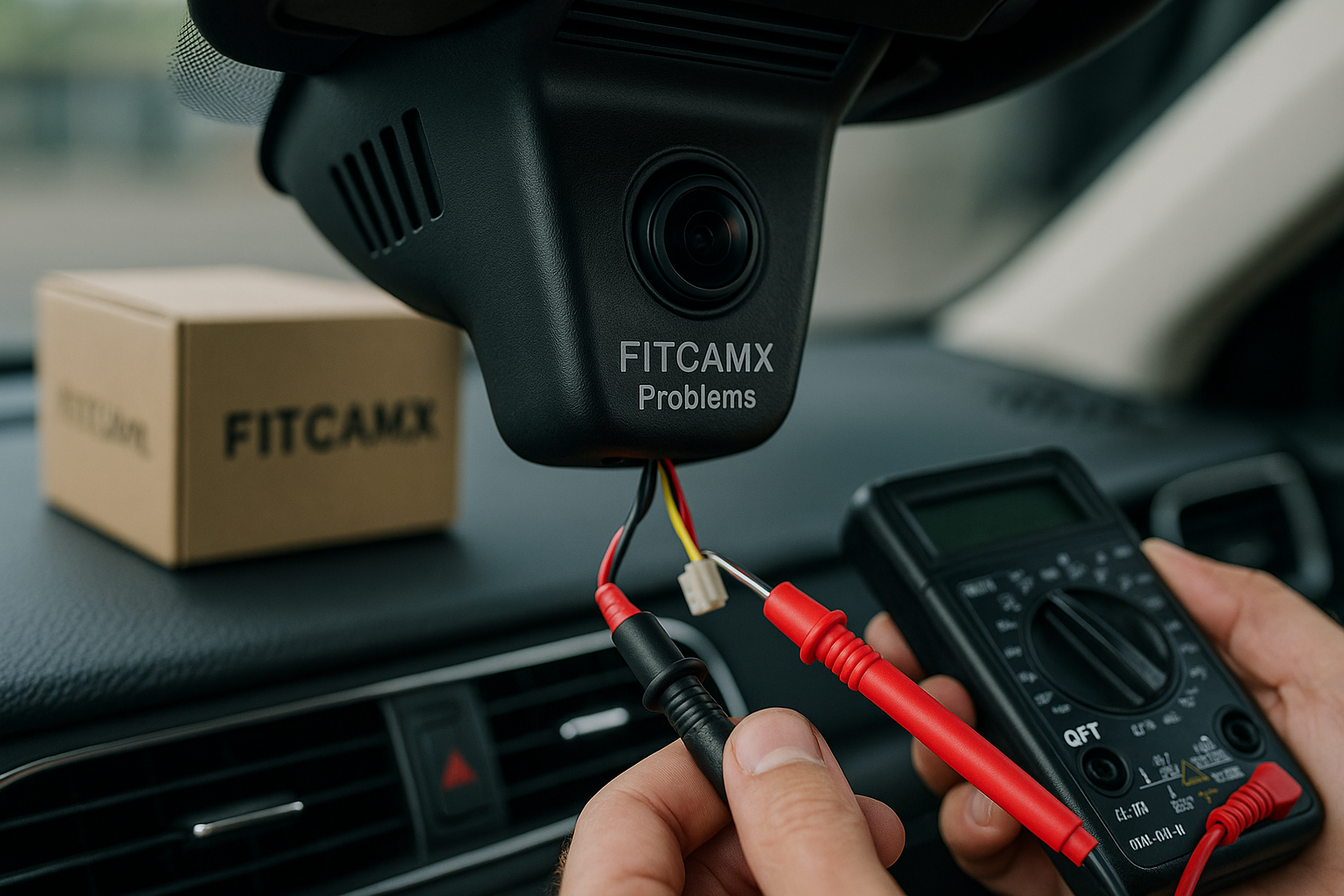
If you are searching for fitcamx problems, you are probably not looking for a brand debate. You want to know what can go wrong, whether the issue is fixable, and whether FitcamX is still a sensible dash cam choice for your vehicle.
I have treated this guide like a pre-purchase and troubleshooting checklist. It focuses on the most common real-world concerns seen in official FITCAMX support materials, forum discussions, Reddit complaints, Kia EV Forums, and MBWorld owner threads: recording failures, memory card errors, Wi‑Fi/app trouble, power issues, parking mode confusion, fitment friction, and settings or firmware mistakes.
Official website · Latest pricing & offers
What FitcamX buyers usually mean by “problems”
When people mention fitcamx problems, they are usually describing one of two situations: either the camera does not behave as expected after installation, or the product is harder to set up than the buyer assumed.
FITCAMX is positioned as an integrated dash cam brand with vehicle-specific collections, universal dash cams, accessories, and installation resources. That integrated design is the appeal, but it also means the exact vehicle, trim, connector style, and installation method matter more than they would with a simple suction-cup dash cam.
Common complaint patterns from forums, Reddit, and support FAQs: fitcamx problems in the wild
Across official support topics and owner discussions, the recurring complaint patterns are fairly consistent:
| Complaint Type | What It Looks Like | Usual Area To Check First |
|---|---|---|
| Recording issues | Missing clips, no loop recording, unusable files | microSD card, settings, formatting |
| Wi‑Fi/app issues | Phone will not connect, password confusion, app drops | app permissions, Wi‑Fi connection, reset |
| Power issues | Camera will not boot, restarts, shuts off | connector, fuse/OBD kit, power delivery |
| Parking mode issues | No recording when parked | accessory cable, installation method |
| Fitment issues | Housing does not sit right, connector mismatch | vehicle-specific kit and trim compatibility |
| Firmware/settings issues | Odd behavior after setup changes | reset, firmware, configuration |
Many fitcamx problems are not automatically proof of a defective camera. Dash cams are sensitive to power stability, memory card health, heat, firmware, and installation quality.
Who this guide is for: shoppers, new owners, and installers
This guide is useful if you are:
- Comparing FitcamX with other integrated dash cams before buying
- Installing your first unit and trying to avoid common mistakes
- Seeing fitcamx not recording while driving
- Dealing with fitcamx wifi problems or app pairing failures
- Unsure whether fitcamx parking mode should work in your setup
- Preparing evidence before contacting fitcamx support
If you are still shopping, verify your exact vehicle collection, installation method, and accessory requirements before ordering. You can start from the official product path through this FitcamX affiliate link on TopTrustReview: check FitcamX vehicle compatibility. Treat that as a starting point, not a substitute for reading the vehicle-specific manual and support notes.
Problem #1: FitcamX is powered on, but it is not recording reliably
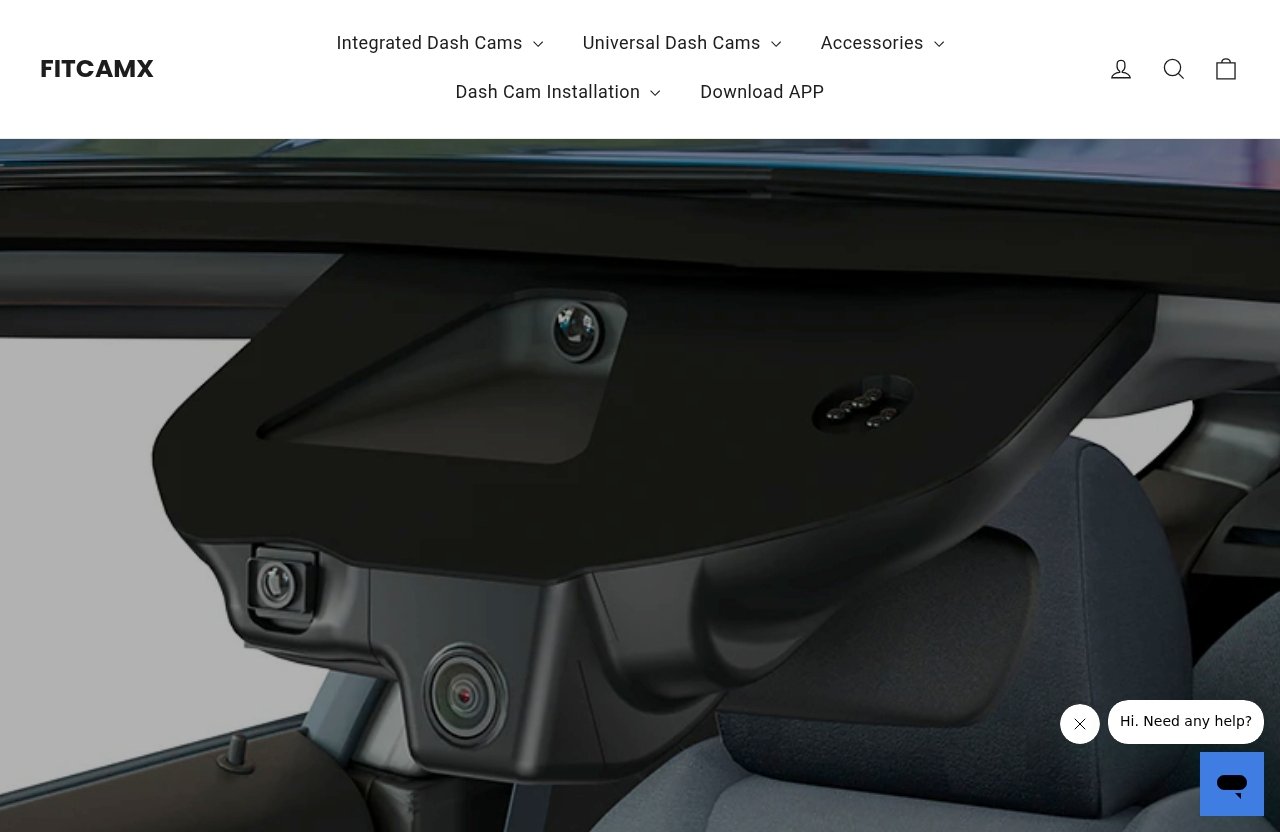
One of the most frustrating fitcamx problems is seeing lights or app activity that suggest the camera is alive, only to discover that usable footage is missing later.
This is especially concerning because dash cams are “need it once” products. If the camera appears to work but fails during a drive, the issue may go unnoticed until you actually need the clip.
Symptoms users report
Typical symptoms include:
- The unit powers on, but no new videos appear on the card
- Clips are missing from certain drives
- Recording starts and stops randomly
- Loop recording does not overwrite old clips
- Files exist but cannot be played
- The camera indicator behaves normally, but footage is incomplete
- Owners describe fitcamx not looping or unreliable loop recording
Some owners also search for fitcamx flashing blue and red when indicator lights seem unusual. Light behavior should be checked against the official manual for your specific model, because indicators can vary by version.
Most likely causes
The most common causes are usually practical rather than dramatic:
- microSD card problems
Dash cams write constantly. A weak, fake, old, overheated, or incompatible card can cause missing files and recording interruptions.
- File system errors
If the card was used in another device, removed while writing, or not formatted correctly, the camera may struggle to record consistently.
- Loop recording settings
If loop recording, clip length, or protected-file behavior is misconfigured, the card may fill up or stop saving normally.
- Power interruption
A loose connector, unstable fuse tap, or incorrect installation can interrupt recording even if the camera appears powered.
- Firmware or app settings
Configuration errors can look like hardware faults, especially after a reset or update.
Official FITCAMX support includes help topics around memory cards and video footage. Before assuming the camera is defective, I would start there and compare your symptoms with the official guidance.
Step-by-step fixes
Use this order to isolate the issue:
- Check whether the camera records a short test drive
Format the card using the recommended method, drive for 10–15 minutes, then review the files.
- Try a known-good microSD card
If the same camera works with a different card, the original card is likely the culprit.
- Confirm loop recording settings
Check clip length, recording mode, protected files, and whether the card is full of locked footage.
- Format the card inside the FitcamX app or as instructed by support
Avoid assuming a computer format is always correct. Follow the official FITCAMX microSD guidance.
- Inspect the power connection
If recording cuts out during bumps, startup, or shutdown, check the connector and installation path.
- Reset the camera if settings seem corrupted
If your model has a fitcamx reset button, use it according to the manual. Do not hold random buttons without checking the instructions.
If the camera still fails to create usable files after testing with a reliable card and stable power, it is reasonable to contact support with evidence.
Problem #2: Memory card errors, corrupted files, or constant formatting requests
A large share of fitcamx problems begin with the microSD card. This is true for many dash cams, not just FitcamX.
The card is constantly being written, overwritten, heated, cooled, and checked. A card that works fine in a phone or action camera may still fail under dash cam conditions.
Why dash cams stress microSD cards
Dash cams record continuously. That means the card handles repeated write cycles every time you drive.
Common stress factors include:
- Constant loop recording
- Cabin heat
- Sudden power loss
- Old locked files filling the card
- Removing the card while the camera is active
- Low-quality or counterfeit cards
- Cards not formatted according to the device guidance
This is why fitcamx memory card issues can look like camera problems. Corrupted clips, formatting loops, and missing recordings are often card-related.
How to test whether the card is the real issue
Here is the simplest diagnostic method:
| Test | What To Do | What It Tells You |
|---|---|---|
| Format test | Format using official instructions | Clears file system errors |
| Short drive test | Record a controlled drive | Confirms basic recording |
| Replacement card test | Use a known-good card | Separates card failure from camera failure |
| Playback test | Review files on app/computer | Confirms clips are usable |
| Repeat test | Drive again after shutdown | Checks startup reliability |
If a second card works normally, the camera is probably not the root cause. If two good cards fail in the same way, look at power, firmware, or hardware.
Best practice for card maintenance
To reduce fitcamx problems tied to storage:
- Use a quality card that matches FITCAMX guidance
- Format the card periodically as recommended
- Do not remove the card while the camera is writing
- Save important clips elsewhere before formatting
- Replace cards that repeatedly corrupt files
- Check locked-event folders so the card does not fill with protected videos
The official FITCAMX homepage lists Micro SD Card accessories, which is a clue that card choice is part of the intended ecosystem. I would still verify current compatibility in the official manual or support FAQ before buying a replacement card.
Problem #3: FitcamX Wi‑Fi or app connection keeps failing
Not all fitcamx problems affect recording. Some are app or Wi‑Fi related, which can be annoying but may not mean the camera stopped capturing video.
Owners often confuse “I can’t connect to the app” with “the camera is not recording.” Those are different problems, so troubleshoot them separately.
Why the app won’t connect
The FitcamX app connection usually depends on short-range Wi‑Fi between your phone and the dash cam. It is not the same as joining your home Wi‑Fi.
Common causes of fitcamx app issues include:
- Phone connected to another Wi‑Fi network
- Mobile data or VPN interfering with local connection
- App permissions blocked
- Phone too far from the camera
- Camera not in pairing mode
- Wrong Wi‑Fi password
- Outdated app version
- Previous connection profile saved incorrectly
If you recently changed phones, updated the app, or reset the camera, expect to re-check permissions and pairing.
Password reset or Wi‑Fi drop complaints
Forum and Reddit discussions include complaints about intermittent Wi‑Fi behavior and password confusion. Searches for fitcamx problems reddit often lead to owners describing connection drops, failed pairing, or a password that no longer works as expected.
This does not always mean the dash cam hardware is bad. Local Wi‑Fi connection between a phone and camera can be sensitive to app state, phone settings, and reset behavior.
Fixes that usually work
Try these steps in order:
- Park safely and keep the ignition state stable
Do not troubleshoot while driving.
- Move your phone close to the camera
Stay inside the vehicle and near the unit.
- Disable VPN temporarily
Some VPNs interfere with local device connections.
- Disconnect from CarPlay or Android Auto if needed
Your phone may prioritize another wireless connection.
- Forget the FitcamX Wi‑Fi network
Reconnect fresh using the correct password from the manual or reset instructions.
- Check app permissions
Allow local network, Wi‑Fi, photos/files, and location if the app requires them for pairing.
- Update or reinstall the app
The official FITCAMX homepage includes a Download APP resource. Use the official app path rather than random third-party downloads.
- Use the reset procedure
If your model supports it, use the documented reset method.
If the camera records normally but the app is unstable, explain that clearly to support. It helps them separate Wi‑Fi/app troubleshooting from recording hardware failure.
Problem #4: The camera has power, but it won’t turn on, restart, or stay running
Power-related fitcamx problems can be harder to diagnose because the symptom may change from drive to drive.
A unit may appear dead one day, boot-loop the next, or work only when a connector is held in a certain position. That points toward power delivery or connection stability.
No lights, flashing lights, or boot-loop behavior
Symptoms include:
- No indicator lights
- Flashing lights without normal startup
- Repeated restarting
- Camera turns on briefly, then shuts down
- Camera works after reinstalling, then fails again
- App cannot find the camera because it never fully boots
If you see fitcamx flashing blue and red, check the specific manual or support page before interpreting the lights. Indicator meanings can be model-specific.
Power source and connector checks
FitcamX installation may involve different power approaches depending on the vehicle and accessory setup. The official site references Plug and Play Installation, Fuse Box Kit Installation, OBD Kit Installation, and Parking Mode Cable accessories.
Check these areas:
- Vehicle connector fully seated
- No bent pins
- Correct harness for your trim
- Fuse-box tap installed in the correct orientation
- OBD kit seated firmly, if used
- Cable not pinched behind trim
- No loose connection near the rain sensor or mirror housing
- Ignition/accessory state matches the installation guide
For integrated dash cams, a slightly wrong connector or incomplete seating can cause symptoms that look like camera failure.
When the hardware may be defective
A hardware defect becomes more likely if:
- The correct vehicle kit is installed properly
- Power is confirmed stable
- A known-good memory card has been tested
- Reset and firmware guidance have been followed
- The camera remains dead or repeatedly restarts
- Support confirms the symptoms are abnormal
Before requesting a replacement, record a short video showing the power state, indicator lights, connector setup, and app behavior. That makes fitcamx support conversations much more productive.
Official website · Latest pricing & offers
Problem #5: Parking mode doesn’t work as expected
Parking mode is one of the most misunderstood fitcamx problems because buyers may assume it works automatically after a standard installation.
In reality, parked recording depends on the installation method, power source, accessories, and vehicle-specific instructions.
Does FitcamX record when parked?
FitcamX can support parking-related setups depending on the model and installation method, but it is not safe to assume every installation records when the car is off.
The official homepage lists Parking Mode Cable as an accessory category, and installation resources include Fuse Box Kit Installation and OBD Kit Installation. That strongly suggests parking behavior may depend on the correct accessory and wiring approach.
Why parking mode may not activate
Common reasons include:
- Standard plug-and-play install only powers with ignition
- Parking mode cable not installed
- OBD or fuse kit not configured correctly
- Vehicle cuts power after shutdown
- Low-voltage protection or power management limits operation
- App settings not enabled
- Motion/impact sensitivity misunderstood
- User expects continuous recording when the selected mode behaves differently
If you are troubleshooting fitcamx parking mode, start by confirming what your exact installation is supposed to do.
Installation-specific limitations
Some vehicles manage accessory power aggressively. Others have trim variations that change connector access or power behavior.
Before assuming another case of fitcamx problems, check:
- Your exact vehicle year, model, and trim
- Whether your kit supports parking mode
- Whether you bought the needed accessory cable
- Whether the installation guide matches your vehicle
- Whether support recommends fuse-box or OBD installation for your use case
If parked recording is a must-have feature, verify it before buying rather than after installation.
Problem #6: Installation fitment problems or trim/rain sensor connector issues
FitcamX is attractive because it aims for an integrated, OEM-style appearance. But that same integration can create vehicle-specific fitcamx problems when the housing, trim, or connector does not match perfectly.
This is where shopper research matters most.
Poor fit or housing alignment
Fitment complaints may include:
- Cover does not snap in cleanly
- Housing gap near the mirror
- Camera angle looks slightly off
- Trim feels too tight
- Original cover shape differs from the FitcamX housing
- Install video does not match the actual car
These issues can happen when a vehicle has different mirror hardware, rain sensor housing, windshield equipment, or regional trim variation.
Connector confusion during install
Owner forums, including Kia EV Forums and MBWorld discussions, show that connector access and installation details can become confusing. The problem is not always the main camera body. Sometimes the challenge is identifying the right plug, routing the cable safely, or confirming whether a connector is for the rain sensor, mirror, or power.
When installing:
- Take photos before unplugging anything
- Do not force connectors
- Compare your connector shape with the guide
- Stop if the instructions do not match your car
- Contact support before modifying wiring
- Avoid damaging factory trim clips
A rushed installation can turn minor fitcamx problems into broken trim or electrical headaches.
Vehicle-specific compatibility concerns
Before purchase, check the exact vehicle collection page and installation resources. The official FITCAMX homepage organizes Integrated Dash Cams by many vehicle brands, but “brand match” is not enough.
Verify:
- Model year
- Trim level
- Mirror housing style
- Rain sensor equipment
- Region-specific vehicle differences
- Front-only vs front/rear configuration, if applicable
- Plug-and-play vs fuse-box or OBD installation
If you are not comfortable removing trim near the windshield, consider professional installation or a simpler universal dash cam.
Problem #7: Firmware, settings, or user configuration issues
Some fitcamx problems are self-inflicted, especially after changing settings quickly or trying multiple fixes at once.
That is not meant as blame. Dash cam apps can be unintuitive, and small configuration changes may affect recording, loop behavior, file protection, and connectivity.
Settings that affect clip length, loop recording, and app behavior
Check settings related to:
- Clip length
- Loop recording
- Audio recording
- Time and date
- Resolution options available in your model
- G-sensor or impact sensitivity
- Parking mode options
- Wi‑Fi name and password
- Storage formatting
- Protected event files
A too-sensitive event setting may lock many files. A full card with too many protected clips may stop normal loop behavior and look like fitcamx not looping.
Why updates and resets matter
A fitcamx firmware update may fix bugs or improve compatibility, but it should be done carefully. Use only official FITCAMX resources, follow the instructions, and avoid interrupting power during an update.
A reset can also help if settings are corrupted. If your model has a fitcamx reset button, use the documented method. Random button holds can create confusion if you do not know what state the camera is entering.
A simple troubleshooting order
Use this clean order:
- Write down the current symptom
- Back up any important footage
- Confirm the memory card is healthy
- Format the card using official guidance
- Check recording and loop settings
- Test a short drive
- Reset only if needed
- Update firmware only from official resources
- Change one setting at a time
- Document what changed
This method prevents you from chasing multiple fitcamx problems at once.
Is FitcamX still worth buying if you know the risks?
The fair answer is: FitcamX can be worth considering if you value an integrated look and are willing to verify compatibility carefully. It is less ideal if you want the simplest possible setup with minimal troubleshooting.
Many positive fitcamx reviews focus on the clean, factory-style appearance. Many negative owner comments focus on the practical pain points covered here: recording reliability, app connection, memory cards, parking mode expectations, and installation details.
Who FitcamX may suit best
FitcamX may be a good fit if you:
- Want a discreet, OEM-style dash cam
- Have confirmed the exact kit for your vehicle
- Are comfortable following installation guides
- Will use a suitable microSD card
- Accept that app and Wi‑Fi setup may take patience
- Prefer vehicle-specific integration over a generic windshield mount
If that sounds like you, it is reasonable to compare current models and compatibility through FitcamX via TopTrustReview, then confirm details with the official manual, FAQ, and support before ordering.
Who should consider alternatives
You may want a different dash cam if:
- You dislike troubleshooting apps or Wi‑Fi
- You need guaranteed easy parking mode setup
- Your vehicle trim is unusual or unsupported
- You do not want to remove factory trim
- You prefer a dash cam that can be moved between cars
- You want local retail returns or in-person installation help
For those buyers, the main fitcamx problems are not necessarily defects. They are fit, installation, and expectation risks.
Buying tips to reduce regret
Before buying:
- Confirm your exact vehicle year and trim
- Read the vehicle-specific installation guide
- Check whether parking mode needs an accessory cable
- Verify microSD card requirements
- Review the official FAQ and support resources
- Search owner forums for your specific vehicle
- Do not rely on unverified pricing pages
One important pricing note: the captured official pricing page at fitcamx.com/pricing returned a 404 Not Found, so I would not cite specific pricing plans or numbers from that page. Always verify current pricing at checkout or through official product pages.
What to do before you ask for a refund or replacement
If you have already tried basic troubleshooting and still have fitcamx problems, prepare a clear support case before requesting a refund or replacement.
Good evidence can shorten the process and reduce back-and-forth.
Evidence to collect
Gather:
- Vehicle make, model, year, and trim
- Order details and exact FitcamX model
- Installation method: plug-and-play, fuse box, OBD, or parking cable
- Photos of the installed housing
- Photos of connectors before and after installation
- Short video of indicator lights or boot-loop behavior
- App screenshots
- Firmware/app version if available
- microSD card brand, capacity, and age
- Example corrupted files or missing-recording timeline
- Description of when the issue happens
For recording issues, include whether you tested another card. For Wi‑Fi issues, include your phone model and operating system version.
Questions to ask support
Ask specific questions:
- Is this the correct kit for my exact trim?
- Should this installation support parking mode?
- What microSD card format and capacity are recommended?
- What do these indicator lights mean on my model?
- Is there an official firmware file for my unit?
- What reset process should I use?
- Do my photos show the correct connector?
- Should I test a different power method?
Start with the official FITCAMX FAQ/support page before assuming the camera is defective. Support can often identify mismatched parts, installation errors, or known configuration steps.
Replacement vs return decision
Consider a replacement if:
- The product fits your vehicle correctly
- Support confirms the installation looks right
- You still want the integrated design
- The issue appears limited to one faulty unit
Consider a return if:
- The fitment is wrong for your vehicle
- Parking mode cannot work the way you need
- You are not comfortable with the required installation
- App behavior is a deal-breaker
- Support cannot provide a clear path forward
The key is to separate fixable fitcamx problems from mismatched expectations.
Official website · Latest pricing & offers
FAQ
Is Fitcamx a good dashcam?
FitcamX can be a good dash cam for buyers who want an integrated, OEM-style look and are willing to verify vehicle compatibility carefully. The main tradeoff is that users do report issues with recording reliability, Wi‑Fi/app connection, memory cards, and installation fitment.
I would recommend it most to shoppers who are comfortable following support guidance and troubleshooting basic setup issues.
Does Fitcamx record when a car is off?
It depends on the installation method and accessories used. Parking recording is not automatic in every setup.
Check the specific vehicle guide and whether you need a Parking Mode Cable, fuse-box kit, or OBD kit. If parked recording is essential, confirm that with official support before buying.
Does Fitcamx void the warranty?
Warranty impact depends on the vehicle, installation method, local law, and whether factory wiring or trim is damaged. A clean plug-and-play installation may be lower risk than cutting or modifying wiring, but you should not assume anything.
Check your automaker’s warranty policy and consider professional installation if you are unsure.
Is Fitcamx a Chinese company?
Yes. FITCAMX is commonly described in search results and buyer questions as a company founded in China in 2015, focused on integrated dash cams.
That fact alone does not determine product quality. It is more useful to judge whether the specific FitcamX kit matches your vehicle and whether you are comfortable with the support and troubleshooting process.
Conclusion
Most fitcamx problems fall into predictable categories: memory card behavior, recording settings, Wi‑Fi/app pairing, power delivery, parking mode setup, fitment, and firmware or configuration. The practical path is to troubleshoot in that order before assuming a defective unit.
FitcamX is still worth considering if you want a discreet integrated dash cam and are willing to verify compatibility, installation method, and accessory needs first. If you want the least hands-on experience possible, or if parking mode must work a specific way, compare alternatives before committing.