Adcreative.ai Tutorial: Create Ads in 10 Minutes
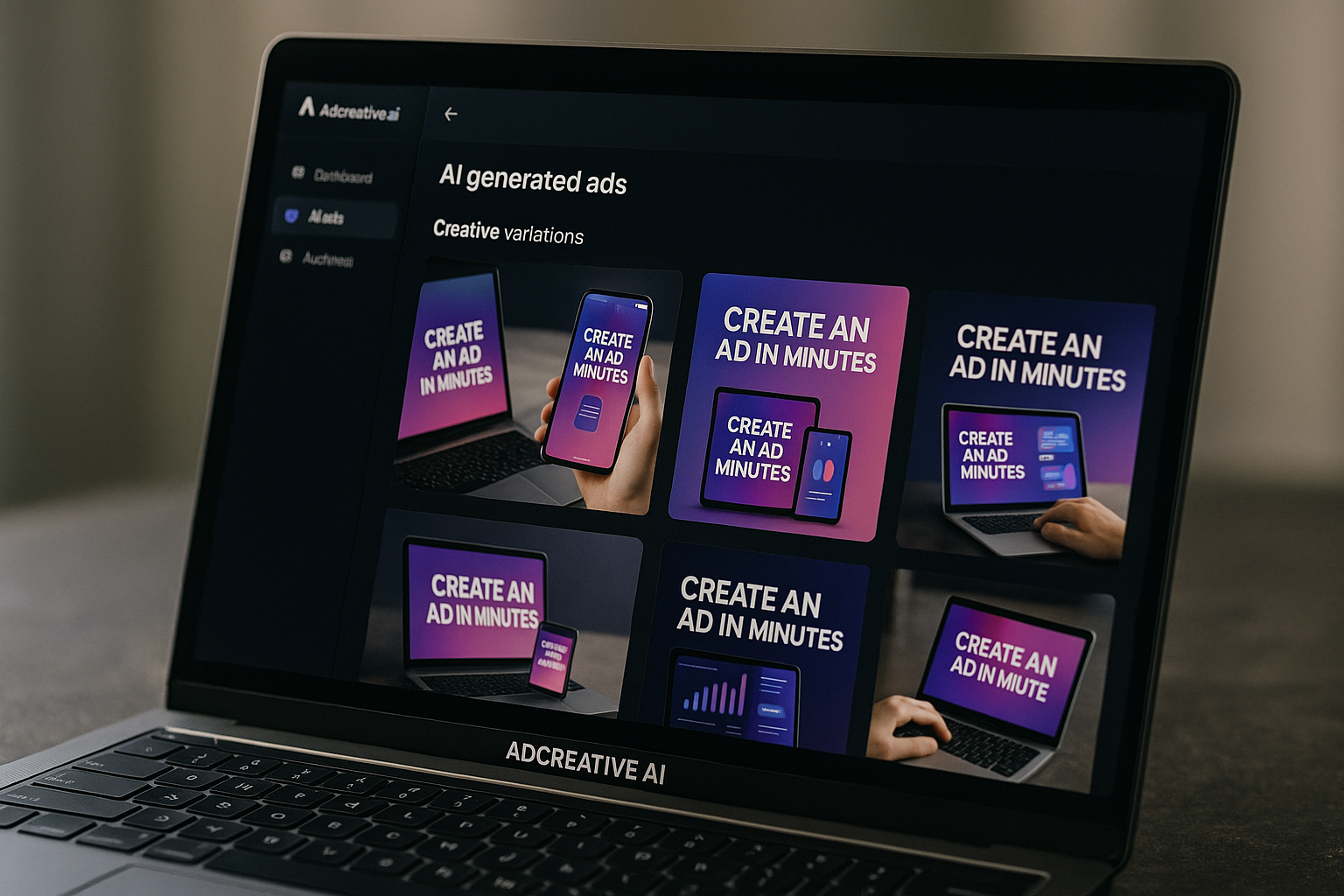
If you want a simple adcreative.ai tutorial that gets you from signup to your first usable ad creative fast, this guide is for you. I’ll walk you through the beginner workflow step by step, using the tool the way a small business owner, creator, or marketer would use it when they need ads quickly without building every design from scratch.
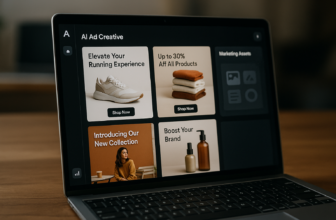
AdCreative.ai is an AI ad creative generator that helps users create ad creatives, images, videos, and copy with AI. The goal is not to replace every strategic decision you make, but to speed up the repetitive parts: layouts, variations, ad sizes, and first-draft creative ideas.
Official website · Latest pricing & offers
What AdCreative.ai Is and Who This Tutorial Is For
What the Tool Does in Plain English
AdCreative.ai helps you turn basic brand assets into ad creatives faster. Instead of opening a blank design canvas, you give the platform your brand details, product visuals, messaging, and offer, then generate ad variations you can review and export.
In plain English, it helps with:
- Static ad creatives
- AI-generated ad copy
- Multiple creative variations
- Different ad sizes for platforms
- Video ads from uploaded images
- Creative performance analysis based on patterns from large-scale ad data
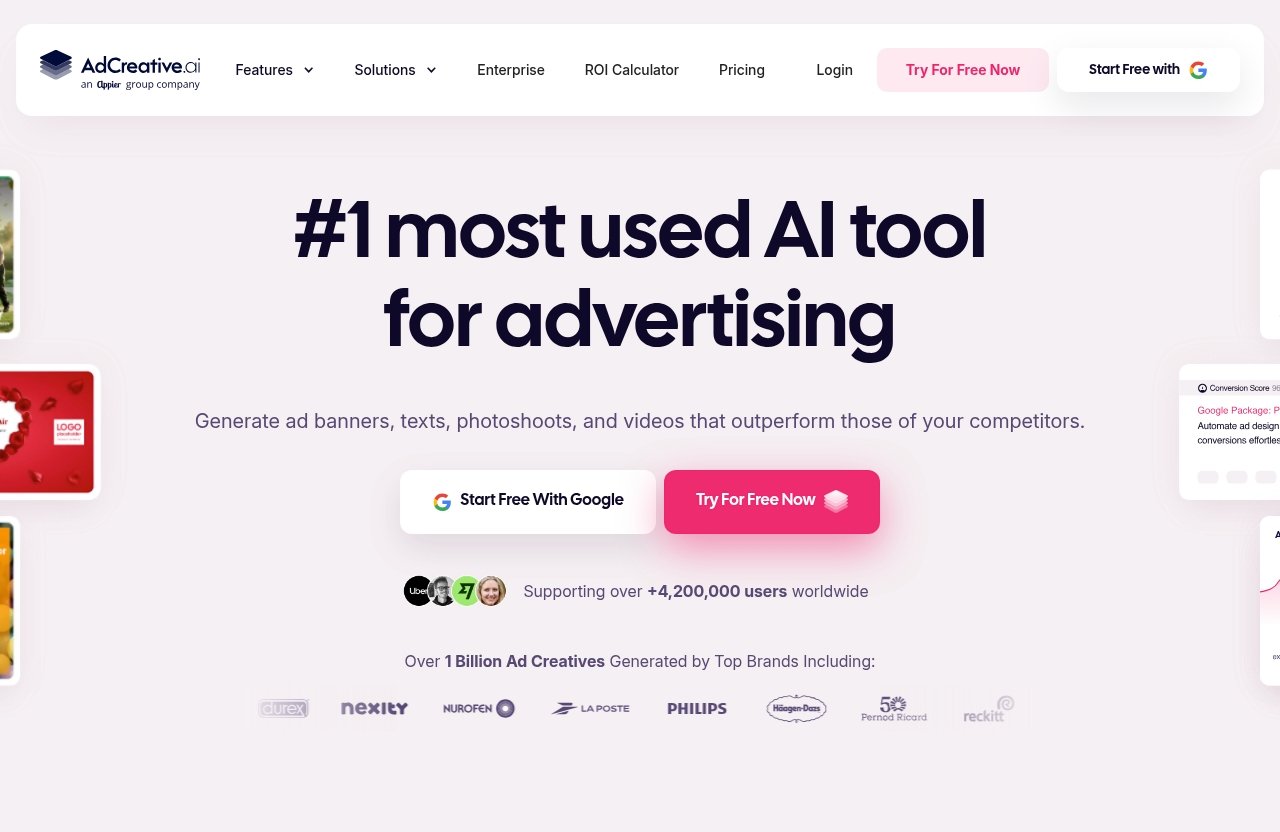
The official homepage says AdCreative.ai can generate new ads trained on patterns learned from $35B+ in ad spend data. That does not guarantee a specific result for your business, but it does explain why the platform is built around testing many creative versions instead of relying on one design.
This adcreative.ai tutorial focuses on the fastest beginner path: set up a brand, create a project, choose a format, add assets, generate variations, and export your best options.
Who Can Benefit Most: Small Businesses, Marketers, Creators, Agencies
AdCreative.ai is especially useful if you need ads but do not want to spend hours designing every version manually. In my experience reviewing tools like this, the biggest benefit for beginners is speed: you can move from “I need an ad” to “I have several options to test” much faster than a traditional design workflow.
It may be helpful for:
| User Type | Why It Helps |
|---|---|
| Small businesses | Create ads without hiring a designer for every campaign |
| E-commerce brands | Generate product-focused creatives and variations |
| Marketers | Test different headlines, visuals, and layouts faster |
| Creators | Promote offers, products, or services with less setup |
| Agencies | Produce multiple client creative directions quickly |
If you are searching for an adcreative.ai beginner tutorial, you probably care about getting started without overthinking every setting. That is exactly how this walkthrough is structured.
What Problem It Solves: Slow Design Workflows and Too Many Ad Variations
Most beginners run into the same ad creation problems. You need one version for one platform, another size for another placement, and several variations for testing. That can become slow and expensive quickly.
AdCreative.ai’s homepage highlights four common problems it aims to solve:
- Making video ads quickly
- Creating many ad sizes for different platforms
- Spending money on ads that do not perform well
- Not having enough creative variations to test
The key lesson in this adcreative.ai tutorial is simple: do not try to create one “perfect” ad. Use the tool to generate multiple launch-ready options, then test which one actually works with your audience.
Quick Start: What You Need Before You Begin
Account Setup Basics
Before you create ads with AdCreative.ai, you need access to the platform and a basic idea of the campaign you want to build. You do not need a full brand book or a finished marketing strategy, but you should know what you are promoting.
At minimum, prepare:
- Your business or product name
- A logo file if available
- Brand colors
- One product image or visual
- A short headline idea
- A call to action, such as “Shop Now,” “Learn More,” or “Get Started”
This adcreative.ai tutorial assumes you want to create your first ad quickly, so avoid spending too much time perfecting your setup. You can improve your brand inputs later.
What Assets to Prepare: Logo, Brand Colors, Product Images, Offer Copy
Good inputs usually lead to better outputs. If you upload a blurry product image or write a vague offer, the generated ads may look less polished.
Here is a quick preparation checklist:
| Asset | Beginner Tip |
|---|---|
| Logo | Use a clear PNG if you have one |
| Brand colors | Pick 2–3 colors that match your website or packaging |
| Product image | Use a clean, high-quality visual |
| Offer copy | Keep it simple and specific |
| CTA | Match the next action you want users to take |
For example, instead of writing “Great deal available,” write “Save on summer skincare bundles.” Specific copy gives the AI more useful direction.
This is where many users get stuck when learning how to use AdCreative.ai. They open the tool before they know their offer, then waste time rewriting everything inside the project.
How to Avoid Getting Stuck on Your First Project
The fastest path is to start with a simple campaign. Choose one product, one offer, and one audience. Do not try to create ads for your entire business in the first session.
Use this beginner formula:
- Product: What are you promoting?
- Audience: Who is it for?
- Benefit: Why should they care?
- CTA: What should they do next?
For example:
“Promote our organic protein bars to busy professionals who want a clean snack. Main benefit: convenient energy without artificial ingredients. CTA: Shop Now.”
That is enough to start. This adcreative.ai tutorial is built around momentum, not perfection.
Step-by-Step AdCreative.ai Tutorial: Create Ads in 10 Minutes
Step 1: Sign Up and Access the Dashboard
Start by creating an account or logging into AdCreative.ai. Once you are inside, your first goal is to reach the dashboard where you can manage brands, projects, and generated creatives.
Do not worry if the dashboard feels unfamiliar at first. Most AI creative platforms use a similar flow: set up your brand, choose the creative type, add content, generate designs, then export.
For this adcreative.ai tutorial, I recommend starting with one simple static ad before experimenting with video. Static ads are usually easier for beginners because you can quickly see how your logo, image, headline, and CTA appear together.
A helpful first step is to look for any onboarding prompts, brand setup options, or project creation buttons. Platform interfaces can change over time, so use the labels inside your account as the source of truth.
Step 2: Create or Import a Brand
Your brand profile tells AdCreative.ai what your ads should look and feel like. This usually includes basics such as your brand name, logo, colors, and possibly other identity details.
Add only the essentials first:
- Brand name
- Website or business category if requested
- Logo
- Primary and secondary colors
- Brand tone or short description, if available
The purpose of this step is consistency. If your logo is black and your website uses blue and white, the generated ads should not suddenly look like a neon fashion campaign unless that is intentional.
In this part of the adcreative.ai tutorial, do not overcomplicate brand setup. A clean logo and two accurate colors are enough to get your first project moving.
Step 3: Start a New Project
After your brand is ready, start a new project. Think of a project as the container for one campaign or creative set.
For your first project, use a clear name such as:
- “Summer Sale Ads”
- “Protein Bar Launch”
- “Lead Magnet Campaign”
- “New Product Promo”
Then choose the type of creative you want to generate. Based on the official homepage, AdCreative.ai helps users create ad creatives, images, videos, and copy with AI. Your exact options may depend on the current interface and account access, so follow the available project types shown in your dashboard.
For beginners, I suggest choosing one campaign goal and staying focused. If you try to promote multiple offers in one project, your outputs may become inconsistent.
Step 4: Choose an Ad Format and Template
Next, choose the ad format or template. AdCreative.ai’s homepage says users can create every ad size and variation needed in seconds using ready-made templates or custom templates.
This is one of the most useful parts of the platform for beginners. Instead of resizing the same design manually for different placements, you can use AdCreative.ai templates and ad size options to create more versions quickly.
When choosing a template, look for:
- A layout that fits your product image
- Enough space for your headline
- A CTA area that is easy to notice
- A design style that matches your brand
- A format suitable for your intended platform
If you are unsure, pick the cleanest template first. In my experience, beginner ads often perform better visually when the layout is simple and the message is obvious.
This adcreative.ai tutorial is about speed, so avoid browsing templates for 20 minutes. Pick a solid starting point and generate variations.
Step 5: Upload Images or Product Visuals
Now upload your product image, lifestyle visual, or main campaign asset. This image is often the strongest part of the ad, so choose carefully.
Good beginner image choices include:
- A clear product photo
- A person using the product
- A before-and-after style visual, if appropriate and compliant
- A clean lifestyle image
- A branded graphic from your website
Avoid weak assets such as:
- Blurry screenshots
- Cropped product photos
- Busy backgrounds
- Images with too much text
- Low-resolution files
The official homepage also says AdCreative.ai can help create video ads by uploading an image, including use cases such as UGC-style content, product videos, stock visuals, and fashion clips. If you want to explore AdCreative.ai video ads later, start with your strongest still image.
For your first static creative, keep the visual simple. The AI can help with layout, but it cannot fully rescue an unclear product image.
Step 6: Add Headline, Copy, and CTA
Now add your message. This is where many beginners either write too much or become too vague.
Use a short headline that explains the main benefit. Then add supporting copy if the project asks for it. Keep your CTA direct.
Here are beginner-friendly examples:
| Element | Example |
|---|---|
| Headline | “Upgrade Your Home Office” |
| Supporting copy | “Ergonomic desk accessories for focused workdays.” |
| CTA | “Shop Now” |
| Offer | “Limited-time bundle savings” |
A good ad message should answer three questions quickly:
- What is this?
- Why should I care?
- What should I do next?
If you are unsure how to use AdCreative.ai for copy, start with one clear benefit and one action. You can generate multiple versions later.
For example, instead of saying:
“We offer many great wellness products for modern lifestyles.”
Try:
“Daily hydration support for busy mornings.”
Shorter copy usually gives the design more breathing room and makes the ad easier to scan.
Step 7: Generate Ad Variations
Once your brand, template, image, and copy are in place, generate variations. This is where AdCreative.ai becomes more useful than a one-off design tool.
The homepage says users can generate multiple ad versions, A/B test them easily, and keep running only the ads that perform best. That workflow matters because you usually do not know which creative will work until real users see it.
When reviewing generated variations, compare:
- Headline placement
- Image cropping
- CTA visibility
- Brand consistency
- Overall readability
- Visual contrast
- Whether the offer is instantly clear
This adcreative.ai tutorial is designed around the idea that your first generated batch is not necessarily your final answer. Treat it as a set of options. Pick the strongest few, refine them if needed, and export the versions that look launch-ready.
A practical beginner approach is to choose three to five strong creatives from the first batch. That gives you enough variety to test without overwhelming yourself.
Step 8: Review, Edit, and Export
Before exporting, review each creative like a customer would. Do not only ask, “Does this look nice?” Ask, “Would someone understand this in two seconds?”
Use this quick review checklist:
- Is the product or offer obvious?
- Is the headline readable on mobile?
- Does the CTA match the campaign goal?
- Are the colors on-brand?
- Is the logo visible but not distracting?
- Is there too much text?
- Does the image look properly cropped?
If something feels off, edit the input or choose another variation. For example, if all the designs feel too crowded, shorten your headline. If the product is hard to see, upload a cleaner image.
Once you are satisfied, export the creatives according to the options available in your account. Then upload them to your ad platform or share them with your team for review.
At this point, you have completed the core adcreative.ai tutorial workflow: brand setup, project creation, template selection, asset upload, copy input, variation generation, review, and export.
Official website · Latest pricing & offers
How to Use AdCreative.ai Faster for Better Results
Choose the Right Starting Template
The right template can save you several editing rounds. Choose one that matches your product and campaign goal, not just the one that looks most stylish.
For product ads, use templates that make the product image prominent. For service ads, choose layouts with stronger headline space. For offers or promotions, make sure the CTA and discount message are easy to notice.
This is one of the simplest ways to create ads with AdCreative.ai faster. A good starting template reduces the amount of fixing you need to do after generation.
Use One Offer Per Creative Set
Beginners often try to promote too many things at once. One ad might mention a sale, a product benefit, free shipping, a newsletter, and a brand story. That usually weakens the message.
Use one offer per creative set:
- One product
- One main benefit
- One audience
- One CTA
For example, create one project for “20% off running shoes” and another for “new trail running collection.” Keeping offers separate helps AdCreative.ai generate cleaner variations.
This adcreative.ai tutorial works best when your input is focused. The clearer your campaign idea, the easier it is to judge the outputs.
Keep Brand Inputs Simple and Consistent
Brand consistency matters, especially if you plan to generate many ad sizes and variations. If you keep changing your colors, logo, or tone, your ads may look disconnected.
Use the same brand profile unless you are intentionally testing a different visual direction. This helps your creatives feel like they belong to the same business.
A practical tip: save your brand hex codes, logo files, and preferred CTA phrases in a small document. Then you can reuse them every time you start a new project.
Generate Multiple Versions for A/B Testing
One of the strongest beginner use cases is variation generation. AdCreative.ai’s homepage specifically mentions generating multiple ad versions and supporting A/B testing workflows.
You do not need to test dozens of ads on your first campaign. Start with a manageable number of versions, such as three to five. Test meaningful differences, such as:
- Different headlines
- Different product images
- Different CTAs
- Different layouts
- Different value propositions
The point is not to guess which ad will win. The point is to create enough quality options so your campaign can reveal which message and visual combination performs best.
What AdCreative.ai Features Matter Most for Beginners
AI Ad Creative Generation
The core feature is AI ad creative generation. You provide brand assets, visuals, and copy inputs, then the tool generates ad designs and variations.
For beginners, this removes the blank-page problem. You are not starting with an empty canvas. You are starting with structured outputs that you can review, edit, and export.
In an adcreative.ai review, I would describe this as the platform’s main practical value: it helps you produce more creative options faster, especially when you do not have a designer available for every campaign.
Video Ad Creation From Images
The official homepage says AdCreative.ai can create video ads by uploading an image for use cases including UGC-style content, product videos, stock visuals, and fashion clips.
That is useful if you want to test motion-based creatives but do not have a full video production workflow. For many beginners, creating videos is one of the most intimidating parts of advertising.
As with static ads, your starting image matters. If you want better AdCreative.ai video ads, begin with a clean, relevant visual that clearly represents the product or offer.
Ad Size and Variation Generation
Ad size creation is a major time-saver. Different platforms and placements often need different dimensions, and resizing manually can become repetitive.
The homepage says users can create every ad size and variation needed in seconds using ready-made templates or custom templates. That is especially helpful if you need to prepare creatives for multiple placements quickly.
For beginners, AdCreative.ai ad sizes reduce a common bottleneck: creating one good design, then spending extra time adapting it for other formats.
Creative Performance Insights
AdCreative.ai’s homepage says the platform can analyze creative performance and generate new ads trained on patterns learned from $35B+ in ad spend data.
Use this carefully. Performance insights can support better decision-making, but they should not replace your own campaign analysis. Your audience, offer, landing page, budget, and targeting still matter.
The practical takeaway from this adcreative.ai tutorial is to treat insights as guidance. Use them to improve future creative tests, not as a guarantee that any single ad will succeed.
A/B Testing Support
A/B testing is the process of comparing different creative versions to see which performs better. AdCreative.ai supports this workflow by helping you generate multiple versions and keep the better-performing ads running.
For beginners, this is a healthier mindset than trying to design one perfect ad. Advertising is iterative. You create, test, learn, and improve.
If you use AdCreative.ai for beginners, focus on learning what your audience responds to. Over time, your ad inputs should become sharper because you will know which messages and visuals tend to work best.
Who Should Use AdCreative.ai and When It Makes Sense
Best for E-Commerce Brands
E-commerce brands often need many product creatives, promotional ads, seasonal campaigns, and retargeting assets. That makes AdCreative.ai a strong fit when speed and variation matter.
If you have product images ready, you can use the platform to generate multiple creative directions without starting from scratch every time. This is useful for launches, sales, bundles, and product category campaigns.
For online stores, this adcreative.ai tutorial is most useful when you already know the product and offer you want to promote.
Best for Small Businesses
Small businesses often do not have a dedicated design team. AdCreative.ai can help create polished first-draft ads without requiring advanced design skills.
That said, you still need good judgment. You should review every creative before publishing it, check that the message is accurate, and make sure the ad fits your brand.
For small teams, the main benefit is not magic performance. It is saving time on creative production and making it easier to test more than one idea.
Best for Agencies Managing Many Assets
Agencies often need to produce multiple concepts for different clients, offers, and platforms. An AI ad creative generator can help with early creative exploration and batch production.
AdCreative.ai may be useful for agencies that need many variations quickly, especially when clients provide clear brand assets and campaign details.
The key is process. Agencies should still review outputs for brand compliance, accuracy, and platform suitability before sending them to clients or launching campaigns.
When a Manual Design Workflow May Still Be Better
AdCreative.ai is not the best choice for every creative task. A manual design workflow may still be better when you need highly custom art direction, complex brand systems, or detailed design control.
Manual design may also be better for:
- Premium brand campaigns
- Large creative concepts
- Detailed photo manipulation
- Strict enterprise approval workflows
- Ads requiring legal or compliance review
- Designs that need a very specific visual style
A balanced AdCreative.ai guide should be honest about this. The tool makes the most sense when you need speed, consistency, and variations. It may not replace a skilled designer for high-stakes brand campaigns.
Common Beginner Mistakes to Avoid
Uploading Weak Assets
The most common mistake is uploading poor images. If your product visual is blurry, too dark, or visually cluttered, your generated ad may look weaker.
Use the best image you have. If possible, choose a product photo with good lighting and enough empty space for text or design elements.
This adcreative.ai tutorial can help you move quickly, but quality inputs still matter. AI tools work better when you give them clear material.
Writing Too Much Copy
Beginners often write long ad text because they want to explain everything. The problem is that most users scan ads quickly, especially on mobile.
Keep the headline short. Use supporting copy only when it adds clarity. If your message needs multiple sentences, consider creating separate ad versions for each benefit.
A good rule: one creative, one main message.
Skipping Brand Setup
Skipping brand setup can make your ads look generic. Even a simple brand profile helps the tool generate creatives that feel more connected to your business.
Upload your logo, choose accurate colors, and keep your brand name consistent. This small step can improve the professionalism of your first ad set.
If you are using this as an adcreative.ai beginner tutorial, do not skip the brand step just to save one minute. It is worth doing.
Not Testing Multiple Ad Versions
One ad is rarely enough. Even experienced marketers cannot always predict which creative will perform best.
Generate multiple versions and test them. Compare different headlines, images, layouts, and CTAs. Then use the results to guide your next batch.
The official homepage emphasizes generating multiple ad versions and A/B testing. That is a core part of the workflow, not an optional extra.
Expecting One Creative to Work Everywhere
Different placements can behave differently. A creative that looks strong in one size may feel cramped in another. A headline that works for one audience may not work for another.
Use AdCreative.ai ad sizes and variation tools to adapt your ads for different placements. Then review each exported version before launching.
The biggest beginner mindset shift is this: you are not making one universal ad. You are building a small set of testable creatives.
Official website · Latest pricing & offers
FAQ
Is AdCreative.ai Easy for Beginners to Use?
Yes, AdCreative.ai is designed to simplify ad creation with guided workflows, ready-made templates, and AI-generated variations. This adcreative.ai tutorial shows that beginners can start with basic brand assets, choose a template, add copy, and generate usable creative options without advanced design skills.
How Long Does It Take to Create Ads in AdCreative.ai?
This guide focuses on creating launch-ready ads in about 10 minutes if you already have your logo, colors, product visuals, and offer copy ready. Your first attempt may take a little longer while you learn the dashboard.
What Do I Need Before Using AdCreative.ai?
Prepare a logo, brand colors, product images or visuals, and basic ad copy or offer details. You should also know your main CTA, such as “Shop Now,” “Learn More,” or “Get Started.”
Can AdCreative.ai Help With Multiple Ad Sizes and Variations?
Yes. The official homepage says AdCreative.ai can create every ad size and variation needed in seconds using ready-made templates or custom templates. This is useful when you need creatives for multiple placements and platforms.
Can I Use AdCreative.ai for Video Ads?
Yes. The homepage says AdCreative.ai can create video ads from an uploaded image for use cases such as UGC-style content, product videos, stock visuals, and fashion clips. For best results, start with a clear, high-quality image.
Is AdCreative.ai Only for Paid Ads?
AdCreative.ai is mainly positioned around ad creative generation, but the exported creatives may also be useful for other promotional placements depending on your needs. Always check the available export options and format requirements inside your account.
Does AdCreative.ai Guarantee Better Ad Performance?
No tool can guarantee better performance for every campaign. AdCreative.ai can help you generate more variations and use performance-informed creative workflows, but results still depend on your offer, audience, targeting, budget, landing page, and testing process.
Is This AdCreative.ai Tutorial Enough to Launch My First Ad?
Yes, this adcreative.ai tutorial gives you the beginner workflow for creating your first ad creative set. Before launching, review your final ads carefully, confirm platform requirements, and make sure your claims and offers are accurate.
Final Verdict: Is AdCreative.ai Worth Trying for Fast Ad Creation?
Best Use Case Summary
AdCreative.ai is worth considering if you need to create ad creatives quickly, especially when you need multiple versions, different ad sizes, or a faster way to test creative ideas. It is strongest for users who already have basic assets ready and want to avoid building every ad from a blank canvas.
The best use cases are:
- Small business campaigns
- E-commerce product ads
- Promotional creative batches
- Agency variation production
- Beginner-friendly ad testing
- Static and video ad experimentation
This adcreative.ai tutorial shows the simplest path: prepare your assets, create a brand, start a project, choose a template, upload visuals, add copy, generate variations, review, and export.
What to Expect When You Start
When you start, expect a workflow built around inputs and variations. The better your logo, brand colors, product images, and offer copy are, the easier it will be to create strong first drafts.
Do not expect every generated creative to be perfect. Expect to review options, choose the best versions, and refine your inputs as you learn what looks good for your brand.
Also, check current access, trial, and pricing details directly on the official AdCreative.ai site, because the provided pricing page source returned a page-not-found result and specific plan details should not be assumed.
Affiliate Recommendation and Next Step
If your main goal is to speed up ad production and generate more creative options with less manual setup, AdCreative.ai is a practical tool to test. It is especially helpful when you need multiple ad variations quickly and want a beginner-friendly workflow.
You can try AdCreative.ai through our affiliate link here: AdCreative.ai. We may earn a commission if you sign up through that link, at no extra cost to you.
My recommendation is to start with one simple campaign, follow this adcreative.ai tutorial, and judge the tool by how much time it saves you in creating usable ad variations. For fast ad creation in 2026, it is a solid option to explore—especially if your current process feels slow, repetitive, or too dependent on manual design work.
Related Reading
References
- AdCreative.ai official homepage
- AdCreative.ai Guides and Tutorials Help Center
- The Ultimate Guide To Start Generating AI-Powered Ad Creatives at Scale
- Ad Creative AI Complete Tutorial and Review (Beginners Guide)