How to Install Barn2 Plugins Step by Step in 2026
If you are wondering how to install Barn2 plugins without breaking your WordPress site or getting lost in technical settings, this beginner-friendly guide will walk you through the process from start to finish.
The usual Barn2 plugin installation process is simple: download the plugin ZIP file, upload it in your WordPress dashboard, activate the plugin, and enter your license key. This guide is based on Barn2’s official knowledge base, homepage information, and standard WordPress plugin installation steps.
Official website · Latest pricing & offers
What Barn2 plugins are and who this guide is for
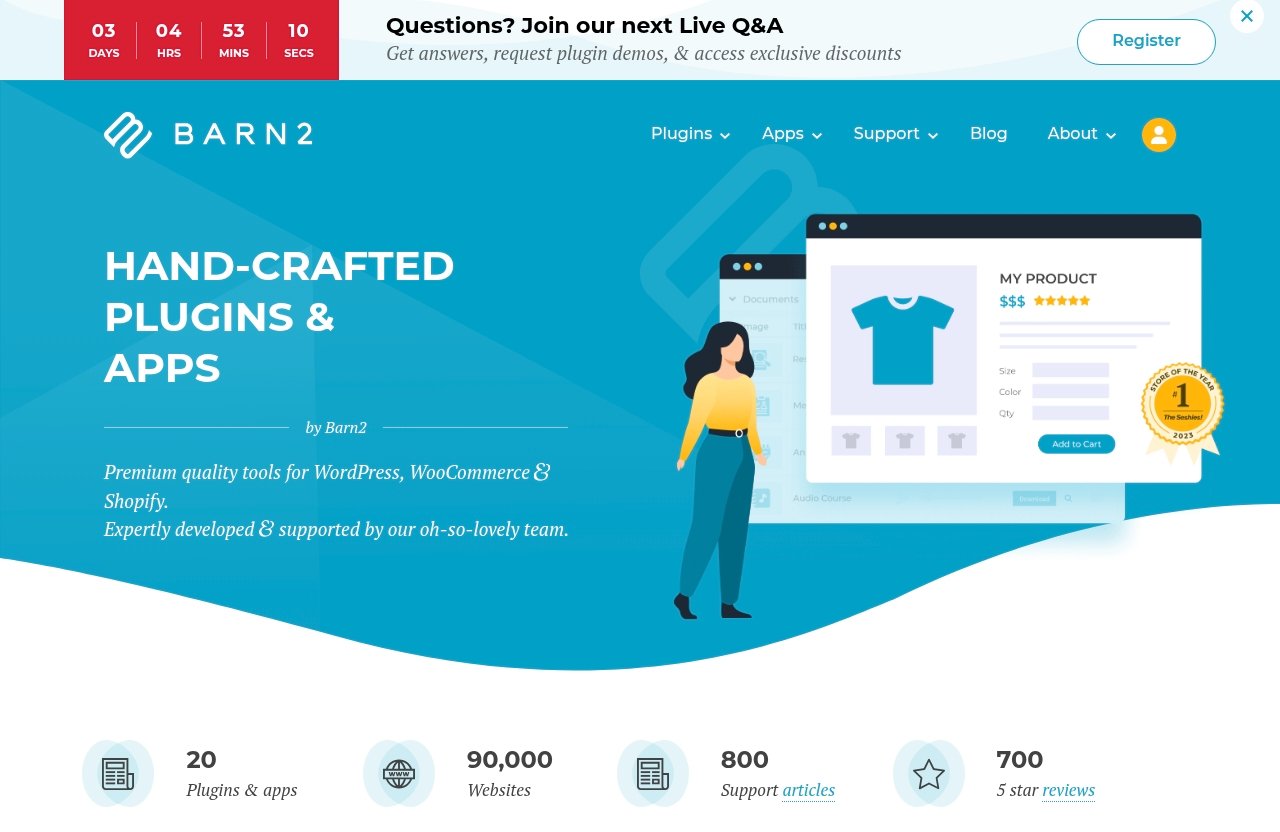
Barn2 creates premium tools for WordPress, WooCommerce, and Shopify. According to Barn2’s official homepage, they offer 20 plugins and apps, support 2,674 websites, provide over 700 knowledge base articles, 800+ step-by-step tutorials, and full support.
If you are new to WordPress, learning how to install Barn2 plugins can feel more intimidating than it really is. In most cases, the process takes only a few minutes once you have the ZIP file and license key ready.
Quick overview of Barn2’s WordPress and WooCommerce plugins
Barn2 plugins are designed to add specific functionality to a WordPress or WooCommerce site. Some are for general WordPress use, while others are built specifically for WooCommerce stores.
Officially highlighted Barn2 products include:
| Barn2 plugin | What it is used for |
|---|---|
| Document Library Pro | Adds and imports documents, then displays them in a searchable resource library. It supports any file type including PDF, audio, and video. |
| WooCommerce Product Table | Lists WooCommerce products in a searchable table layout with filters. It is popular for quick order forms, large product catalogs, restaurant order systems, and wholesale layouts. |
| WooCommerce Product Options | Lets customers personalize WooCommerce products and choose extra options and add-ons. |
| WooCommerce Discount Manager | A WooCommerce discount plugin for bulk discounts, storewide sales, BOGOF deals, role based pricing, and more. |
This article is not a product review. It is a practical Barn2 setup guide focused on installation, activation, and the first things to check after setup.
Who should follow this tutorial
This guide is for WordPress users who want clear instructions on how to install Barn2 plugins for the first time. You do not need to be a developer, and you do not need to edit code.
It is especially useful if you:
- Bought a Barn2 plugin and are not sure where to upload it.
- Have a plugin ZIP file but do not know what to do next.
- Need help activating your Barn2 license key.
- Want to avoid common upload and setup mistakes.
- Are considering a Barn2 plugin and want to know whether setup is manageable.
If you can log in to your WordPress dashboard and follow menu paths, you can usually install Barn2 plugin in WordPress without outside help.
What you need before you install any Barn2 plugin
Before learning how to install Barn2 plugins, gather the basic details you will need. This saves time and prevents common beginner errors.
You will usually need:
- Administrator access to your WordPress dashboard.
- The Barn2 plugin ZIP file.
- Your Barn2 license key.
- A working WordPress installation.
- WooCommerce installed and active if the specific Barn2 plugin requires it.
- A recent backup of your site.
Some Barn2 plugins are WooCommerce-specific, but not all Barn2 plugins require WooCommerce. Always check the documentation for the specific plugin you are installing.
Before you install: check the basics first
A smooth Barn2 plugin installation starts before you click “Upload Plugin.” It is worth taking two or three minutes to confirm your site is ready.
The most common problems I see with premium plugin installs are simple ones: the wrong file is uploaded, the license key is not nearby, WooCommerce is missing for a WooCommerce plugin, or the site has no recent backup.
Confirm your WordPress and WooCommerce setup
First, make sure you can access your WordPress admin area. You should be logged in as an administrator, because lower-level user roles may not have permission to install plugins.
If you are installing a Barn2 WooCommerce plugin setup, also check that WooCommerce is installed and activated. For example, WooCommerce Product Table, WooCommerce Product Options, and WooCommerce Discount Manager are WooCommerce-related products, so your store environment matters.
Do not assume every Barn2 plugin has the same requirements. Compatibility depends on the individual plugin, so the safest approach is to check the relevant Barn2 documentation before installing.
Make sure you have the plugin ZIP file and license details
To follow this guide on how to install Barn2 plugins, you need the correct plugin ZIP file. Barn2 provides the download link and license information after purchase, typically on the order confirmation page and in the confirmation email.
Look for:
- The plugin download link.
- The license key.
- Any setup instructions linked from Barn2.
- The email address used for the purchase.
Do not unzip the file unless Barn2’s instructions specifically tell you to. WordPress expects you to upload the plugin as a .zip file through the plugin uploader.
Back up your site before any plugin installation
Even when a plugin is well-built, you should back up your site before installing anything new. This is a standard WordPress safety habit, not a Barn2-specific concern.
If your site is live and important to your business, consider testing on a staging site first. A staging site lets you install and configure the plugin without affecting visitors or customers.
At minimum, make sure you have a recent backup of your files and database. Many hosts provide backup tools, but you should confirm that a restore option is available before making changes.
How to install Barn2 plugins step by step in WordPress
This is the core process for how to install Barn2 plugins using the standard WordPress ZIP upload method. The steps are similar for most premium WordPress plugins.
The exact settings you see after activation may differ depending on the Barn2 product. However, the upload, install, activate, and license flow is generally straightforward.
Step 1: Log in to your WordPress dashboard
Start by logging in to your WordPress admin area. This is usually located at:
yourdomain.com/wp-admin
Use an administrator account. If you do not see the Plugins menu, your account may not have enough permissions, or your site may be using a managed setup that restricts plugin installation.
Once you are inside the dashboard, pause before installing. Confirm that you are working on the correct site, especially if you manage multiple WordPress websites.
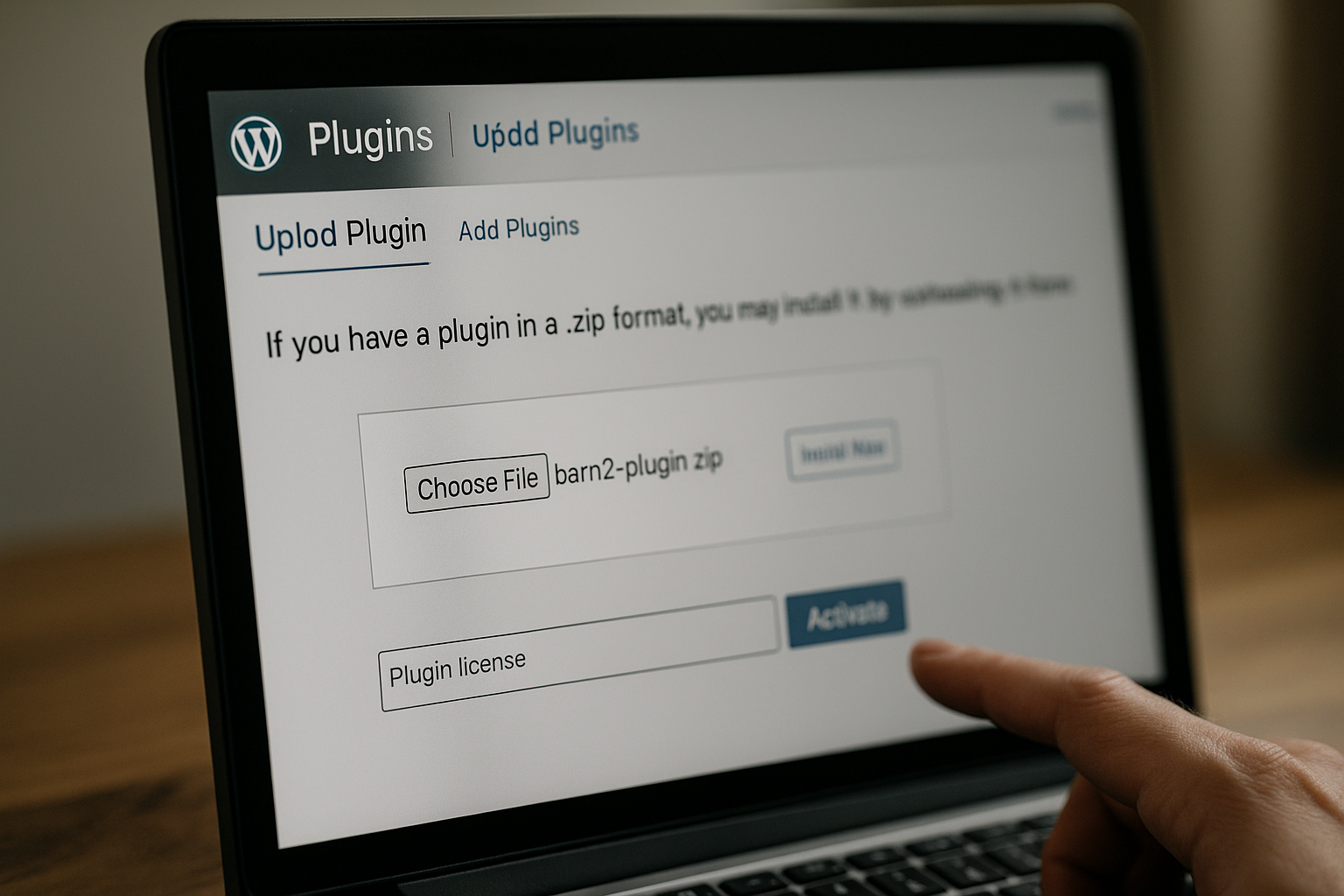
Step 2: Go to Plugins > Add New > Upload Plugin
In the left-hand WordPress menu, go to:
Plugins > Add New
Then click:
Upload Plugin
This is the standard path for anyone learning how to install WordPress plugin ZIP files manually. Free plugins can often be installed from the WordPress plugin directory, but premium plugins like Barn2 products are usually uploaded as ZIP files.
You should now see a file upload area with a “Choose File” button.
Step 3: Choose the Barn2 ZIP file and install it
Click Choose File and select the Barn2 plugin ZIP file from your computer. Make sure you select the actual plugin ZIP file, not a folder, PDF, receipt, or an unzipped directory.
After selecting the file, click:
Install Now
WordPress will upload the file and unpack it. If everything is correct, you should see a message confirming that the plugin installed successfully.
If the upload fails at this stage, do not panic. Skip to the troubleshooting section below for common fixes, including upload limits and incorrect file types.
Step 4: Activate the plugin
After installation, click:
Activate Plugin
This turns the plugin on for your WordPress site. Installation only places the plugin files on your site; activation is what makes the plugin available.
After activation, many plugins add a settings page, setup wizard, admin notice, or new menu item. The exact location depends on the Barn2 plugin you installed.
Step 5: Enter the license key
Most premium Barn2 plugins require license activation. Your Barn2 license key is typically provided after purchase on the order confirmation page and in the confirmation email.
License activation is important because it usually connects your site to updates and support access. If you skip this step, the plugin may still appear in your dashboard, but you may not receive the full benefits connected to your purchase.
Look for a license prompt after activation, or check the plugin’s settings page. Copy and paste your license key carefully to avoid extra spaces.
Step 6: Complete the first-time setup
Once the plugin is active and licensed, complete the first-time setup steps for your specific Barn2 product. This is where the installation process becomes product-specific.
For example, a document library plugin will need different first steps than a WooCommerce product options plugin. Barn2’s official knowledge base and tutorials are useful here because they provide plugin-specific setup guidance.
If your goal is simply to understand how to install Barn2 plugins, you can think of the process in two stages:
- Install and activate the plugin.
- Configure the plugin for your site’s use case.
Do not rush the configuration stage. Test the plugin on a sample page or staging site before applying major changes across your live store.
Official website · Latest pricing & offers
Example setup paths for popular Barn2 plugins
After you install the plugin, your next steps depend on which Barn2 product you are using. The examples below keep things high-level and stick to officially stated product purposes.
This section is meant to help you understand what “first-time setup” may look like after you complete the main steps for how to install Barn2 plugins.
Document Library Pro setup path
Document Library Pro lets users add and import documents and display them in a searchable resource library. Barn2 states that it supports any file type, including PDF, audio, and video.
A typical Document Library Pro installation path may look like this:
- Install and activate the plugin.
- Enter your Barn2 license key.
- Add or import documents.
- Create or confirm the searchable document library display.
- Test the library from the front end of your site.
If you are planning a Document Library Pro installation, gather a few sample files first. Testing with a small set of documents is easier than importing a large library immediately.
WooCommerce Product Table setup path
WooCommerce Product Table lists WooCommerce products in a searchable table layout with filters. Barn2 says it is popular for quick order forms, large product catalogs, restaurant order systems, and wholesale layouts.
A typical WooCommerce Product Table installation path may look like this:
- Confirm WooCommerce is installed and active.
- Install and activate WooCommerce Product Table.
- Enter your license key.
- Choose where the product table should appear.
- Test the table layout, search, and filters with real or sample products.
This kind of WooCommerce Product Table installation is useful when customers need to browse or order products quickly. Before launching, check the table on desktop and mobile devices.
WooCommerce Product Options setup path
WooCommerce Product Options lets customers personalize WooCommerce products and choose extra options and add-ons. This makes the first-time setup more product-focused.
A typical WooCommerce Product Options setup may look like this:
- Confirm WooCommerce is active.
- Install and activate the plugin.
- Enter your Barn2 license key.
- Add options or add-ons to a sample product.
- Test the product page and cart flow.
For a smoother WooCommerce Product Options setup, start with one product before applying options more widely. This helps you confirm that the customer experience works as expected.
Common installation problems and how to fix them
Even if you know how to install Barn2 plugins, small issues can happen during upload or activation. Most are easy to fix once you know what to check.
Use this troubleshooting section before contacting support. If the issue continues, Barn2 support and documentation are the right next step.
ZIP file upload errors
If WordPress rejects the upload, first confirm that you are uploading the correct .zip file. A common mistake is uploading the wrong file, such as a receipt, documentation file, or an already-unzipped folder.
Also check whether your browser downloaded the file correctly. If the ZIP appears unusually small or has a strange file name, download it again from the order confirmation email or account area.
Plugin upload limit issues
Some WordPress sites have a low file upload limit. If the Barn2 ZIP file is larger than your site allows, WordPress may show an upload error.
Common fixes include:
| Problem | Beginner-friendly fix |
|---|---|
| Upload limit too low | Ask your host to increase the WordPress upload limit. |
| Upload times out | Try again on a stable connection or ask hosting support to check server limits. |
| WordPress uploader fails repeatedly | Ask your host about manual plugin upload options. |
If you are not comfortable changing server settings, hosting support is usually the safest route.
Missing license key or download link
If you cannot find the download link or Barn2 license key, check the email address used during purchase. Search your inbox for “Barn2” and check spam or promotions folders.
The order confirmation page and confirmation email are the main places to look. If you still cannot find the details, contact Barn2 support with the purchase information you do have.
Avoid downloading Barn2 plugins from unofficial sources. Use your official download link so you know you are installing the correct file.
WooCommerce not installed or activated
Some Barn2 plugins require WooCommerce, but not every Barn2 plugin does. If you install a WooCommerce-specific plugin without WooCommerce active, the plugin may not work as expected.
Go to:
Plugins > Installed Plugins
Then check whether WooCommerce is installed and activated. If it is missing, install WooCommerce first, then return to the Barn2 plugin setup.
Always check the documentation for the specific product. Requirements can vary depending on the plugin.
Conflicting plugin settings
Sometimes a plugin installs correctly but does not behave as expected because of another plugin, theme setting, cache, or site configuration. This is not always an installation failure.
Start with simple checks:
- Clear your site cache.
- Test in a private browser window.
- Temporarily test on a staging site if available.
- Review the Barn2 knowledge base for plugin-specific setup notes.
- Contact Barn2 support if the issue continues.
Do not randomly change many settings at once. Change one thing, test it, and keep notes.
Why Barn2 is a good fit if you want less setup stress
One reason beginners search for how to install Barn2 plugins before buying is reassurance. They want to know whether they can set things up themselves or get help if needed.
Barn2 is a strong fit for users who value clear documentation and support. The company’s official homepage highlights over 700 knowledge base articles, 800+ step-by-step tutorials, and full support.
Built-in documentation and tutorials
Barn2’s knowledge base and tutorials are useful because installation is only the first step. After that, you need plugin-specific guidance for settings, display options, and testing.
When I evaluate a premium WordPress plugin for beginner use, documentation quality matters a lot. A plugin may be powerful, but if setup instructions are hard to follow, beginners lose time.
Barn2’s official support resources reduce that friction. If you want to review the current product pages before purchasing, you can visit Barn2 through TopTrustReview and then check the live order flow for current pricing.
Expert support for all products
Barn2 states that they offer full support. That matters when you are installing a plugin on a live WordPress or WooCommerce site and want a reliable place to ask product-specific questions.
Support is especially helpful if:
- The plugin installs but a setting is unclear.
- Your site has a theme or plugin conflict.
- You are unsure whether WooCommerce is required.
- You need help following a tutorial.
- Your license activation does not work as expected.
For pricing, always check Barn2’s live product pages or order flow. The official pricing page result I checked returned a 404, so I would not rely on outdated price references from third-party pages.
Free setup help for selected products
Barn2’s official setup service page states that they provide free setup for Document Library Pro, WooCommerce Product Options, and the All Access Pass within 30 days of purchase. It also states that Barn2 offers setup services and expert support.
This is useful if you want the confidence of buying a premium plugin but do not want to handle every configuration detail alone. It does not mean every product has the same free setup offer, so check the current setup service details before purchasing.
For many beginners, knowing setup help exists makes how to install Barn2 plugins feel less risky.
Final checklist before you start using the plugin
Before you rely on the plugin across your live site, run through this quick checklist. It helps catch small issues early.
This is the same kind of check I recommend after any premium WordPress plugin installation.
Confirm activation and license status
Go to your WordPress plugins screen and confirm that the Barn2 plugin is active. Then check the plugin’s settings or license page to confirm that your license key has been accepted.
Your checklist:
- Plugin installed successfully.
- Plugin activated.
- Barn2 license key entered.
- No license error messages showing.
- WordPress admin notices reviewed.
If the license key does not activate, copy it again from the confirmation email and make sure there are no extra spaces.
Test the plugin on a staging page or sample page
Do not make site-wide changes before testing. Create a sample page, product, or document entry depending on the Barn2 plugin you installed.
For example:
- With Document Library Pro, test a few sample files.
- With WooCommerce Product Table, test product search and filters.
- With WooCommerce Product Options, test a sample product with add-ons.
This step confirms that the plugin is not just installed, but actually working the way you expect.
Save the setup instructions for future reference
Save your Barn2 order email, license key, and documentation links somewhere secure. You may need them later for updates, support, or reinstalling the plugin on a staging site.
It is also helpful to keep a short internal note that records:
- Date installed.
- Plugin version at installation.
- License email used.
- Key setup choices.
- Any support links you used.
Good notes make future maintenance easier, especially if another person helps manage your site.
Official website · Latest pricing & offers
FAQ
How do I install a Barn2 plugin in WordPress?
Download the plugin ZIP file from your Barn2 order confirmation page or email. Then go to WordPress Dashboard > Plugins > Add New > Upload Plugin, choose the ZIP file, click Install Now, activate the plugin, and enter your license key if prompted.
That is the standard process for how to install Barn2 plugins using WordPress’s built-in ZIP uploader.
Do I need WooCommerce to install every Barn2 plugin?
No. Some Barn2 plugins require WooCommerce, but not all of them do.
Requirements depend on the specific plugin. Before installation, check the Barn2 documentation for the product you are using.
Where do I find the Barn2 plugin ZIP file and license key?
Barn2 provides the plugin download link and license key after purchase. Check the order confirmation page and the confirmation email sent to the email address used at checkout.
If you cannot find the email, search your inbox for “Barn2” and check your spam or promotions folder.
What if the plugin upload fails in WordPress?
First, confirm you are uploading the correct .zip file. Then check whether your WordPress upload limit is too low.
If the file is correct but the upload still fails, ask your hosting provider to increase the upload limit or help with manual plugin upload. You can also use Barn2 support resources for product-specific guidance.
Does Barn2 offer setup help if I get stuck?
Yes. Barn2 provides documentation, tutorials, support, and setup services.
Barn2’s official setup service page states that free setup is available for Document Library Pro, WooCommerce Product Options, and the All Access Pass within 30 days of purchase.
Conclusion: the fastest way to get Barn2 plugins working
Learning how to install Barn2 plugins is mostly about following the correct order: download the ZIP file, upload it through WordPress, activate the plugin, enter your license key, and complete the product-specific setup.
For most beginners, the process is manageable. The extra reassurance is that Barn2 also provides documentation, tutorials, support, and selected free setup help.
When to do it yourself
You can probably install the plugin yourself if you have WordPress admin access, the plugin ZIP file, and the license key. The standard WordPress upload process is beginner-friendly.
Do it yourself if you are comfortable following dashboard menu paths and testing on a sample page before going live.
When to use Barn2 setup help
Use Barn2 setup help if you are short on time, setting up a more important live site, or installing one of the products covered by Barn2’s free setup offer.
The verified free setup offer applies to Document Library Pro, WooCommerce Product Options, and the All Access Pass within 30 days of purchase. Check Barn2’s current setup service page for the latest details.
Best next step if you are ready to buy
If you are ready to move forward, review the specific Barn2 product page, confirm the requirements, and check the live order flow for current pricing. You can start from Barn2 via TopTrustReview and keep this Barn2 setup guide open while you install.
The main takeaway is simple: how to install Barn2 plugins is not a complicated developer task. With the ZIP file, license key, and Barn2’s support resources nearby, you can get the plugin installed and ready for first-time setup with confidence.
Related Reading
- Barn2 table plugins: best use cases for WooCommerce stores
- How to set up WordPress on Hostinger in 2026
- Is Hostinger good for domain? 2026 buyer’s verdict
References
- Barn2 Plugins homepage
- WooCommerce Product Table Plugin – Installation & Setup Instructions
- Document Library Pro WordPress Plugin – Installation & Basic Setup
- WordPress Plugin Installation & Setup Service