Gohighlevel Calendar Booking: A Practical Setup Guide for 2026
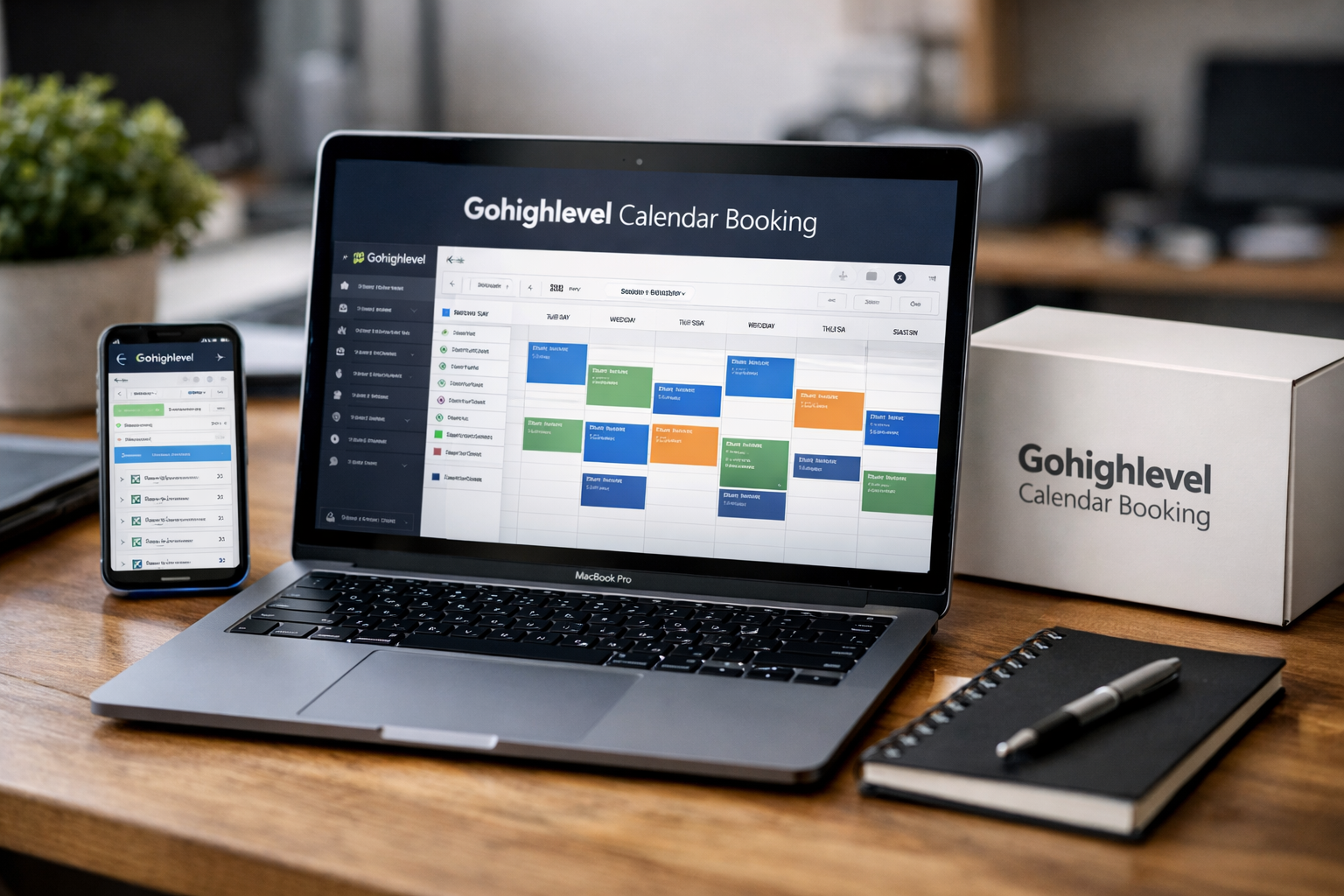
GoHighLevel calendar booking helps service businesses and agencies let prospects choose an available appointment time without the usual email or text-message back-and-forth. Instead of manually coordinating schedules, you can publish a booking page, define availability, connect personal calendars, and use reminders to support attendance.
This beginner-friendly tutorial explains how to create a reliable appointment system from start to finish. Whether you run an agency, coaching practice, local service company, or sales team, the goal is simple: make it easy for qualified leads to book while protecting your time.
Official website · Latest pricing & offers
What GoHighLevel Calendar Booking Is and Who It’s For
GoHighLevel calendar booking is the scheduling functionality within HighLevel that allows businesses to offer appointment slots online. A visitor can select a date and time based on your configured availability, submit their details, and enter your CRM and follow-up process.
For a business, this reduces friction at a critical conversion point. For an agency, it can also create a repeatable scheduling process for client accounts, sales calls, onboarding sessions, consultations, and service appointments.
Does GoHighLevel have a calendar?
Yes. HighLevel includes calendar and appointment tools designed for booking meetings, managing availability, and supporting appointment reminders. The platform’s relevant feature areas include Calendars, Calendar Tools, Appointment Reminders, CRM, Workflows & Automations, Integrations, and Paid Calendars.
A GoHighLevel calendar booking setup can be as simple as a one-person consultation calendar or as structured as a team scheduling flow. The best starting point is usually a personal calendar for one-to-one appointments.
Best use cases for agencies, coaches, and service businesses
Agencies commonly use calendars for discovery calls, strategy sessions, client onboarding, reporting meetings, and sales demos. A clean GoHighLevel booking calendar can be added to a lead-generation funnel so prospects book directly after submitting interest.
Coaches and consultants can use appointment scheduling for introductory calls, paid sessions, and recurring client reviews. Local businesses may use it for estimates, consultations, inspections, tours, or service requests where a specific appointment time is necessary.
| Business type | Common calendar offer | Practical goal |
|---|---|---|
| Marketing agency | Free strategy call | Qualify new leads |
| Home service company | Estimate or inspection | Reduce phone-tag |
| Consultant | Discovery session | Book qualified consultations |
| Coach | Introductory call | Move leads into a sales conversation |
| Sales team | Product demo | Route prospects to available reps |
How calendar booking fits into the HighLevel platform
The calendar is most effective when it is treated as part of a lead-to-client system, not as an isolated scheduling tool. A lead can arrive from a funnel, website, ad, referral, or direct link, book a time, receive reminders, and be tracked in the CRM.
That connection is why gohighlevel calendar booking can be useful for operators who want appointments and follow-up in one place. If you want an all-in-one platform for bookings, CRM, reminders, and follow-up, you can explore GoHighLevel here.
Before You Start: What You Need in Your GoHighLevel Account
Before creating a calendar, decide what the appointment is for and who is responsible for it. This preparation prevents a common mistake: publishing a booking link before availability, confirmation details, and internal ownership are clear.
A well-planned gohighlevel calendar booking flow starts with one defined offer. For example, “30-Minute Roof Estimate Consultation” is more useful than a vague calendar called “Meeting.”
Required access and permissions
You need access to the appropriate HighLevel location or sub-account where the calendar will be created. Agency owners should confirm they are working in the correct client account before changing calendar settings or connecting an employee’s personal calendar.
Also confirm who will host appointments. The host should have the right user access, and any required calendar connection should be authorized by the person whose schedule needs to be checked.
When to use a Personal Booking calendar
A Personal Booking calendar is generally the right foundation for one-to-one meetings. Use it when a lead needs to choose a time with a specific consultant, business owner, salesperson, or staff member.
For instance, a solo financial consultant may create one personal calendar for consultations. An agency might give each sales representative an individual calendar, then route leads to the appropriate booking page based on campaign, location, or service interest.
What to prepare before setup: host, duration, hours, reminders
Write down the following before you begin your GoHighLevel calendar setup:
- The appointment host or assigned team member
- A clear appointment name and short description
- Standard meeting duration
- Weekly working hours and days off
- Minimum notice required before a lead can book
- Buffer time between appointments
- Confirmation and reminder message plan
- The web page, funnel, email, or social profile where the link will appear
This small planning step makes gohighlevel calendar booking far easier to manage after your first appointments arrive.
Step-by-Step: How to Set Up a Booking Calendar in GoHighLevel
The exact labels in the interface can evolve, but the usual process begins in the Calendars area and then Calendar Settings. Work inside the correct location or sub-account so contacts, appointments, notifications, and workflows stay connected to the correct business.
Navigate to Calendar settings
- Log in to HighLevel and select the correct location or client account.
- Open the Calendars area from the main navigation.
- Go to Calendar Settings or the available calendar-management view.
- Review existing calendars before creating a new one to avoid duplicates.
If you inherit an account from another operator, check whether a calendar already exists for the same offer. Duplicated GoHighLevel calendar booking links often confuse both staff and leads.
Create a new calendar
- Select the option to create a new calendar.
- Choose a descriptive calendar name.
- Add an internal description if your team needs clarity on its purpose.
- Assign the host, user, or team members as appropriate.
- Save your initial settings before moving into availability and booking rules.
Use names that make sense to a customer and your internal team. “Free Marketing Growth Call — 30 Minutes” is clearer than “Calendar 1,” while an internal note can explain the source, owner, or campaign.
Choose the correct calendar type
For a standard consultation with one host, choose the personal booking approach where available. This supports a straightforward HighLevel appointment booking flow in which a prospect chooses a time based on that person’s availability.
If several people must attend or multiple attendees can serve the appointment, review the advanced calendar options later in this guide. Starting with the simplest suitable configuration makes troubleshooting much easier.
Enter calendar details and confirm
Enter the details a prospect needs before booking:
- Calendar title
- Appointment duration
- Host or assigned user
- Available days and working hours
- Meeting location or delivery method
- Confirmation information
- Booking rules, including notice and buffers
For a virtual discovery call, the location may simply explain that meeting details will be sent after confirmation. For an in-person estimate, include helpful instructions without adding unnecessary text that could distract from completing the booking.
Before publishing your gohighlevel calendar booking page, complete a test booking using a separate email address. Confirm that the appointment appears correctly, the confirmation is understandable, and the host receives the expected notification.
Copy the calendar link or embed code
After saving the calendar, find the sharing options in the calendar header or settings area. HighLevel can provide a booking link, and supported calendar sharing views may also provide HTML embed code for websites or funnels.
Copy the link into a plain-text document first. This gives your team a single approved URL to use in email signatures, landing pages, automated messages, and social media profiles.
How to Configure Availability, Booking Rules, and Buffer Times
A calendar may look polished but still fail operationally if its availability settings are wrong. The most important part of gohighlevel calendar booking is not the visual page; it is the logic that determines which time slots can be booked.
Weekly working hours vs date-specific hours
Weekly working hours define your normal schedule. For example, a consultant might accept calls Monday through Thursday from 10:00 a.m. to 4:00 p.m., while a local service provider may reserve appointments only on weekday afternoons.
Date-specific hours are useful for exceptions such as holidays, travel days, staff training, or a temporary extended schedule. Check these exceptions whenever a customer says they cannot see an expected time slot.
Setting appointment duration
Choose a duration that matches the real work involved, not the shortest possible conversation. A 15-minute discovery call may be appropriate for a quick qualification step, while a thorough strategy consultation may need 30 or 45 minutes.
Remember that a short appointment can create a rushed customer experience if the host needs time to review notes, answer questions, or update the CRM. In a GoHighLevel calendar setup, duration and buffer settings should be planned together.
Preventing double bookings with conflict settings
Calendar conflict controls help prevent a person from accepting overlapping appointments. When supported personal calendar integrations are connected correctly, conflicts from external calendars can help protect the availability shown to prospects.
Review which calendars are checked for conflicts and test the logic. Create a test event in the connected personal calendar, then look at the booking page to confirm that the conflicting slot is not available.
Using buffer time and booking limits
Buffer time creates breathing room before or after appointments. A 10- to 15-minute buffer is often useful for sales calls, while a field-service business may need a longer block for travel, preparation, or follow-up notes.
Booking limits can also keep a single day manageable. For example, a consultant may decide to accept only four discovery calls per day, protecting time for delivery work and existing clients.
| Setting | Example | Why it matters |
|---|---|---|
| Duration | 30 minutes | Sets realistic expectations |
| Minimum notice | 12 to 24 hours | Avoids surprise appointments |
| Buffer | 15 minutes after each call | Provides note-taking time |
| Daily limit | 4 calls per day | Prevents calendar overload |
| Date override | Block a vacation week | Keeps unavailable times hidden |
These settings make gohighlevel calendar booking feel professional because prospects see realistic options rather than time slots the business cannot actually honor.
Connect Google or Outlook Calendar for Better Scheduling
External calendar integration is especially important for people who already manage personal and business commitments elsewhere. A scheduling page should reflect real availability as closely as possible.
Why syncing matters
A connected Google or Outlook calendar can help avoid showing booking slots that overlap with existing meetings or blocked time. This is valuable for agency owners, consultants, and sales representatives who have events arriving from several systems.
Without careful integration and conflict setup, your GoHighLevel calendar integration may appear to work while still allowing overlap. Always test it before sending the booking link to a large audience.
How personal calendar integration helps prevent conflicts
Start by connecting the appropriate personal calendar through the available integrations area in HighLevel. Authorize the correct account, select the calendar that holds real commitments, and confirm whether it should be used for conflict checking.
Then create a test event in Google or Outlook during normal working hours. Return to the public booking page and verify whether that period is blocked as expected.
Common integration mistakes to avoid
The most frequent problem is connecting the wrong email account or the wrong calendar within that account. Another common issue is failing to refresh or reauthorize a connection after credentials, permissions, or organizational policies change.
Also avoid assuming all calendar events should be treated the same way. Review your setup carefully if private events, all-day events, shared calendars, or team calendars are involved, because their availability behavior may differ by configuration.
Automations, Reminders, and No-Show Reduction
Booking an appointment is only the first conversion. The next goal is getting the prospect to attend prepared and on time.
HighLevel includes Appointment Reminders and Workflows & Automations, which can support a gohighlevel calendar booking process after a lead chooses a slot. Keep messages useful, timely, and aligned with the customer’s expectations.
Set up automated reminders
A basic reminder sequence may include:
- An immediate confirmation after booking
- A reminder one day before the appointment
- A short reminder a few hours before the appointment
- A final reminder shortly before the scheduled time, where appropriate
Include the appointment date, time, time zone when relevant, host name, and meeting instructions. For virtual calls, make it easy to locate the meeting details; for local appointments, include the address or what the customer should prepare.
Use workflows with calendar bookings
Workflows can help trigger follow-up actions based on appointment activity in supported setups. For example, a booked appointment may create or update a contact record, notify an internal owner, and begin a reminder sequence.
An agency can use this to standardize client onboarding. When a prospect books through a GoHighLevel booking calendar, the workflow can notify the assigned salesperson and create a clear next-step task for the team.
Add confirmations and follow-up messages
Confirmation messages should reassure the lead that the booking worked. Use a simple format: appointment name, scheduled time, host, location, and what happens next.
After an appointment, follow up quickly. A no-show sequence can invite the lead to reschedule, while an attended-call sequence can send resources, a proposal request, or a next-step booking link. Be careful not to send conflicting automation paths to the same contact.
Official website · Latest pricing & offers
How to Share Your Calendar Link or Embed It on a Website
Once testing is complete, the calendar needs to appear where intent is highest. A strong gohighlevel calendar booking strategy puts the schedule option close to the moment someone decides they want help.
Share from the calendar header
Open your calendar and locate its sharing controls, commonly available in the header or calendar settings. Copy the approved booking link and label it clearly wherever it is used.
Instead of saying only “Book now,” use context such as “Schedule Your Free 30-Minute Consultation” or “Choose an Estimate Time.” The visitor should know what they are committing to before opening the scheduling page.
Add the booking link to funnels or landing pages
Useful placements include a thank-you page after a lead form, a dedicated consultation page, a service page, an email sequence, and a follow-up text message. Agencies often place the booking link after qualification questions so sales calendars are reserved for stronger prospects.
For better conversion, surround the booking opportunity with brief trust-building copy. Explain who the appointment is for, how long it lasts, what the prospect will receive, and whether there is any preparation required.
Embed calendars with HTML code
If HTML embed code is available in your calendar sharing options, paste it into an HTML-compatible section of your website or funnel builder. Preview the page on desktop and mobile before publishing.
Embedded gohighlevel calendar booking pages reduce the number of steps because visitors can select a time without leaving the page. Still, test loading speed, mobile spacing, and confirmation behavior after any website update.
Advanced Booking Options Worth Knowing
Once your standard one-to-one system works, advanced options can support more complex scheduling needs. HighLevel’s official feature areas include Calendar Tools and Paid Calendars, while available calendar configurations can support different operating models.
Collective bookings for team meetings
GoHighLevel collective bookings can be useful when multiple people need to be available for one meeting. For example, an agency sales call may require both an account strategist and a technical specialist.
The practical benefit is that a lead sees only times when required participants can attend. Because this depends on accurate calendars and conflict rules, test the process with real staff schedules before making it public.
Group calendars and shared scheduling
A GoHighLevel group calendar can be useful when several team members can handle the same type of appointment. This suits sales teams, multi-provider services, and agency support teams that need shared coverage.
Before using group scheduling, define your assignment rules. Decide whether all team members should receive notifications, who owns the lead after booking, and how the business will prevent duplicate follow-up.
Paid calendars and booking with payment
HighLevel lists Paid Calendars among its relevant calendar features. This may be useful for businesses that charge for consultations, sessions, workshops, or reserved time.
Before making a paid appointment calendar public, review the available payment configuration in your account and test the full customer experience. Confirm the booking, payment status, confirmation messaging, and cancellation policy are all clear.
Common Problems and Troubleshooting Tips
Most gohighlevel calendar booking issues are configuration problems rather than platform failures. Troubleshoot in a consistent order: availability, host assignment, conflict calendars, booking rules, integrations, and public-page testing.
Time slots missing from the calendar
First, check weekly availability and date-specific overrides. Then confirm the correct time zone, appointment duration, minimum notice, buffer rules, daily booking limit, and any existing events that may block the slot.
A quick diagnostic method is to temporarily test a broad availability window on a duplicate or unpublished calendar. If slots appear there, reintroduce rules one at a time until you find the setting causing the issue.
Integration issues with Google/Outlook
If events are not blocking time correctly, confirm the connected account, authorization status, and selected conflict calendar. Reconnect or reauthorize the integration if permissions were changed or access has expired.
Also create a new test event after reconnecting. Older events or previously cached behavior can make it difficult to tell whether the current GoHighLevel calendar integration is functioning as intended.
Double-booking and conflict setup issues
Double bookings often happen because the host’s actual calendar was never connected, the wrong calendar was selected for conflict checks, or staff members use multiple calendars that are not all accounted for.
Check the public booking page after adding a test event to every relevant external calendar. If your team uses shared scheduling, verify each participating user’s availability and assignment logic rather than testing only one person.
Best Practices for Agencies and Service Businesses
The best booking systems balance lead convenience with operational control. Your calendar should be easy to use, but it should also filter poor-fit appointments and give staff the information they need to handle qualified opportunities well.
Optimize booking pages for conversion
Use a specific title, a short benefit-focused description, and a reasonable number of questions. Ask only for information your team will use, such as name, email, phone, service needed, location, or budget range.
A conversion-focused gohighlevel calendar booking page should answer four questions quickly: what is this appointment, who is it for, how long does it take, and what happens after booking? Avoid clutter, long paragraphs, and unnecessary fields.
Match calendar names to offers
Create separate calendars when your offers have different durations, hosts, qualification needs, or follow-up processes. Examples include “Free Website Audit,” “Kitchen Renovation Estimate,” and “Client Success Check-In.”
Clear naming also helps reporting and team handoffs. Staff should be able to see the appointment type and understand the expected next action without opening multiple records.
Use reminders and confirmation flows
Do not rely on a single confirmation message. A practical reminder flow should be respectful rather than excessive, and it should include the information needed to attend.
GoHighLevel reminders can support consistency across every client account or team member. Review message timing from the customer’s perspective, especially for appointments booked close to the scheduled time.
Track booked appointments as a KPI
Track more than total bookings. Useful metrics include booking-page visits, booking conversion rate, show rate, no-show rate, reschedule rate, qualified appointment rate, and revenue generated from appointments.
For agencies, review these numbers by client, funnel, campaign, or appointment type. This turns gohighlevel calendar booking from a simple scheduling feature into a measurable part of the sales process.
When GoHighLevel Calendar Booking Is the Right Fit
GoHighLevel calendar booking is a practical fit when appointments play a meaningful role in acquiring, qualifying, serving, or retaining customers. It is especially useful when a business wants calendar activity connected to CRM records, reminders, workflows, and marketing pages.
HighLevel offers a 14 Day Free Trial, which can be a sensible period for testing a real calendar flow with your team. Use that time to build one appointment type, connect a personal calendar, make test bookings, and validate reminder messages.
For agencies managing multiple clients
Agencies can build a repeatable framework for discovery calls, client onboarding, and appointment funnels. Separate location-level setups help keep each client’s contacts, calendars, branding, and workflows organized.
The key is standardization without forcing every client into the same offer. Create a documented GoHighLevel calendar setup checklist, then customize duration, hours, messages, and questions to match the client’s business model.
For local service businesses
Local operators can use booking pages for quotes, site visits, consultations, and service calls. Strong availability rules are particularly important when travel time, technician capacity, and service areas affect the schedule.
Use buffers generously for field appointments. A calendar that offers fewer but reliable slots is better than one that produces late arrivals and frustrated customers.
For coaches, consultants, and sales teams
Coaches and consultants benefit from clear appointment types and automated reminders. Sales teams can use separate calendars for discovery, demos, and closing conversations so each stage has the right duration and preparation.
For these businesses, gohighlevel calendar booking is most valuable when follow-up is defined before the first lead books. Decide how attendees, no-shows, cancellations, and reschedules should be handled, then build workflows around that process.
Official website · Latest pricing & offers
FAQ About GoHighLevel Calendar Booking
Short-Answer Style Responses to PAA Questions
Does GoHighLevel have a calendar?
Yes. HighLevel includes calendar and appointment tools that can help businesses manage availability, book meetings, share scheduling links, and support appointment reminders.
How do I add a booking reservation to my calendar?
Create a calendar in Calendar Settings, assign the appropriate host, set availability and appointment duration, then save it. You can share the booking link or embed the calendar on a website so a prospect can reserve an available time.
How to do calendar booking?
Start by creating a calendar, defining working hours and booking rules, and connecting a personal Google or Outlook calendar where appropriate. Then test the public page, configure confirmations and reminders, and publish the link where prospects are ready to book.
How do I put an appointment on my calendar?
You can use the booking flow to schedule through available slots, or manually add an appointment from the calendar or appointments area when your workflow and account permissions support it. For manually created appointments, always confirm the correct contact, date, time, host, and appointment type before saving.
A reliable gohighlevel calendar booking process gives customers a simpler way to take the next step while giving your team more control over availability, follow-up, and appointment quality. Start with one clear offer, test every part of the journey, and expand only after the basic scheduling flow works consistently.
Related Reading
- Gohighlevel SMS Automation: Best Practices for More Replies and Bookings
- Gohighlevel Email Marketing: A Practical Setup, Deliverability, and Conversion Guide
- How to Replace ClickFunnels with Systeme.io in 2026
References
- Calendars & Appointments
- Getting Started – Setup A Booking Calendar
- HighLevel Calendar Availability: Weekly & Date-Specific
- How to use Collective Bookings in Calendars?